




















Exporting a Dashboard from Code
Our sample projects and report templates can help you learn the basics of working with our products.A whole dashboard — or a single element — can be exported to PDF or Excel straight from JavaScript.
Export the whole dashboard.
How it works. Both the dashboard and its individual elements render to file bytes on the client, so users can save the whole board or one panel.
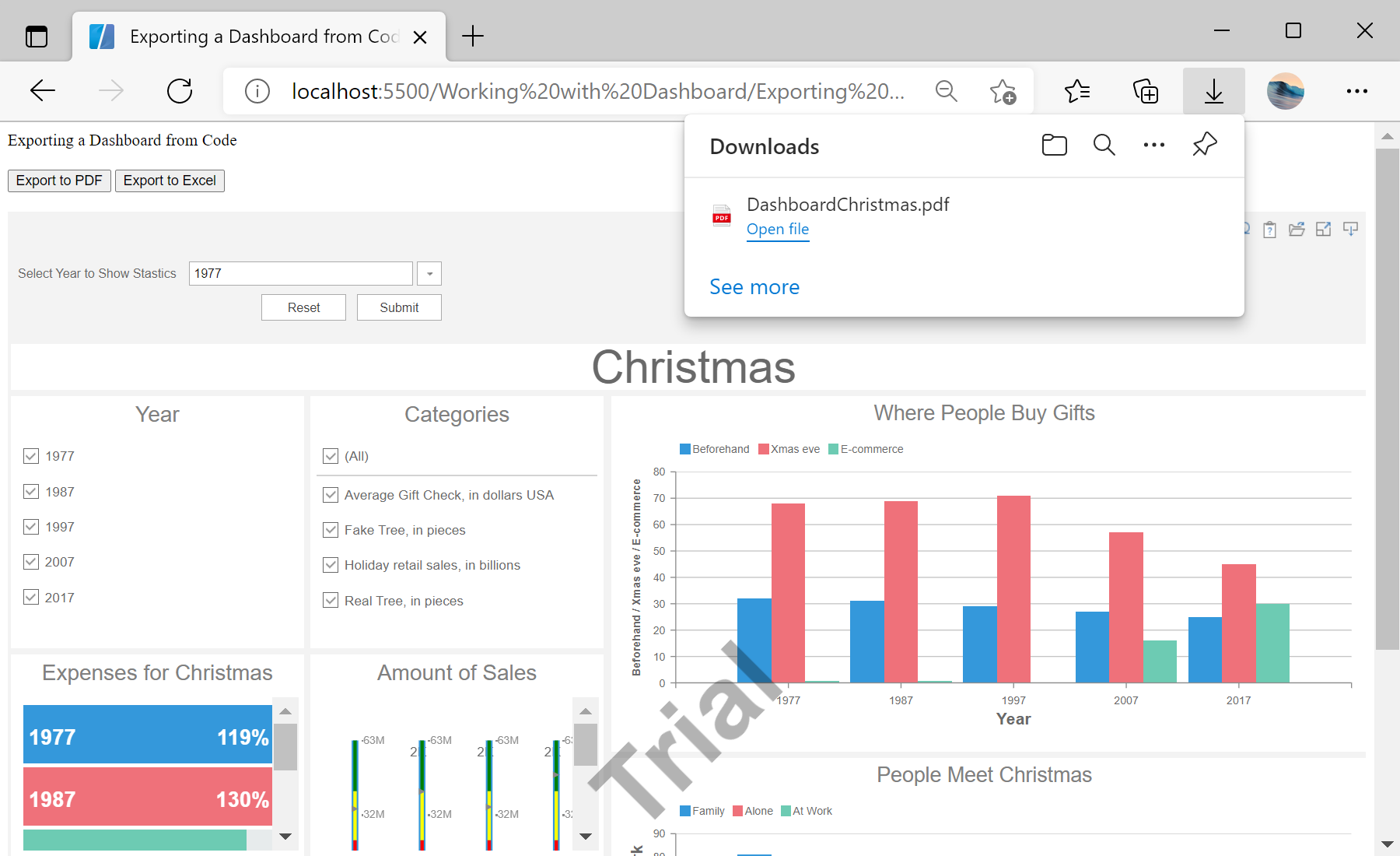
In the screenshot below you can see the result of the sample code:
Export the whole dashboard.
report.exportDocumentAsync(function (data) {
    Stimulsoft.System.StiObject.saveAs(data, report.reportName + ".pdf", "application/pdf");
}, Stimulsoft.Report.StiExportFormat.Pdf); // or Excel2007var chart = report.getComponentByName("Chart1");
Stimulsoft.Dashboard.Export.StiDashboardExportTools.exportAsync(function (data) {
Stimulsoft.System.StiObject.saveAs(data, report.reportName + ".pdf", "application/pdf");
}, chart, Stimulsoft.Report.StiExportFormat.Pdf);report.exportDocumentAsync(callback, format)— export the entire dashboard.StiDashboardExportTools.exportAsync(callback, element, format)— export just one element (chart, table, …).
How it works. Both the dashboard and its individual elements render to file bytes on the client, so users can save the whole board or one panel.
In the screenshot below you can see the result of the sample code: