















Citius, Altius, Fortius - Communiter! We have finished the Olympic Games in Tokyo analysis and collected various interesting information and statistics in one dashboard. Do you want to know how many countries are competing in Tokyo? Or how many athletes will compete in different sports and events?
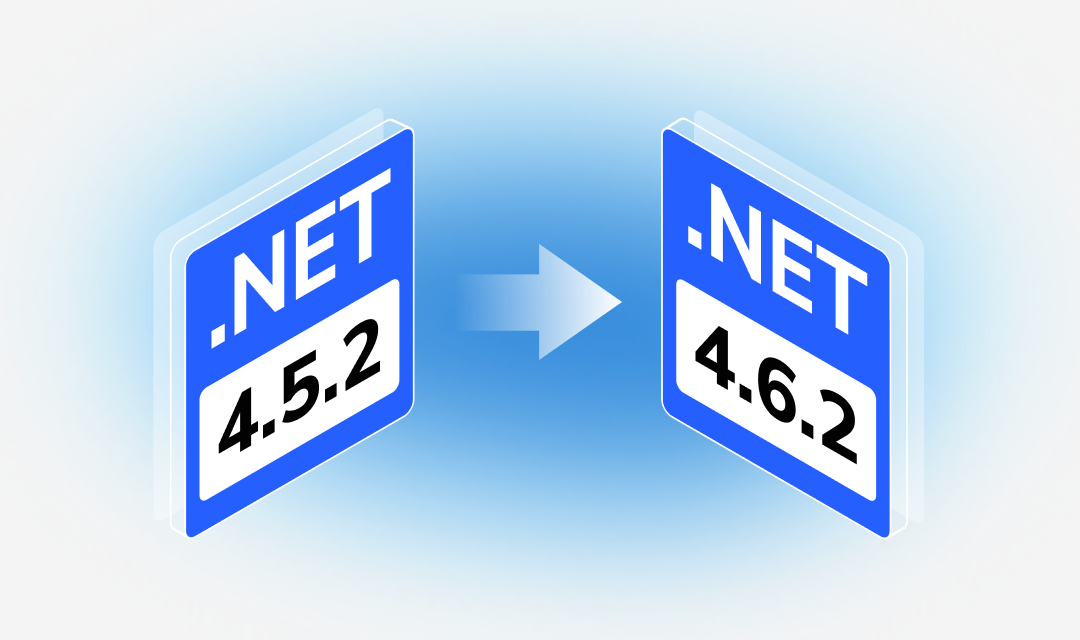
Today we would like to announce changes in system requirements for products. Starting with version 2021.4 of Stimulsoft Reports and Dashboards, you should have at least .NET Framework 4.5.2 or higher to work with our products when using WinForms and WPF platforms.
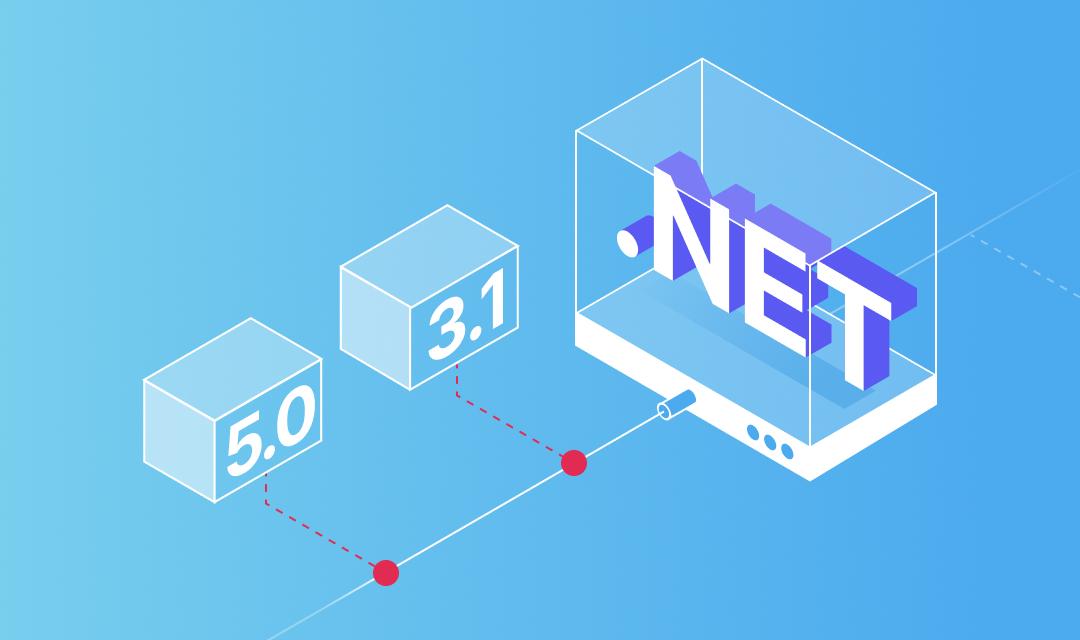
Framework versions for .NET Core libraries remain the same:
- .NET Core 3.1 and higher for WinForms and WPF products;
- .NET Standard 2.0 and higher for Web products.
In April 2021, Microsoft released Windows 10 21H2 Sun Valley (according to the inside information - Windows 11). This update includes a major redesign of the user interface, improved animations, updated built-in applications, and many other new features and system optimizations.
We at Stimulsoft subscribed to get preliminary versions and have already tested our software on the latest Sun Valley build currently available. We are glad to inform our clients about full compatibility and the absence of errors in their work. We will monitor the release of new assemblies, perform further tests, and at the time of the release of the final version, Stimulsoft products will be ready for work.
We are pleased to announce the release of the new version Stimulsoft Reports and Stimulsoft Dashboards 2021.3, which is now available for download. In this release, we added 5 views for the Chart element of a dashboard, a new data adapter for Google Analytics service, a new Condition Editor, expanded the functionality for Variables, and added many other features and improvements.
Several charts in one
In the new version 2021.3, you may specify up to 5 views for the Chart element of a dashboard. Each view is a distinct type of chart with its data fields. Switching views is carried out in the viewer using controls. At the same time, the views are configured in the editor of the Chart element on the additional parameters panel.

New functionality for variables
In this release, we have expanded the capabilities of variables of the List type. First, we have added the ability to create dependent variables for them. Previously, this was only possible with variables of the Value type. Now you can create dependent variables for each type and their combinations. In addition, you may specify default values for variables of the List type.

Table column visibility
In the 2021.3 release, we have expanded the ability to control the visibility of data fields for the Table element in dashboards. When designing dashboards, you can now specify the condition to include a data field through an expression defined as the value of the Visible parameter of this field in the element editor. When viewing the dashboard in the viewer, we added control for the visibility of the table columns. This control contains a list of all the columns in the table. Just disable the checkbox next to the columns you want to hide. You can disable or enable this control in the dashboard design mode in the Interaction menu.

Summary Alignment
In the new version, we added the ability to align the total horizontally - left, right, center. This is applicable for the Table element in dashboards. You may change the alignment of the table column total using the Summary Alignment property. Just select the data column in the table editor and set the required value on the properties panel.

Searching in filter items
We have added the ability to search for values for filtering dashboard elements - List Box and Combo Box. The search field will be displayed automatically if the number of values in the element is more than 10. Then you just need to enter the text you need to find.

Google Analytics adapter
In this release, we have added a new adapter to receive data from the Google Analytics service. You can find them on the Google tab in the New Data Source window. Now you can create reports and dashboards for web analytics.

Customizing icons for indicator series
Starting with release 2021.3, you can customize icons for different indicator values when using the series. Previously, you could only select a set of icons for all values of the series. Now you can define the value range for the icon to apply. Ranges for icons are set in the indicator editor if there are series. To do this, set the Mode parameter to Custom.

Color picker
In release 2021.3, we added an Eyedropper tool in the WinForms report designer. Select this tool and, keeping the left mouse button pressed, drag it to the element whose color you want to get.

Safe copy of the report
Starting with release 2021.3, we added protection against unintentional program closure when designing a report or dashboard in the Stimulsoft BI Designer for Windows application. Now, in case of emergencies, a backup copy of the report is saved. The next time you start the application, you can restore it by clicking the Recover button in the Recover Items window.

New condition editor
In version 2021.3, we have updated and optimized the editor for conditional formatting of dashboard elements. Now the second value of the condition can be specified as an expression. And for the Table element, the ability to define the table columns for which it is necessary to apply conditional formatting has been added. Previously, it was required to determine its conditional formatting for each column of the table.

Several charts in one
In the new version 2021.3, you may specify up to 5 views for the Chart element of a dashboard. Each view is a distinct type of chart with its data fields. Switching views is carried out in the viewer using controls. At the same time, the views are configured in the editor of the Chart element on the additional parameters panel.

New functionality for variables
In this release, we have expanded the capabilities of variables of the List type. First, we have added the ability to create dependent variables for them. Previously, this was only possible with variables of the Value type. Now you can create dependent variables for each type and their combinations. In addition, you may specify default values for variables of the List type.

Table column visibility
In the 2021.3 release, we have expanded the ability to control the visibility of data fields for the Table element in dashboards. When designing dashboards, you can now specify the condition to include a data field through an expression defined as the value of the Visible parameter of this field in the element editor. When viewing the dashboard in the viewer, we added control for the visibility of the table columns. This control contains a list of all the columns in the table. Just disable the checkbox next to the columns you want to hide. You can disable or enable this control in the dashboard design mode in the Interaction menu.

Summary Alignment
In the new version, we added the ability to align the total horizontally - left, right, center. This is applicable for the Table element in dashboards. You may change the alignment of the table column total using the Summary Alignment property. Just select the data column in the table editor and set the required value on the properties panel.

Searching in filter items
We have added the ability to search for values for filtering dashboard elements - List Box and Combo Box. The search field will be displayed automatically if the number of values in the element is more than 10. Then you just need to enter the text you need to find.

Google Analytics adapter
In this release, we have added a new adapter to receive data from the Google Analytics service. You can find them on the Google tab in the New Data Source window. Now you can create reports and dashboards for web analytics.

Customizing icons for indicator series
Starting with release 2021.3, you can customize icons for different indicator values when using the series. Previously, you could only select a set of icons for all values of the series. Now you can define the value range for the icon to apply. Ranges for icons are set in the indicator editor if there are series. To do this, set the Mode parameter to Custom.
Color picker
In release 2021.3, we added an Eyedropper tool in the WinForms report designer. Select this tool and, keeping the left mouse button pressed, drag it to the element whose color you want to get.

Safe copy of the report
Starting with release 2021.3, we added protection against unintentional program closure when designing a report or dashboard in the Stimulsoft BI Designer for Windows application. Now, in case of emergencies, a backup copy of the report is saved. The next time you start the application, you can restore it by clicking the Recover button in the Recover Items window.

New condition editor
In version 2021.3, we have updated and optimized the editor for conditional formatting of dashboard elements. Now the second value of the condition can be specified as an expression. And for the Table element, the ability to define the table columns for which it is necessary to apply conditional formatting has been added. Previously, it was required to determine its conditional formatting for each column of the table.

We are pleased to announce the release of the new version Stimulsoft Reports and Stimulsoft Dashboards 2021.2, which is now available for download. In this release, we added a new product - Stimulsoft Reports.Blazor, a new component Math Formulas, a new data adapter Azure Blob Storage, export dashboards to HTML format, support for HTML tags in PDF, and many other improvements.
Support for Blazor
Starting with the 2021.2 release, we are introducing the reporting tool for the Blazor platform. It is a cross-platform software designed for integration into applications using the Blazor framework. Our components support Razor Pages technology. They may work both on the server-side (Blazor Server) and client-side (Blazor WebAssembly). All you need is a Web browser. This report writer is part of Stimulsoft Reports.Web.

Mathematical formulas
In the new version, you can insert math formulas in your reports using the special Math Formula component. All mathematical formulas are arranged in groups in the special editor, where each group can be found on a separate tab. Also, you can specify the formula using LaTeX syntax.

New data adapters - Azure SQL and Azure Blob Storage
In this new release, we have added new adapters to fetch data from services such as Azure SQL and Azure Blob Storage. You may find them on a separate Azure tab in the New Data Source window. Based on the data obtained from these services, you can create reports and dashboards.

Dashboard positioning
Starting with this release, you can define the behavior of the dashboard when viewed. Previously, you could stretch the dashboard to the entire area of the viewer by height and width. Now you may extend it only by the width, height and width for the whole area of the viewer or not to stretch it at all. To specify the behavior of the dashboard, open the Dashboard settings window and set the value of the Content Alignment parameter. Double-click the workspace or select the Design command from the dashboard context menu to call the dashboard settings.

Export a dashboard to HTML
In this release, we have added the ability to convert the dashboard and its elements to an HTML file. Open the dashboard in the viewer, go to the preview and select the HTML command from the Save menu on the toolbar or in a similar menu for a specific element. After that, the dashboard or its element will be converted into an HTML file.

New variable features
In this release, we have significantly optimized and improved the capabilities of report variables. You may customize the globalization of variable elements in the Globalization Strings editor. And when creating or editing a variable with the Request from User option enabled, you can specify the sorting of the values of this variable in the viewer. Moreover, sorting can be carried out both by the key values of the variable and by signatures. Also, in reports, you can refer to the signatures of variable values using the following template - VariableName.Label.

Digital signature certificate
In the 2021.2 release, we simplified the digital signature certificate selection directly from the export settings menu when converting a report to PDF. Click the Browse button in the Digital Signature field and select a certificate.

The new dashboard feature - Percent Of Grand Total
We have added a new function Percent Of Grand Total for the Measure type of dashboard elements. You may use the new function to display the fraction of the current value from the sum of the values of this data field. To show percentages, apply percentage formatting to the field where values are processed using the Percent Of Grand Total function.

Support for HTML tags in PDF
We have improved the algorithm for exporting reports and dashboards to a PDF file for JS and .NET Core components. Previously, HTML tags were processed, converted into an image or cut out for a PDF file. Now HTML tags are supported in PDF files when exporting reports and dashboards.

Exporting dashboards to SVG
Also, we have added the ability to export dashboards and their elements to an SVG file for Dashboards.JS. While viewing the dashboard, select the Image command from the Save menu on the toolbar or similar menu for a specific item. After that, the dashboard or its element will be converted into an SVG file.

Exporting reports to PowerPoint
Now in Reports.Java, you may export reports to Microsoft PowerPoint (*.pptx). While viewing the report, select the Microsoft PowerPoint file command from the Save menu, specify the export option, and click the OK button in the export settings menu. The report will be converted to Microsoft PowerPoint.

Support for Blazor
Starting with the 2021.2 release, we are introducing the reporting tool for the Blazor platform. It is a cross-platform software designed for integration into applications using the Blazor framework. Our components support Razor Pages technology. They may work both on the server-side (Blazor Server) and client-side (Blazor WebAssembly). All you need is a Web browser. This report writer is part of Stimulsoft Reports.Web.

Mathematical formulas
In the new version, you can insert math formulas in your reports using the special Math Formula component. All mathematical formulas are arranged in groups in the special editor, where each group can be found on a separate tab. Also, you can specify the formula using LaTeX syntax.

New data adapters - Azure SQL and Azure Blob Storage
In this new release, we have added new adapters to fetch data from services such as Azure SQL and Azure Blob Storage. You may find them on a separate Azure tab in the New Data Source window. Based on the data obtained from these services, you can create reports and dashboards.

Dashboard positioning
Starting with this release, you can define the behavior of the dashboard when viewed. Previously, you could stretch the dashboard to the entire area of the viewer by height and width. Now you may extend it only by the width, height and width for the whole area of the viewer or not to stretch it at all. To specify the behavior of the dashboard, open the Dashboard settings window and set the value of the Content Alignment parameter. Double-click the workspace or select the Design command from the dashboard context menu to call the dashboard settings.

Export a dashboard to HTML
In this release, we have added the ability to convert the dashboard and its elements to an HTML file. Open the dashboard in the viewer, go to the preview and select the HTML command from the Save menu on the toolbar or in a similar menu for a specific element. After that, the dashboard or its element will be converted into an HTML file.

New variable features
In this release, we have significantly optimized and improved the capabilities of report variables. You may customize the globalization of variable elements in the Globalization Strings editor. And when creating or editing a variable with the Request from User option enabled, you can specify the sorting of the values of this variable in the viewer. Moreover, sorting can be carried out both by the key values of the variable and by signatures. Also, in reports, you can refer to the signatures of variable values using the following template - VariableName.Label.

Digital signature certificate
In the 2021.2 release, we simplified the digital signature certificate selection directly from the export settings menu when converting a report to PDF. Click the Browse button in the Digital Signature field and select a certificate.

The new dashboard feature - Percent Of Grand Total
We have added a new function Percent Of Grand Total for the Measure type of dashboard elements. You may use the new function to display the fraction of the current value from the sum of the values of this data field. To show percentages, apply percentage formatting to the field where values are processed using the Percent Of Grand Total function.

Support for HTML tags in PDF
We have improved the algorithm for exporting reports and dashboards to a PDF file for JS and .NET Core components. Previously, HTML tags were processed, converted into an image or cut out for a PDF file. Now HTML tags are supported in PDF files when exporting reports and dashboards.

Exporting dashboards to SVG
Also, we have added the ability to export dashboards and their elements to an SVG file for Dashboards.JS. While viewing the dashboard, select the Image command from the Save menu on the toolbar or similar menu for a specific item. After that, the dashboard or its element will be converted into an SVG file.

Exporting reports to PowerPoint
Now in Reports.Java, you may export reports to Microsoft PowerPoint (*.pptx). While viewing the report, select the Microsoft PowerPoint file command from the Save menu, specify the export option, and click the OK button in the export settings menu. The report will be converted to Microsoft PowerPoint.