













Exporting a Dashboard from Code
Unsere Beispiele der Projekte und Berichtsvorlagen helfen Ihnen, die Grundlagen der Arbeit mit unserer Software zu erlernen.This example shows how to export dashboard from code. First, use
You can call export functions with buttons:
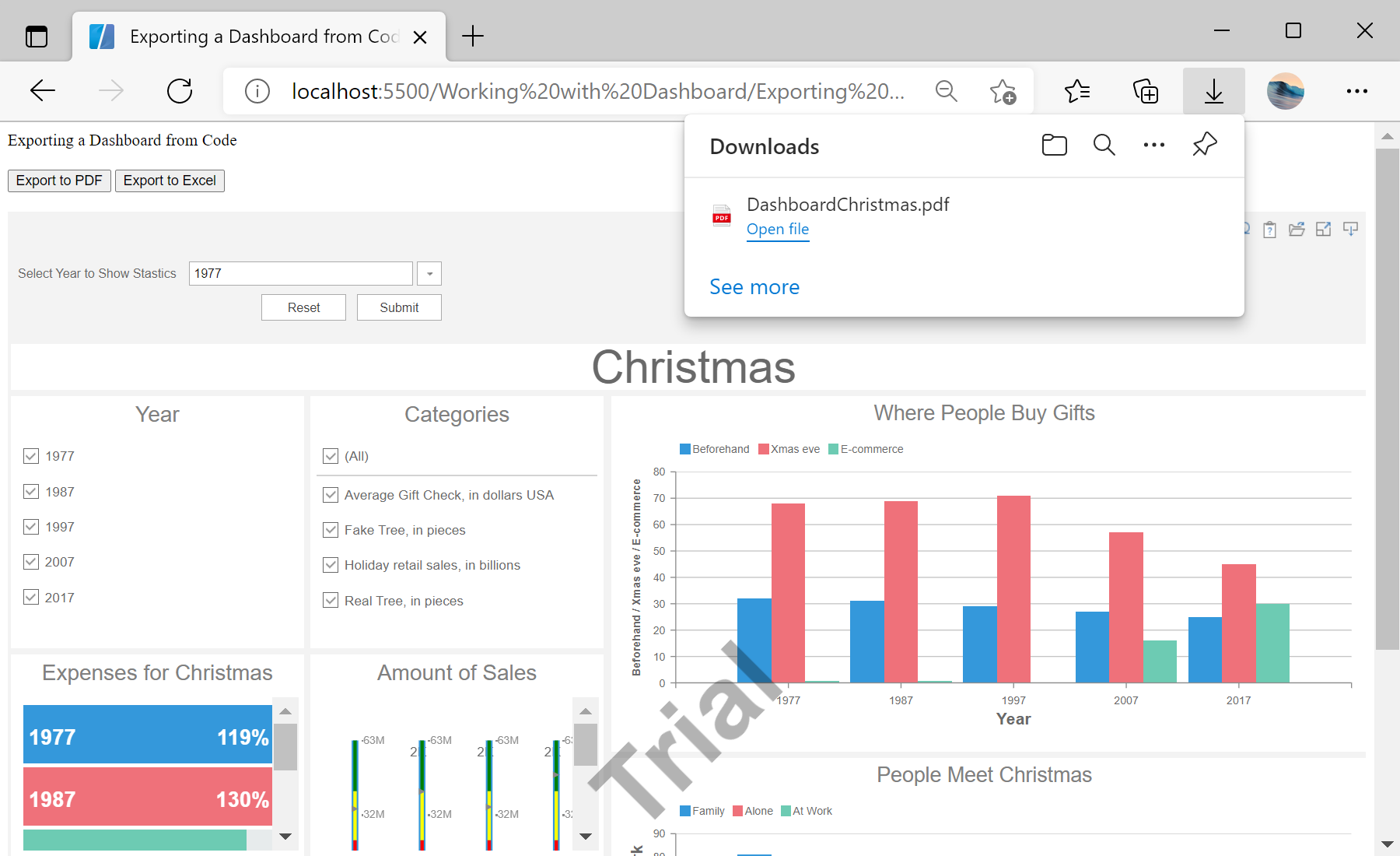
Auf dem Screenshot unten Sie können das Ergebnis des Beispiel-Codes ansehen:

StiViewer() method to create the designer. After that, use createNewDashboard() and loadFile() methods to create new dashboard and load dashboard template. Next, assign dashboard to the viewer. Finally, use exportDocumentAsync() method to create export functions:
<script type="text/javascript">
// Create the dashboard viewer with default options
var viewer = new Stimulsoft.Viewer.StiViewer(null, "StiViewer", false);
// Create a new dashboard instance
var report = Stimulsoft.Report.StiReport.createNewDashboard();
// Load dashboard from url
report.loadFile("../dashboard/DashboardChristmas.mrt");
// Assign dashboard to the viewer, the dashboard will be built automatically after rendering the viewer
viewer.report = report;
function onExportToPdfClick() {
// Export to PDF
report.exportDocumentAsync((data) => {
// Save data to file
Stimulsoft.System.StiObject.saveAs(data, report.reportName + ".pdf", "application/pdf");
}, Stimulsoft.Report.StiExportFormat.Pdf);
}
function onExportToExcelClick() {
// Export to Excel
report.exportDocumentAsync((data) => {
// Save data to file
Stimulsoft.System.StiObject.saveAs(data, report.reportName + ".xlsx", "application/vnd.ms-excel");
}, Stimulsoft.Report.StiExportFormat.Excel2007);
}
</script>
You can call export functions with buttons:
<input type="submit" value="Export to PDF" onclick="onExportToPdfClick()" />
<input type="submit" value="Export to Excel" onclick="onExportToExcelClick()" />
Auf dem Screenshot unten Sie können das Ergebnis des Beispiel-Codes ansehen: