




















Editing a Dashboard Template and Showing it in the Dashboard Viewer
Our sample projects and report templates can help you learn the basics of working with our products.The viewer and designer can share one dashboard, toggling between preview and editing by moving the report object between them.
Create both, then swap the report on toggle.
How it works. The dashboard object is passed between viewer and designer, so edits made in one appear immediately when switching to the other.
In the screenshot below you can see the result of the sample code:
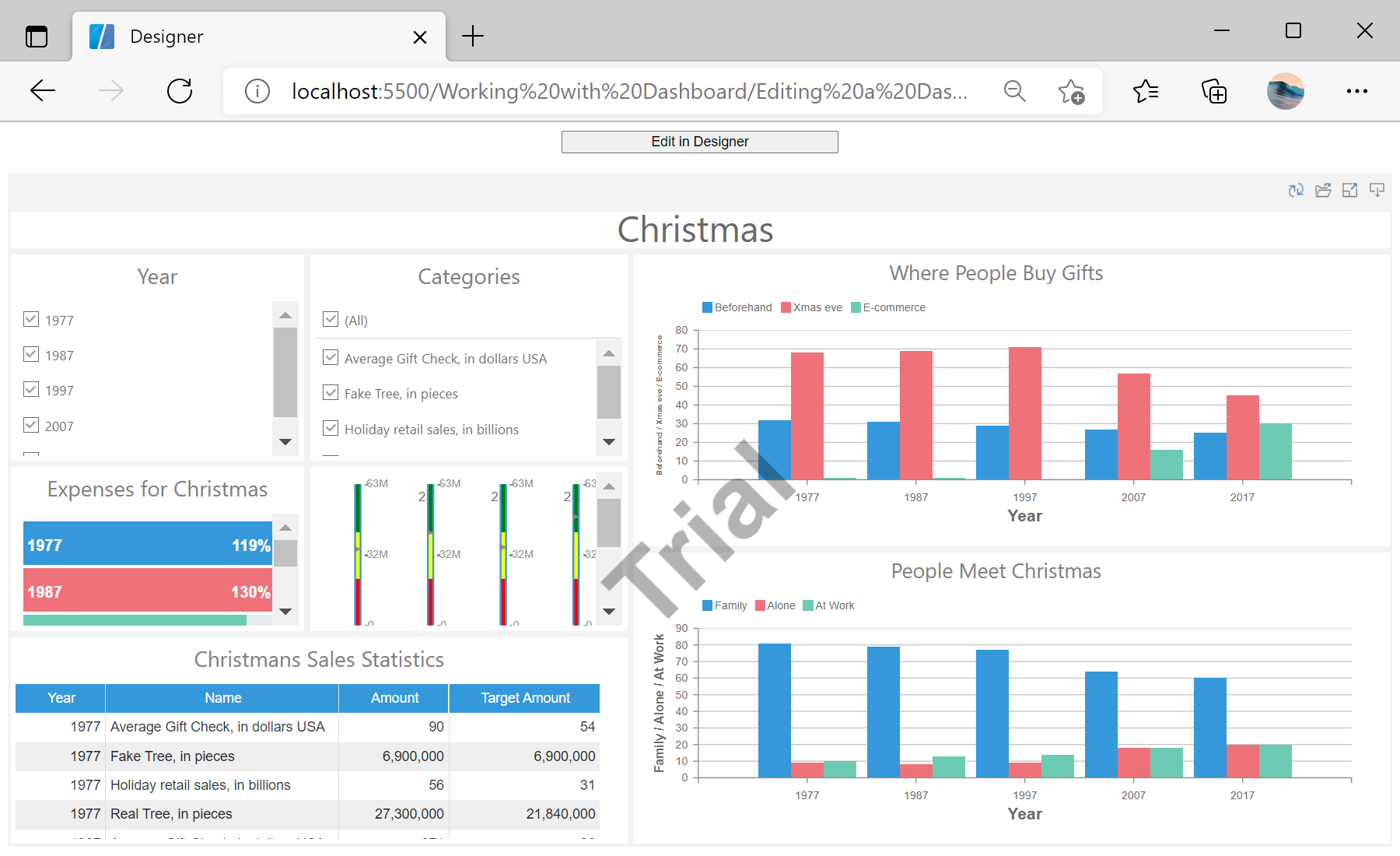
Create both, then swap the report on toggle.
var designer = new Stimulsoft.Designer.StiDesigner(null, "StiDesigner", false);
var viewer = new Stimulsoft.Viewer.StiViewer(new Stimulsoft.Viewer.StiViewerOptions(), "StiViewer", false);

var report = Stimulsoft.Report.StiReport.createNewDashboard();
report.loadFile("../dashboard/Christmas.mrt");
viewer.report = report;

function openInDesigner() { designer.report = viewer.report; }   // show designer
function openInViewer() { viewer.report = designer.report; } // show viewer- Both components are rendered; buttons show one and hide the other.
- Assigning
designer.report = viewer.report(and back) carries the current dashboard between them.
How it works. The dashboard object is passed between viewer and designer, so edits made in one appear immediately when switching to the other.
In the screenshot below you can see the result of the sample code: