




















Using the Full-Screen Mode in the Viewer
Our sample projects and report templates can help you learn the basics of working with our products.The web viewer can occupy the whole browser window in full-screen mode, useful for report portals and dashboards.
Enabling full-screen. Turn on
In the screenshot below you can see the result of the sample code:
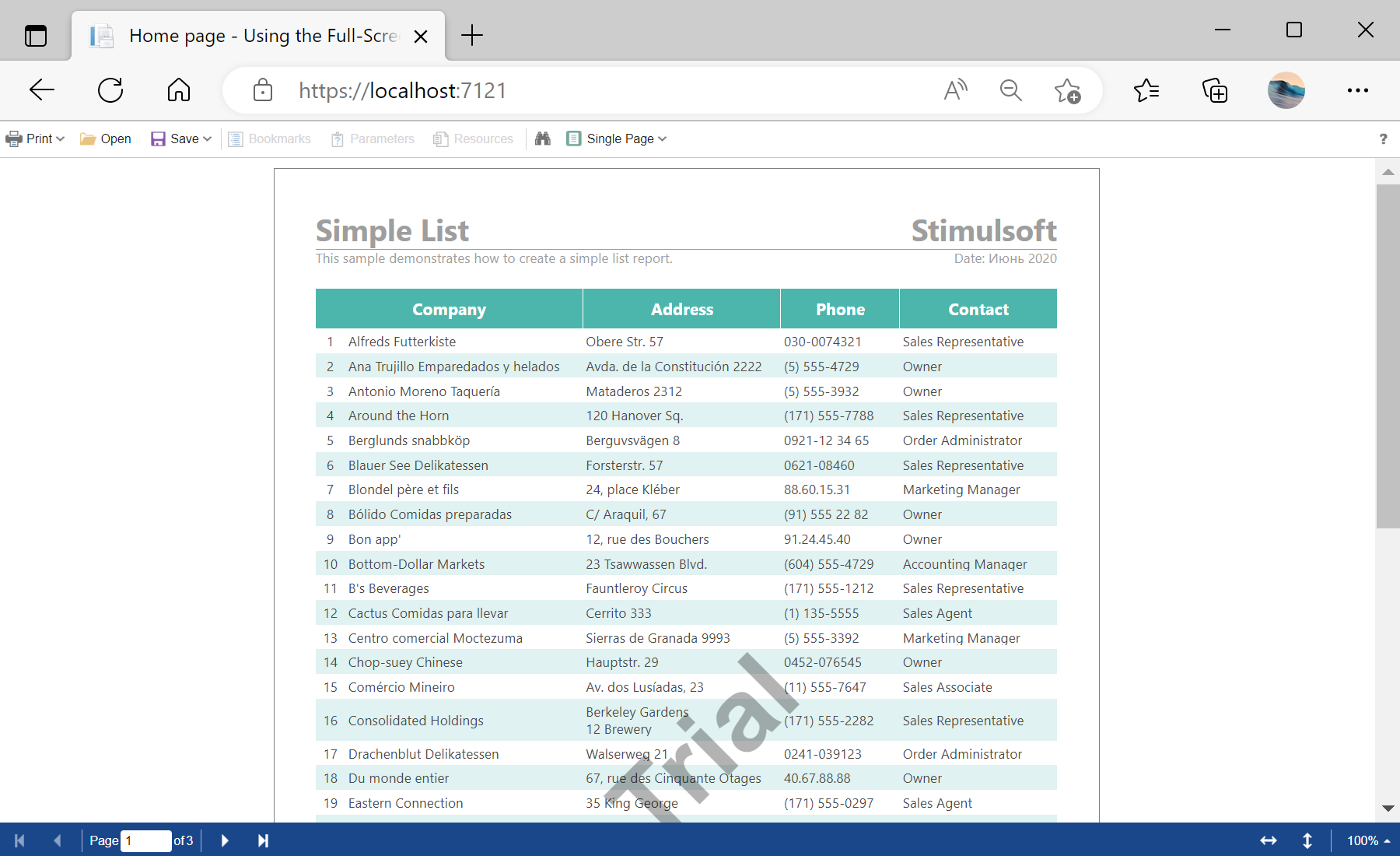
Enabling full-screen. Turn on
FullScreenMode in the appearance options and adjust the toolbar:@using Stimulsoft.Report.Web;
@Html.StiNetCoreViewer(new StiNetCoreViewerOptions()
{
Actions = { GetReport = "GetReport", ViewerEvent = "ViewerEvent" },
Appearance = { FullScreenMode = true },
Toolbar =
{
ShowFullScreenButton = false,
DisplayMode = StiToolbarDisplayMode.Separated
}
})In the screenshot below you can see the result of the sample code: