




















Using business objects in the report
Our sample projects and report templates can help you learn the basics of working with our products.Reports can be bound to your application's business objects. This example registers a business object collection and opens the report in the designer.
Registering the objects. Build the object collection, register it as a business data source, synchronize the dictionary, and render the report.
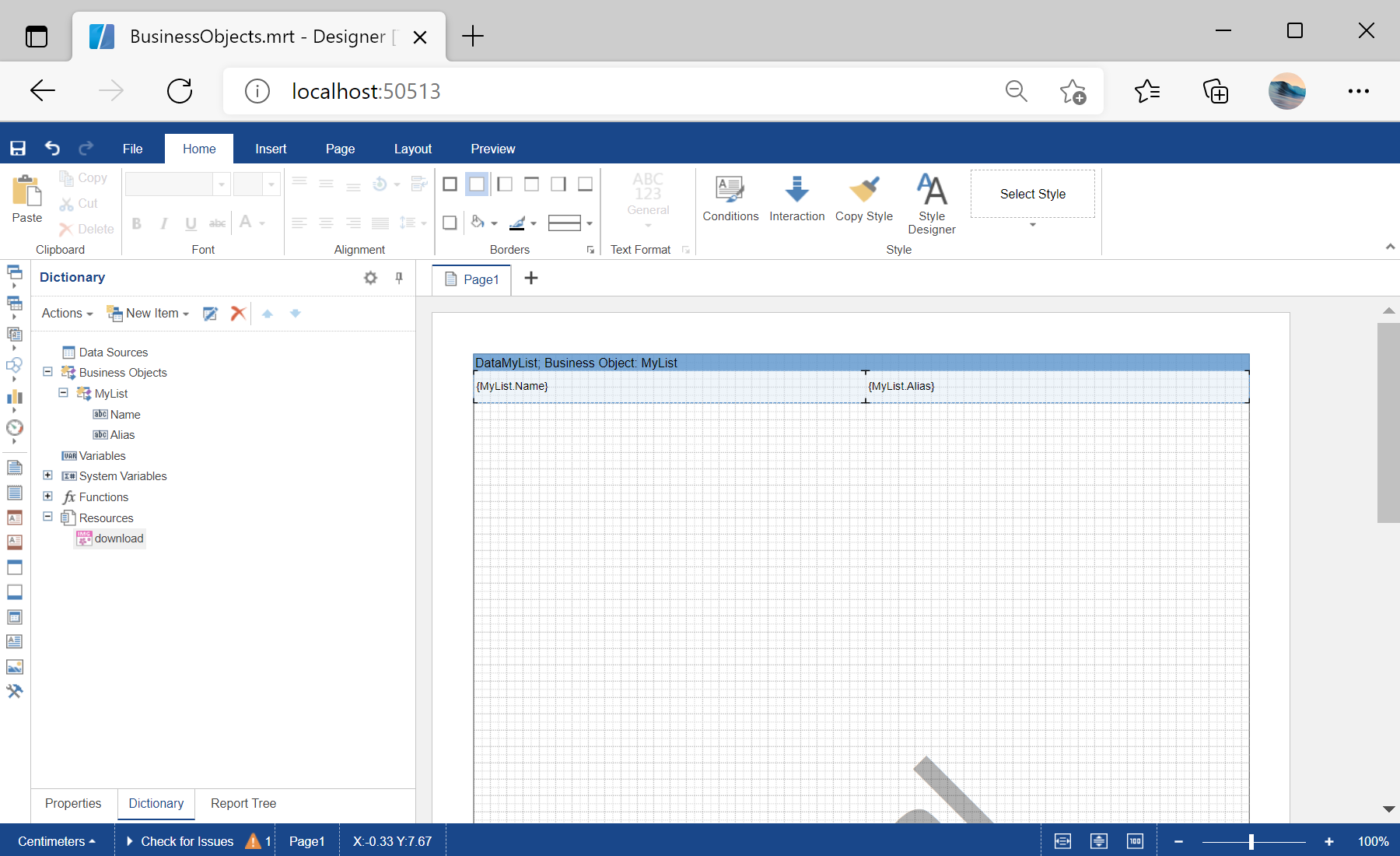
In the screenshot below you can see the result of the sample code:
Registering the objects. Build the object collection, register it as a business data source, synchronize the dictionary, and render the report.
<StiBlazorDesigner Report="@Report" OnSaveReport="@OnSaveReport" />

@code {
    protected override void OnInitialized()
    {
        this.Report = new StiReport();
        this.Report.Load("Reports/BusinessObjects.mrt");

        var list = GetBusinessObject();
        this.Report.RegBusinessObject("MyList", list);
        this.Report.Dictionary.Synchronize();
    }
}
RegBusinessObject registers your object collection under a name, and Dictionary.Synchronize() creates the matching data fields. The report then works with your domain classes directly, both in the designer and when rendered.In the screenshot below you can see the result of the sample code: