




















Managing software licenses is essential for keeping your development process organized, secure, and compliant. When working with multiple products or multiple developers, proper license assignment guarantees that each team member has access to the necessary tools. It also helps your company maintain transparent ownership and license control.
Every developer who works with our tool needs a license, must be added to your company account, and must be assigned the appropriate product.
If you have purchased one, two or more different licenses of our software, it is necessary to assign each developer to the product he or she uses, provide access to the license key file and code, and provide access to the technical support. Only users with the Owner or Owner & Developer roles may administer this. Follow the steps below to complete the process.
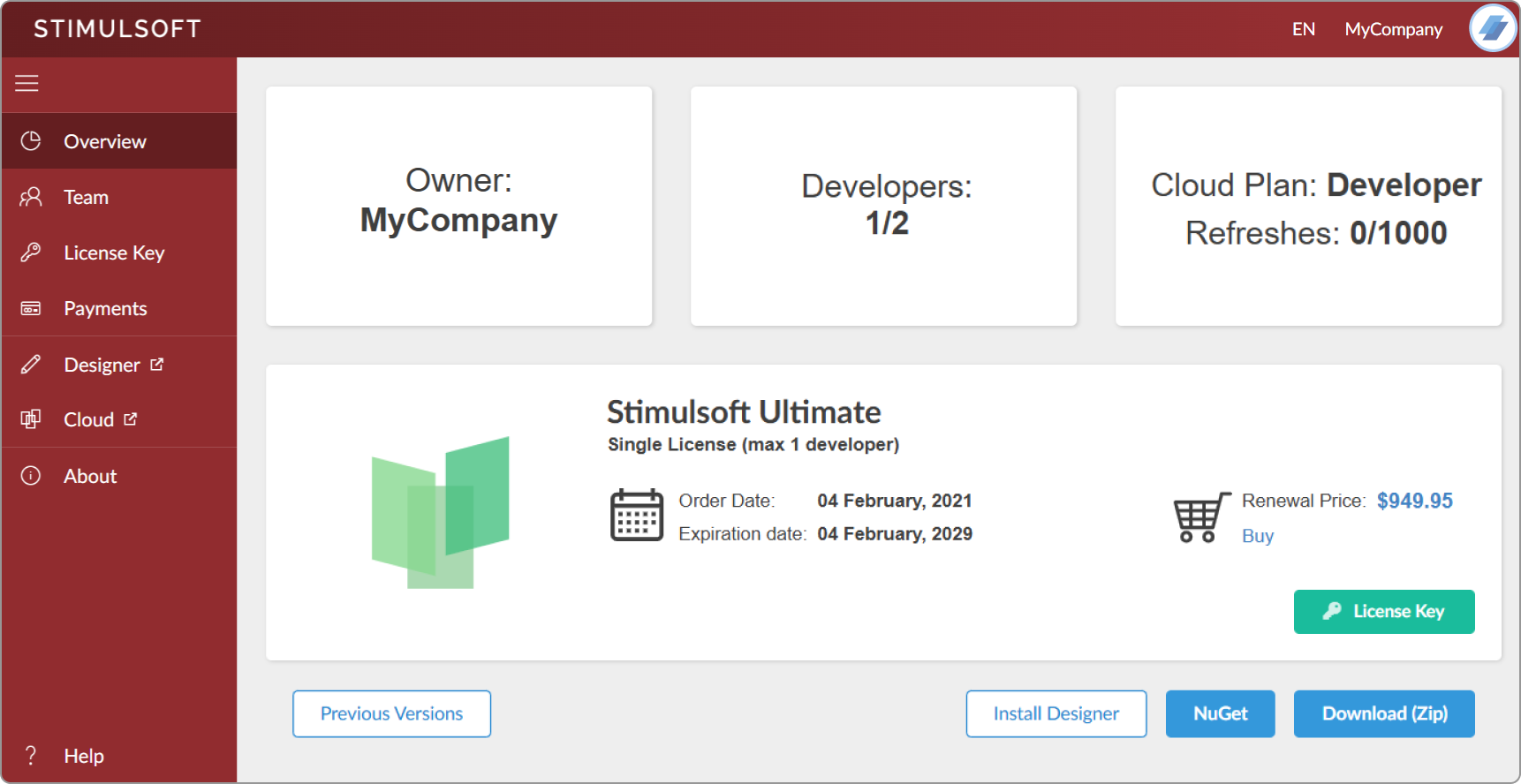
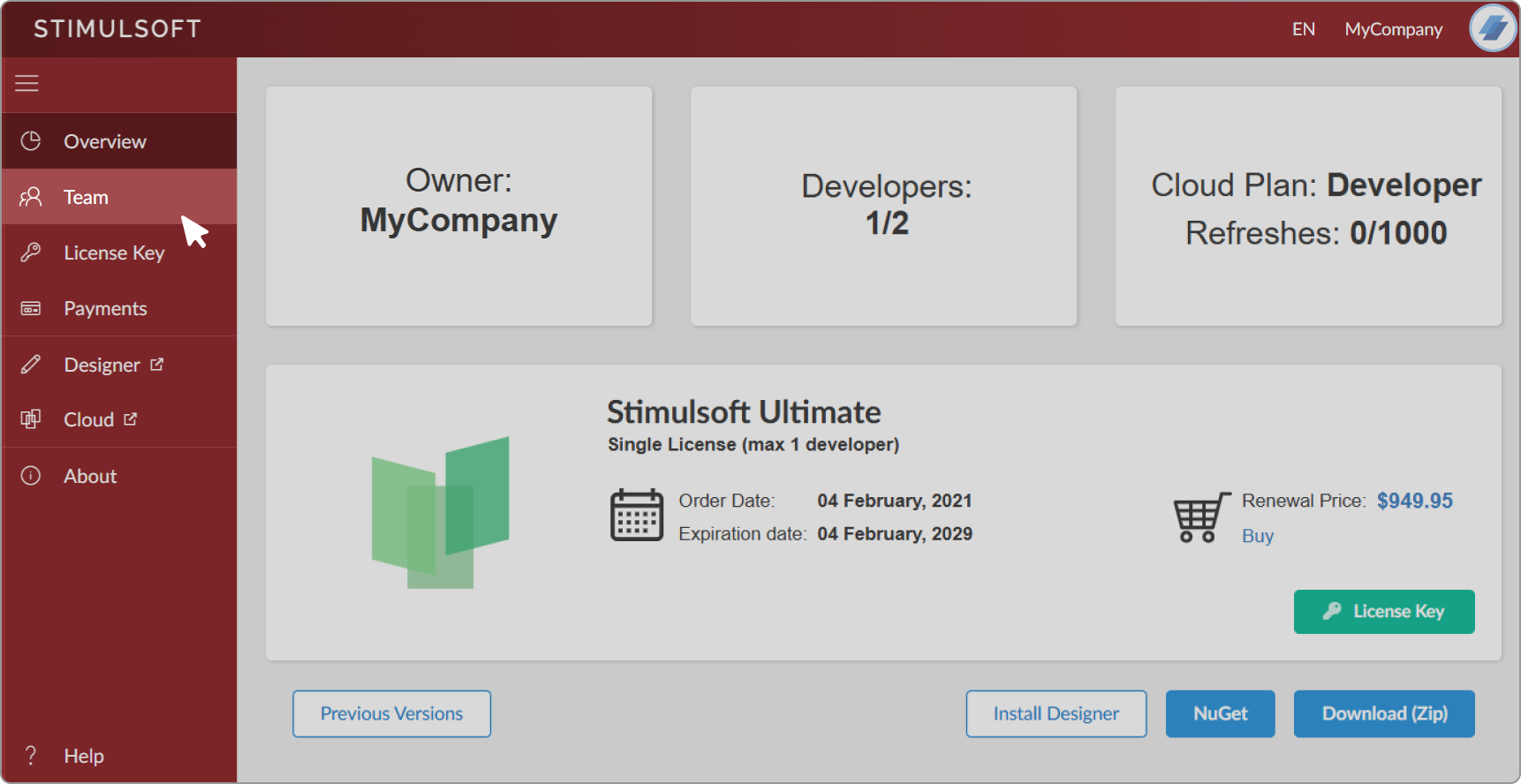
Or by clicking the Team tab.
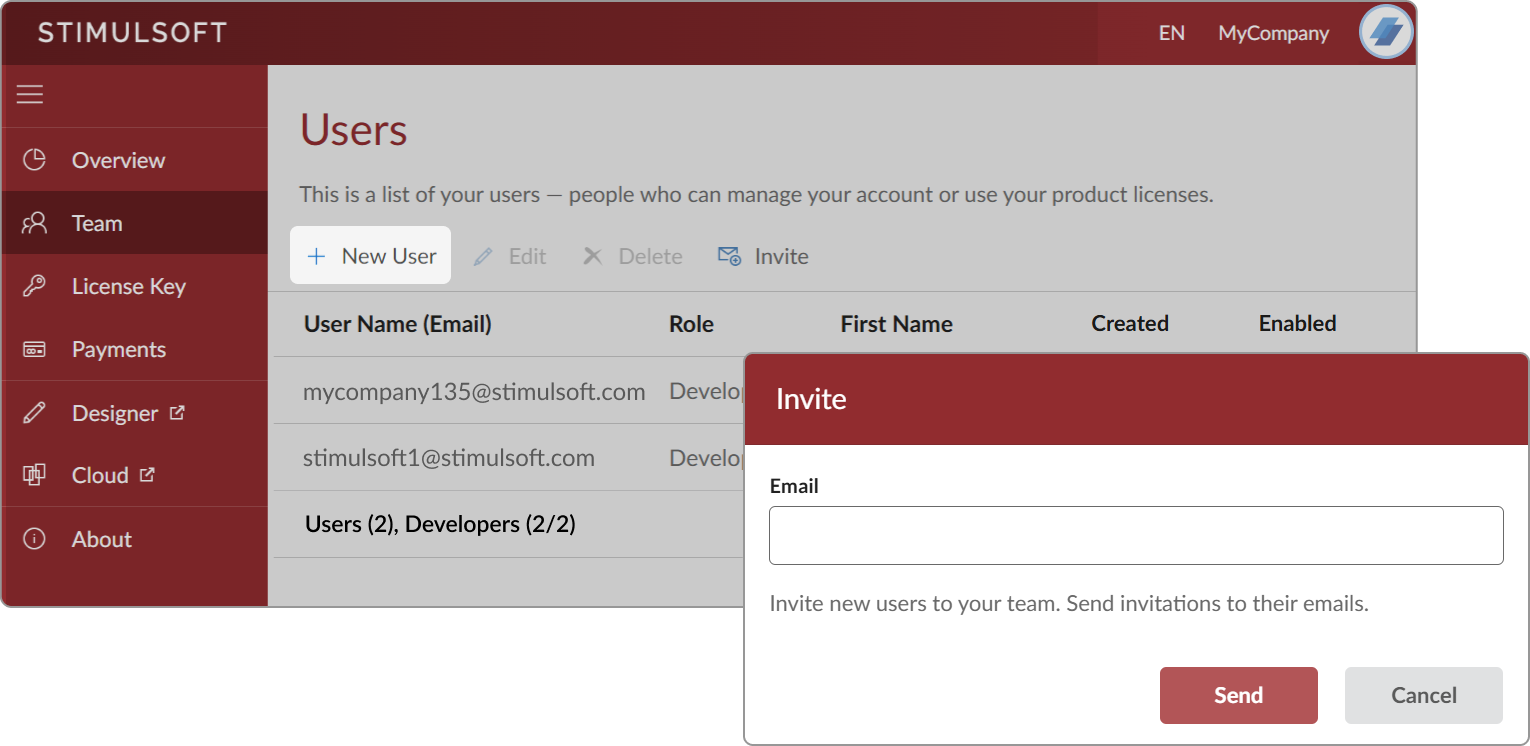
If your developer already has a Stimulsoft account, you do not need to click the New User button. Instead, click the Invite button and enter the developer’s email address. After you click Send, an invitation email will be sent to the developer. To complete the process, the developer must open the email and click the Accept button to join your company account.
Every developer who works with our tool needs a license, must be added to your company account, and must be assigned the appropriate product.
If you have purchased one, two or more different licenses of our software, it is necessary to assign each developer to the product he or she uses, provide access to the license key file and code, and provide access to the technical support. Only users with the Owner or Owner & Developer roles may administer this. Follow the steps below to complete the process.
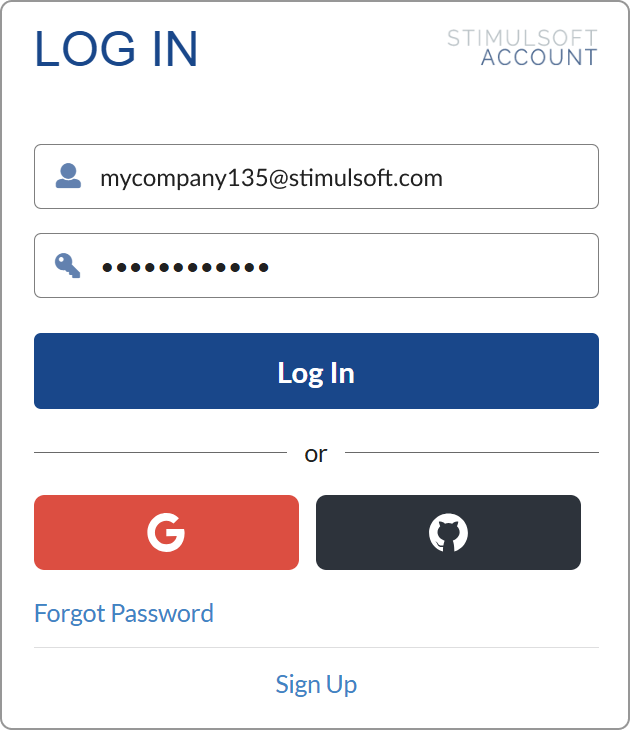
Log in to your company account
Open a web browser and navigate to your account. Enter your username and password, then click the Log In button.Access the developers section
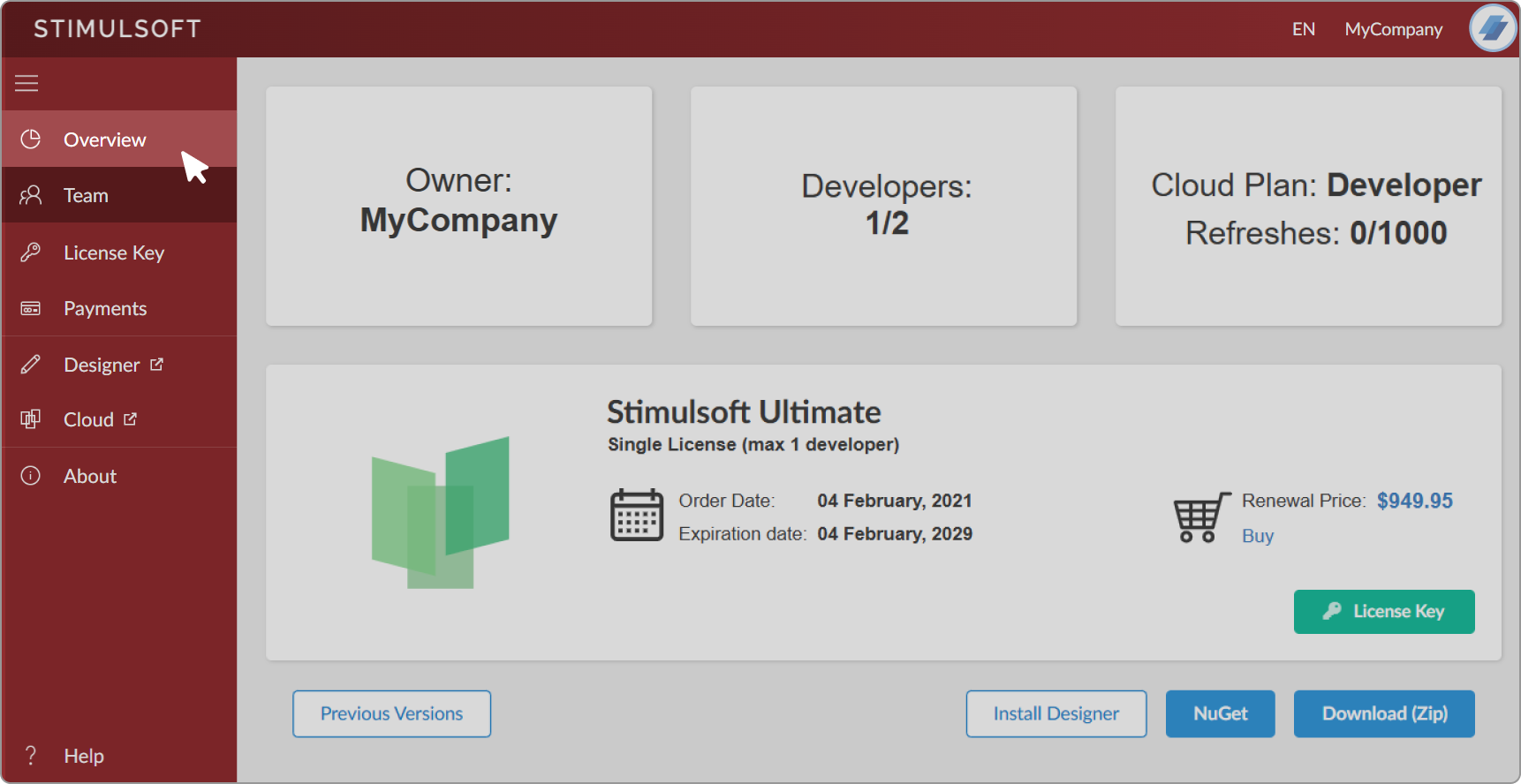
Once logged in, locate and click on the Developers tab in the top main menu. This section is dedicated to managing your development team.Or by clicking the Team tab.
Add developers
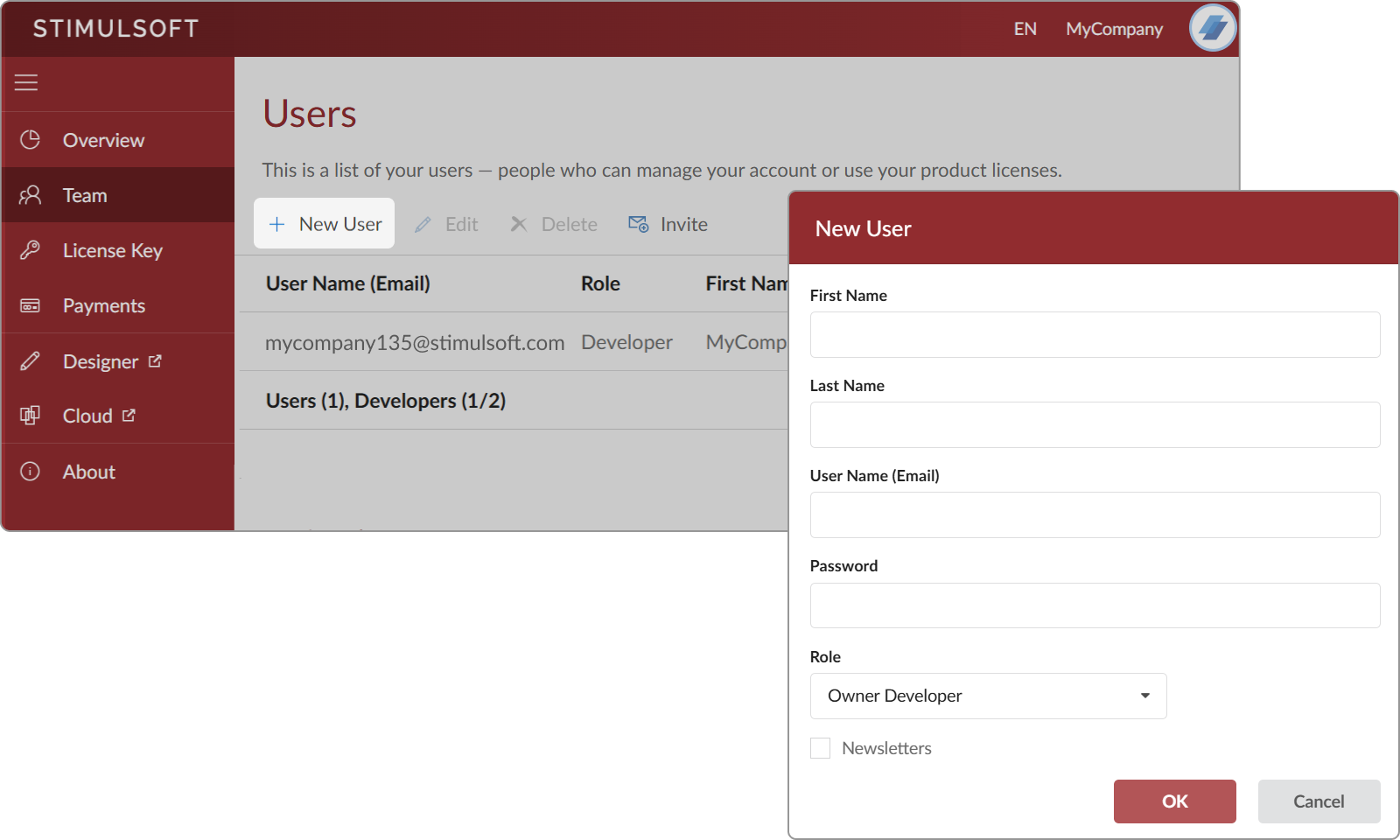
In the Developers section, click on the New User button. A form will appear prompting you to enter the developer's info, such as first name, last name, username (email address), choose a role, and a product (appears only when more than one product purchased) the developer will use. Fill in the required information. Clicking Ok automatically adds the developer to your account. Exit the developers section
After adding all necessary developers, exit the Developers section by clicking on the Overview button (the menu on the left), which will take you back to the main page.If your developer already has a Stimulsoft account, you do not need to click the New User button. Instead, click the Invite button and enter the developer’s email address. After you click Send, an invitation email will be sent to the developer. To complete the process, the developer must open the email and click the Accept button to join your company account.
Assign developers to licenses from the main page of your account
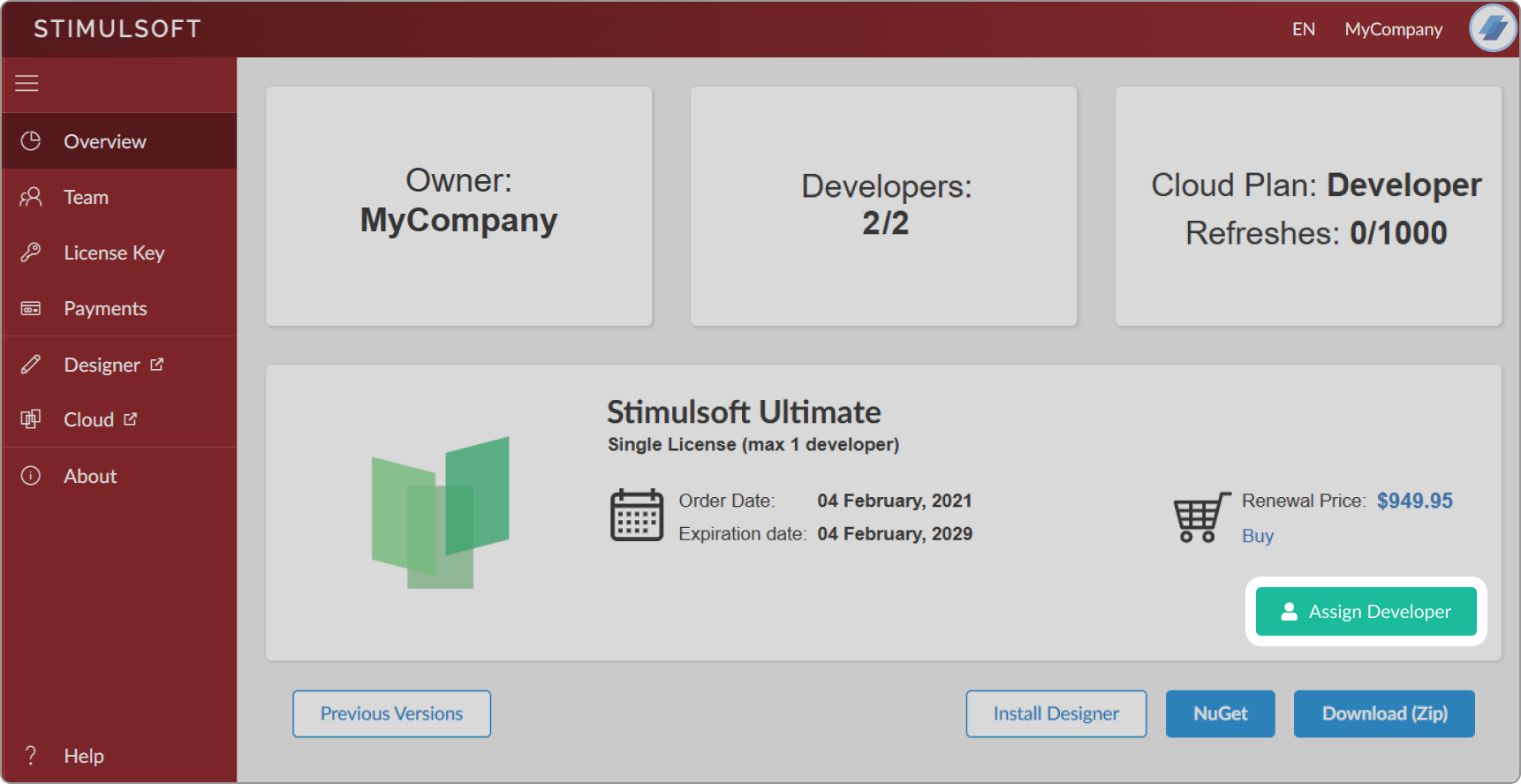
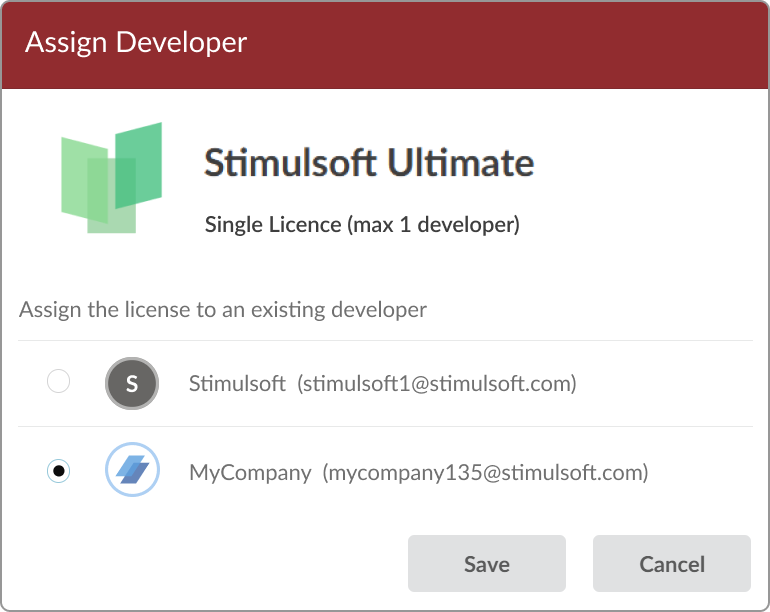
If you have more than 1 developer in your company, you need to assign them to the product so that they can access the license key. In the main page, locate the products and licenses you purchased. Find the specific license or product you want to assign a developer to. Under each license, there will be an Assign Developer button. Click this button and add the developer from the list. Assign the developers
A list of added developers will appear. Select the developer you want to assign to the license. Confirm your selection by clicking the Save button. Repeat this process for each license and product if you have multiple licenses and developer seats.
If you still have questions, don’t hesitate to reach out — our support team will be happy to help.