




















In today’s article, we continue our series on Data Transformation, one of the tools available in the Stimulsoft report designer. You can find the first article, which covers table merging, here. Today, we will discuss Running total and the ways it can be calculated.
What is a Running total?
A Running Total is the calculation of a new row value by adding the current value to the sum of all previous values. There are several ways to calculate a running total in the report designer, but in this article, we will focus on using Data Transformation.Step-by-Step guide to calculating a Running total
Using an existing report as an example, let’s calculate a Running total.To begin, click the element header and select the Running total command from the Actions menu.
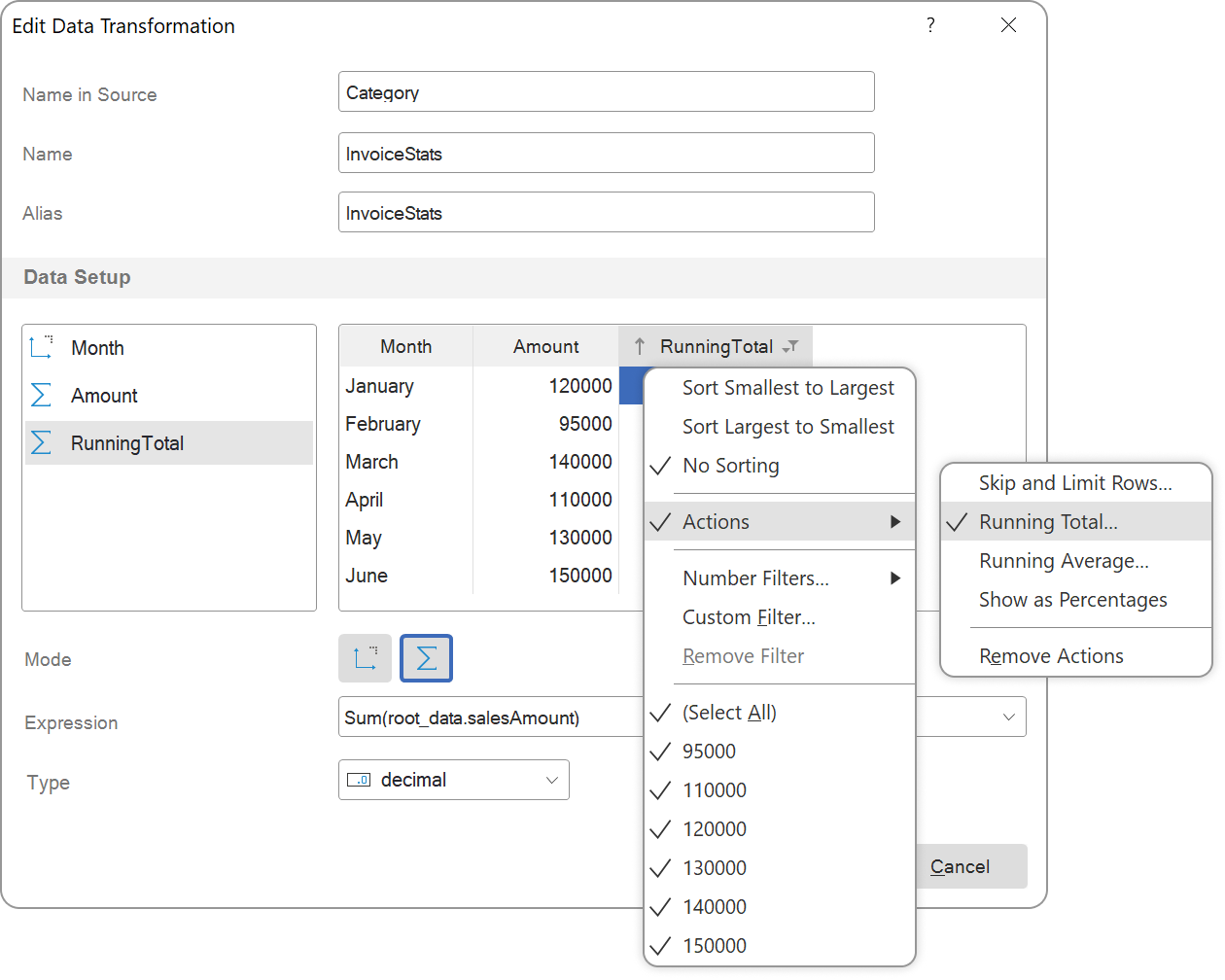
Next, we will look at two scenarios:
a) Calculating a running total without an initial value;
b) Calculating a running total with an initial value.
Calculating a running total without an Initial Value
By default, the initial value is set to 0, which means the running total is calculated from the values in the data field.In this case, click the element header again, select Running total, and leave 0 as the initial value.
As you can see, the running total is calculated by adding the current value to the sum of all previous values.
Calculating a Running Total with an Initial Value
Repeat the same steps and enter any number as the initial value.In this case, the running total is calculated by adding the current value to the sum of all previous values and then including the specified initial value. Keep in Mind
A running total can only be created for data fields that contain numeric values.
If you have any further questions, feel free to contact us.