




















We are launching a series of articles dedicated to Data Transformation, a tool designed to transform data sources within the data dictionary.
Data Transformation is a visual and universal mechanism that does not require knowledge of query syntaxes such as SQL.
The universality of the tool lies in its ability to transform any data source available in the dictionary.
The transformation process consists of creating a new data description in the form of a table. Various operations can be applied to the data of the new table, such as sorting, grouping, calculating running totals, and others. Based on this new table, both reports and dashboards can be developed. All these actions are performed in the Data Transformation editor.
Transformation can be performed both within a single table and using multiple data tables. In this article, we will focus on joining tables when creating a new data transformation.
In Stimulsoft reporting tools, table joining can be implemented both using relationships between tables and between unrelated data tables. You can read more about relationships between data sources in the corresponding section of the documentation, and you can also watch a video on this topic on our YouTube channel.
When joining unrelated tables, the data from the table with the larger number of rows will be displayed first, followed by the data from the table with the smaller number of rows. In matched cells, non-numeric fields will be empty, while numeric fields will contain the value 0.
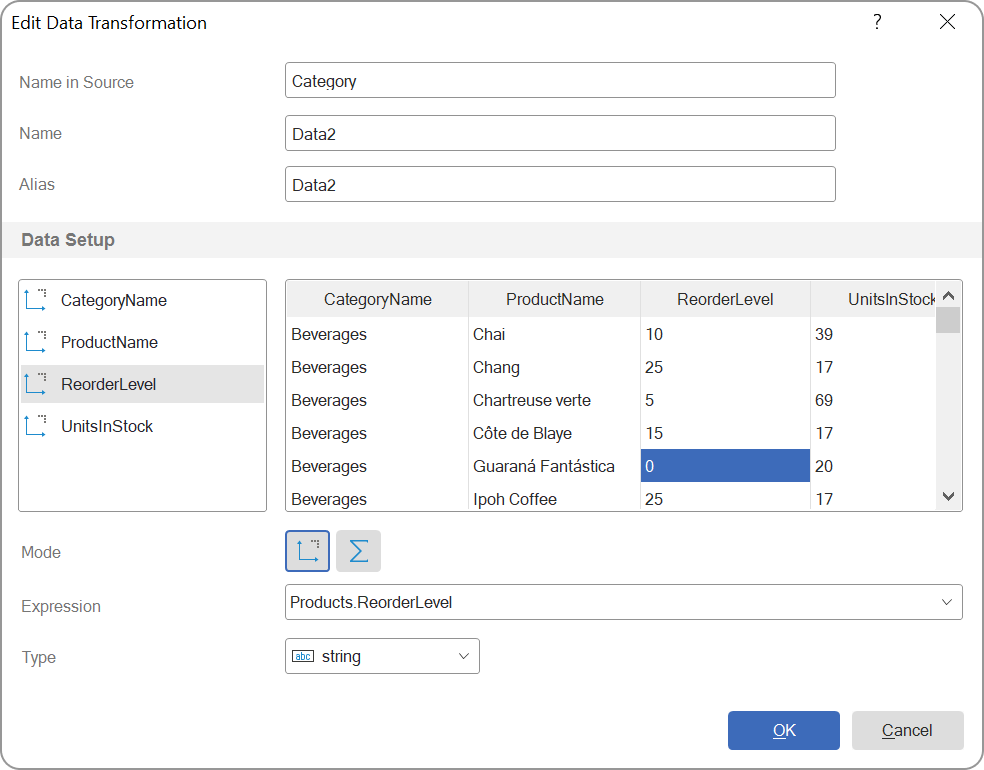
Choosing the correct join type directly affects how data is displayed and the results of its analysis. You can read more about using the JoinType parameter here.
In addition, if multiple relationships are defined between data sources, you must specify which relationship will be used for the join. This is done using the Active Relation parameter in the relationship editor.
Below is a step-by-step guide for creating a new data transformation using a relationship:
The reporting tool will automatically detect the relationship with the Active Relation parameter enabled and match data from different data sources. In the example described above, each category will correspond to its own list of products, their prices, and the number of orders.
Joining tables in the Data Transformation tool makes it possible to work flexibly with data sources regardless of whether relationships exist between them. Using relationships and the correct join type ensures accurate data matching, while joining unrelated tables allows you to quickly create a unified structure for analysis. In the following articles of this series, we will explore other data transformation capabilities and practical scenarios for their use in creating reports and dashboards.
The universality of the tool lies in its ability to transform any data source available in the dictionary.
The transformation process consists of creating a new data description in the form of a table. Various operations can be applied to the data of the new table, such as sorting, grouping, calculating running totals, and others. Based on this new table, both reports and dashboards can be developed. All these actions are performed in the Data Transformation editor.
Transformation can be performed both within a single table and using multiple data tables. In this article, we will focus on joining tables when creating a new data transformation.
Introduction
Within a single data source, the issue of joining tables doesn’t arise, since each data source historically represents a separate table. Difficulties appear when it becomes necessary to combine multiple data sources, in this case, the presence of a relationship between them becomes an important factor. Important!In Stimulsoft reporting tools, table joining can be implemented both using relationships between tables and between unrelated data tables. You can read more about relationships between data sources in the corresponding section of the documentation, and you can also watch a video on this topic on our YouTube channel.
Joining unrelated data tables
Step-by-step instructions:- drag data columns from the first table in the dictionary into the New Data Transformation window.
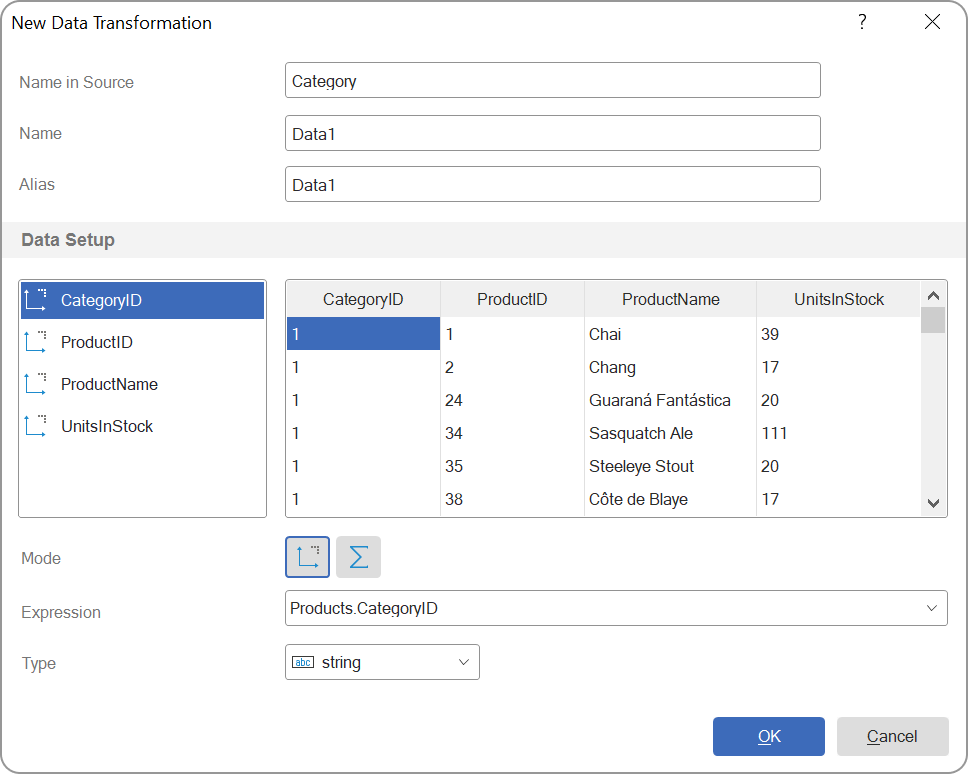
- using the same approach, drag the columns from the second table.
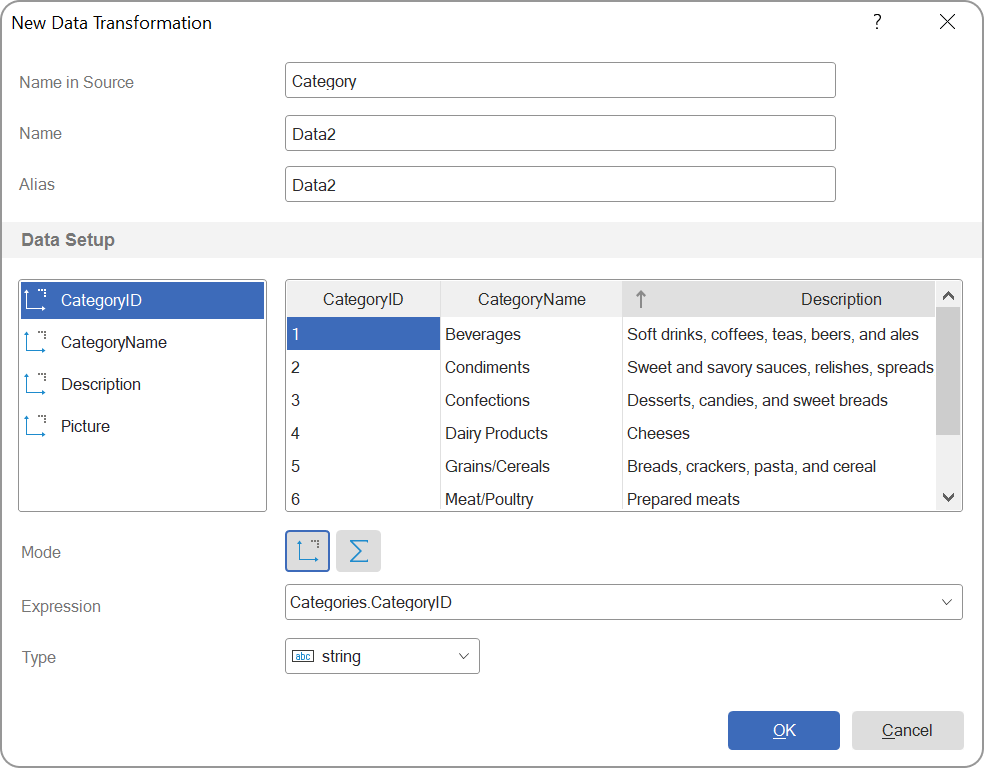
When joining unrelated tables, the data from the table with the larger number of rows will be displayed first, followed by the data from the table with the smaller number of rows. In matched cells, non-numeric fields will be empty, while numeric fields will contain the value 0.
Joining tables using relationships
When joining data tables using relationships, the key factor is the type of relationship. The Stimulsoft report generator supports four main types of table joins, defined by the JoinType parameter: INNER, LEFT, RIGHT, and FULL.Choosing the correct join type directly affects how data is displayed and the results of its analysis. You can read more about using the JoinType parameter here.
In addition, if multiple relationships are defined between data sources, you must specify which relationship will be used for the join. This is done using the Active Relation parameter in the relationship editor.
Below is a step-by-step guide for creating a new data transformation using a relationship:
- drag data columns from the first table in the dictionary into the New Relation window.
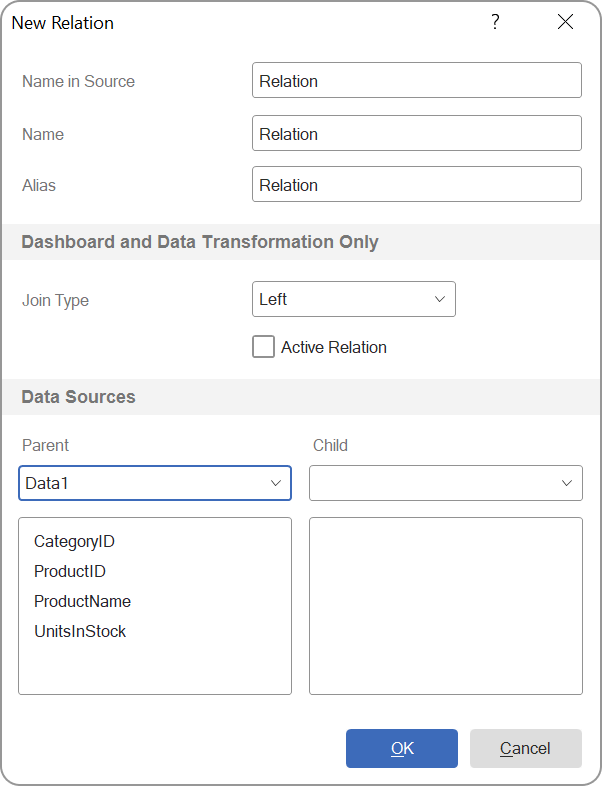
- drag data columns from the second table.
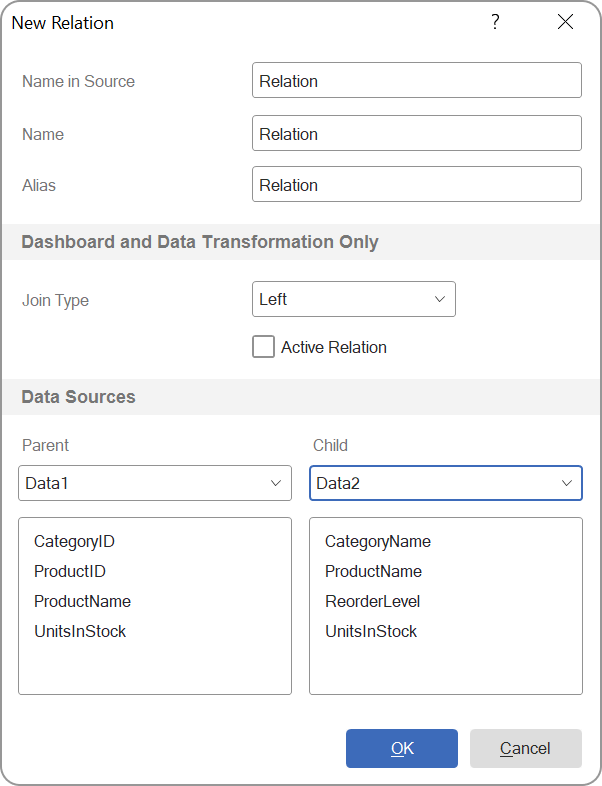
The reporting tool will automatically detect the relationship with the Active Relation parameter enabled and match data from different data sources. In the example described above, each category will correspond to its own list of products, their prices, and the number of orders.
Joining tables in the Data Transformation tool makes it possible to work flexibly with data sources regardless of whether relationships exist between them. Using relationships and the correct join type ensures accurate data matching, while joining unrelated tables allows you to quickly create a unified structure for analysis. In the following articles of this series, we will explore other data transformation capabilities and practical scenarios for their use in creating reports and dashboards.
If you have any further questions, feel free to contact us.