




















Smooth integration is not only about adding reporting components to your application so that they work as one solution. It is also about customizing the look of the embedded designer and viewer so that they match your application and do not look like third-party libraries.
It is necessary to mention the use of our components in the license agreement of your application for end users and on your product website. However, you can use your own branding inside the components. For example, you can add your product logo, name, and description to the About window.
Today, we will explain how to do this in Stimulsoft products for creating reports and dashboards. This is what the White Label option is designed for.
The White Label option can be useful for companies creating SaaS solutions, developers who embed reporting into their own applications, and anyone who uses our tools for creating reports and dashboards as part of their own software.
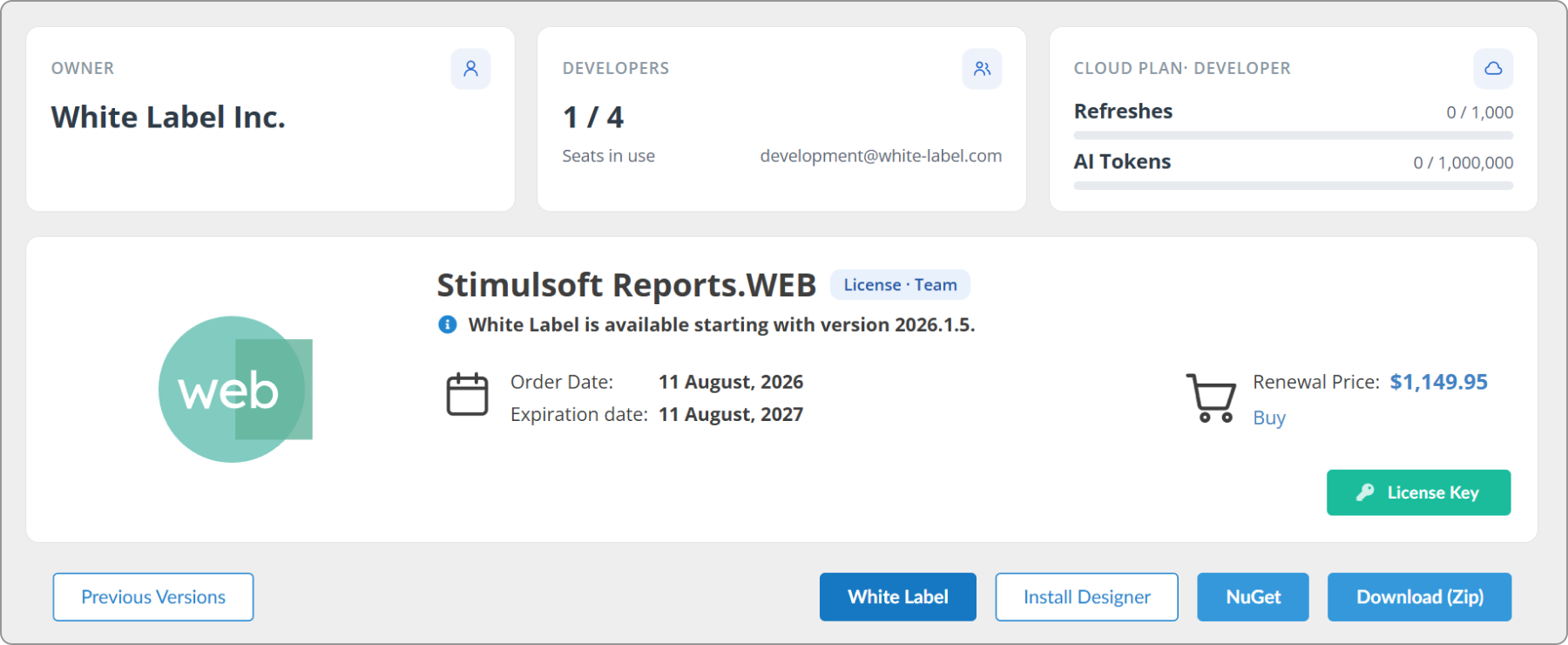
To configure your branding, click the White Label button and enter your information.
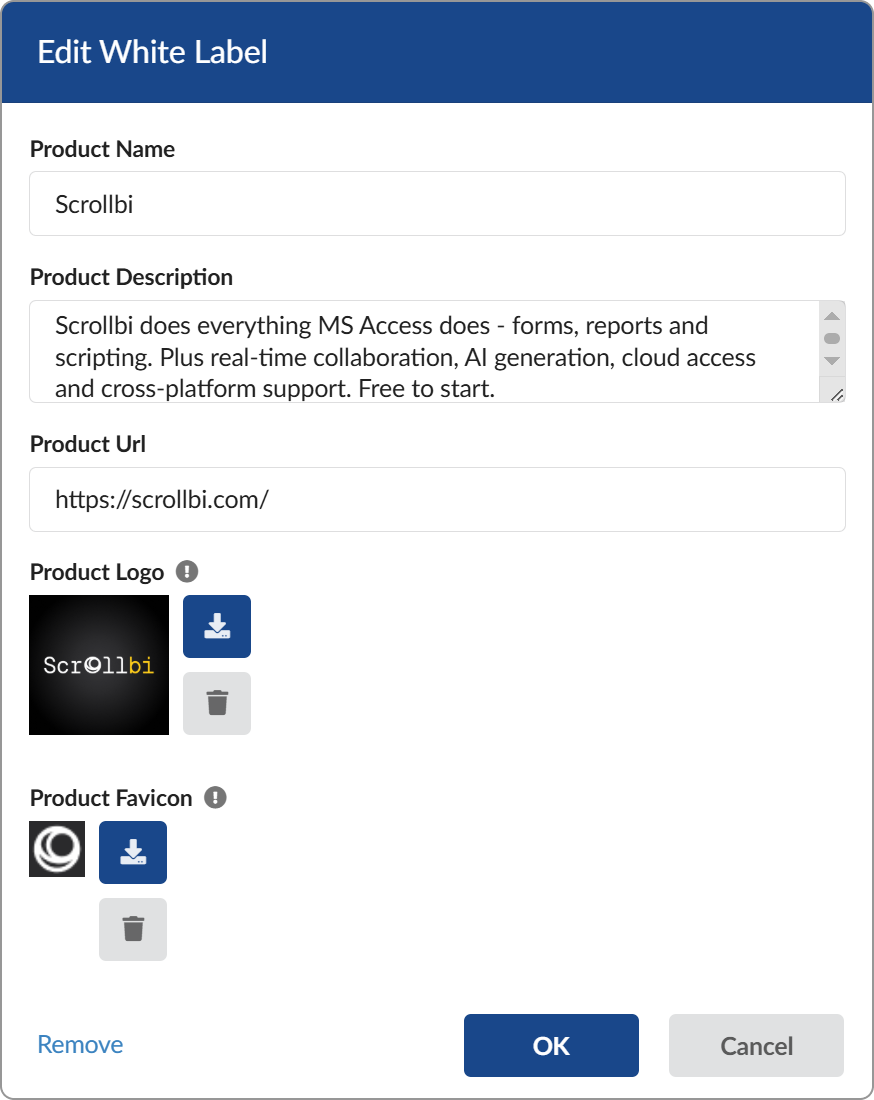
In the Edit White Label window, you can find the following fields:
After filling in the required fields and uploading the images, click OK to save the settings. If necessary, you can delete previously uploaded logos and favicons using the corresponding buttons.
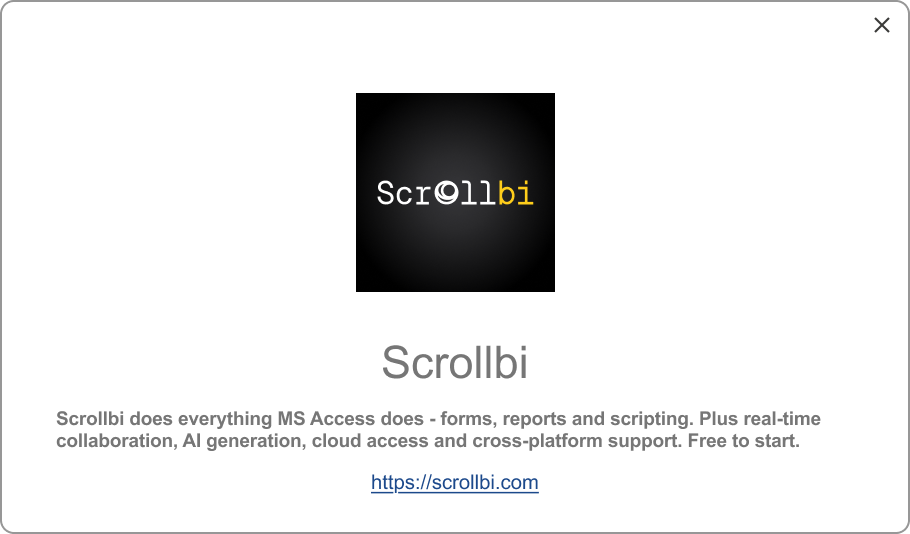
See an example of using the White Label option in the About section of the Stimulsoft report designer.
White Label settings are applied depending on where the product is used:
So, after configuring White Label in your account and applying the corresponding license key to your application, no additional component configuration is required. The components will use the product name, description, logo, and other branding elements that you specified.
It is necessary to mention the use of our components in the license agreement of your application for end users and on your product website. However, you can use your own branding inside the components. For example, you can add your product logo, name, and description to the About window.
Today, we will explain how to do this in Stimulsoft products for creating reports and dashboards. This is what the White Label option is designed for.
What is White Label?
White Label in Stimulsoft products is a special option that allows you to customize the look of our components to match your brand. In practice, this means that you can use your own information, such as your company name, logo, and other details, instead of the standard product branding.Who needs it and why?
Replacing text and graphic elements allows you to present your solution as part of your own ecosystem and provide a consistent user experience for your customers.The White Label option can be useful for companies creating SaaS solutions, developers who embed reporting into their own applications, and anyone who uses our tools for creating reports and dashboards as part of their own software.
What can you change with White Label?
Now let’s look at the elements that can be changed using White Label. In the About section, you can add your own information:- company logo;
- product name;
- product description;
- URL of your web page;
- web page icon (favicon) – available only in Stimulsoft Server.
Technical aspects of using the White Label option
After you purchase a subscription that includes the White Label option, the related settings become available in your account.To configure your branding, click the White Label button and enter your information.
In the Edit White Label window, you can find the following fields:
- Product Name – the name of your product;
- Product Description – a short description of your product;
- Product Url – the website address related to your product;
- Product Logo – your company or product logo. The maximum image size is 1000×1000 pixels and the file size is up to 400 KB. Supported formats are PNG, JPEG, SVG, and BMP;
- Product Favicon – your product icon. The maximum image size is 32×32 pixels and the file size is up to 50 KB.
After filling in the required fields and uploading the images, click OK to save the settings. If necessary, you can delete previously uploaded logos and favicons using the corresponding buttons.
See an example of using the White Label option in the About section of the Stimulsoft report designer.
Which products and subscription types support this option?
The White Label option is available in Stimulsoft products designed to be embedded into your own applications, as well as in Stimulsoft Server and Stimulsoft Designer. White Label is available in Team, Enterprise, and Worldwide subscriptions.White Label settings are applied depending on where the product is used:
- in the desktop designer, White Label settings are applied automatically after you sign in with an account that has a license with this option. The information specified in the White Label settings will be displayed in the About section. White Label works in the same way in the online designer;
- if Stimulsoft components are used directly inside your application, you need to download the license key from your account and apply it to the application. After the key is applied, the White Label settings will be automatically used by the embedded components.
So, after configuring White Label in your account and applying the corresponding license key to your application, no additional component configuration is required. The components will use the product name, description, logo, and other branding elements that you specified.