




















In version 2026.3, Stimulsoft Server introduces a new Backup and Restore tool that allows you to create a backup of the server’s service data and, if necessary, restore it from a previously created backup.
In this article, we will take a look at what data can be backed up, how to launch the tool, and how to perform backup and restore operations in Stimulsoft Server.
In this article, we will take a look at what data can be backed up, how to launch the tool, and how to perform backup and restore operations in Stimulsoft Server.
What Is a Backup Used For?
Backups allow you to preserve the working state of Stimulsoft Server and restore it when necessary. For example, you can create a backup before updating the server or changing its configuration, or use it when migrating data or restoring the working environment after a failure. Since the archive includes not only reports, but also users, roles, access settings, and other objects, a backup allows you to preserve the structure and essential data of Stimulsoft Server in a single archive.What Is Included in a Backup?
A Stimulsoft Server backup is created as a ZIP archive and contains the service data required for the server to operate:- Stimulsoft Server Navigator items: reports, report snapshots, exported files, folder structure, and other items;
- connections to data sources and their associated settings;
- users and user accounts;
- administrators and managers;
- roles and access settings;
- workspaces;
- other service objects and data of Stimulsoft Server.
Thus, a single backup can be used to preserve the server structure, essential data, and associated settings.
Launching the Backup and Restore Tool
You can launch the Backup and Restore tool in two ways:- open the context menu of the Server Controller and select the Run Backup and Restore command;
- run the Stimulsoft.Server.BackupAndRestore.exe executable file directly from the folder where Stimulsoft Server is installed.
By default, the file is located in the C:\ProgramData\Stimulsoft-Server\Software-Releases\202*.*.*\ directory. The actual path may differ depending on the installed version and Stimulsoft Server installation settings.
After launching the tool, the Backup and Restore editor opens. It contains two tabs: one for creating a backup of Stimulsoft Server and another for restoring data from an existing backup.
Creating a Backup
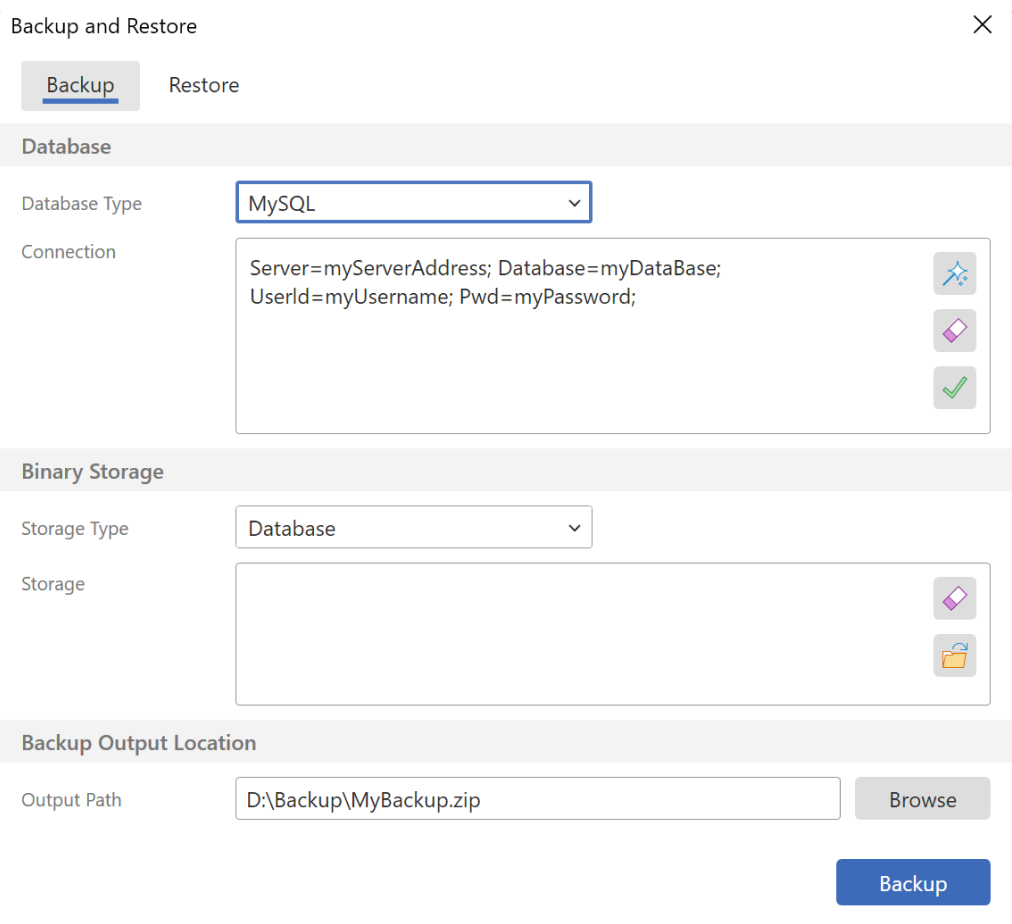
You do not need to connect to the Stimulsoft Server Navigator to create a backup. You need to specify the data storage parameters and the location where the backup will be saved.First, select the database type and specify the connection string to the Stimulsoft Server data storage. You can then configure the Binary Storage for the contents of server items by selecting the storage type and specifying its path. After that, specify the path to the output backup file. The result of the operation will be a ZIP archive containing Stimulsoft Server data. Please note!
For PostgreSQL, an additional setting is available: you can specify the path to the tool used to create the database backup. After filling in the required parameters, you can start the backup process.
Restoring Data
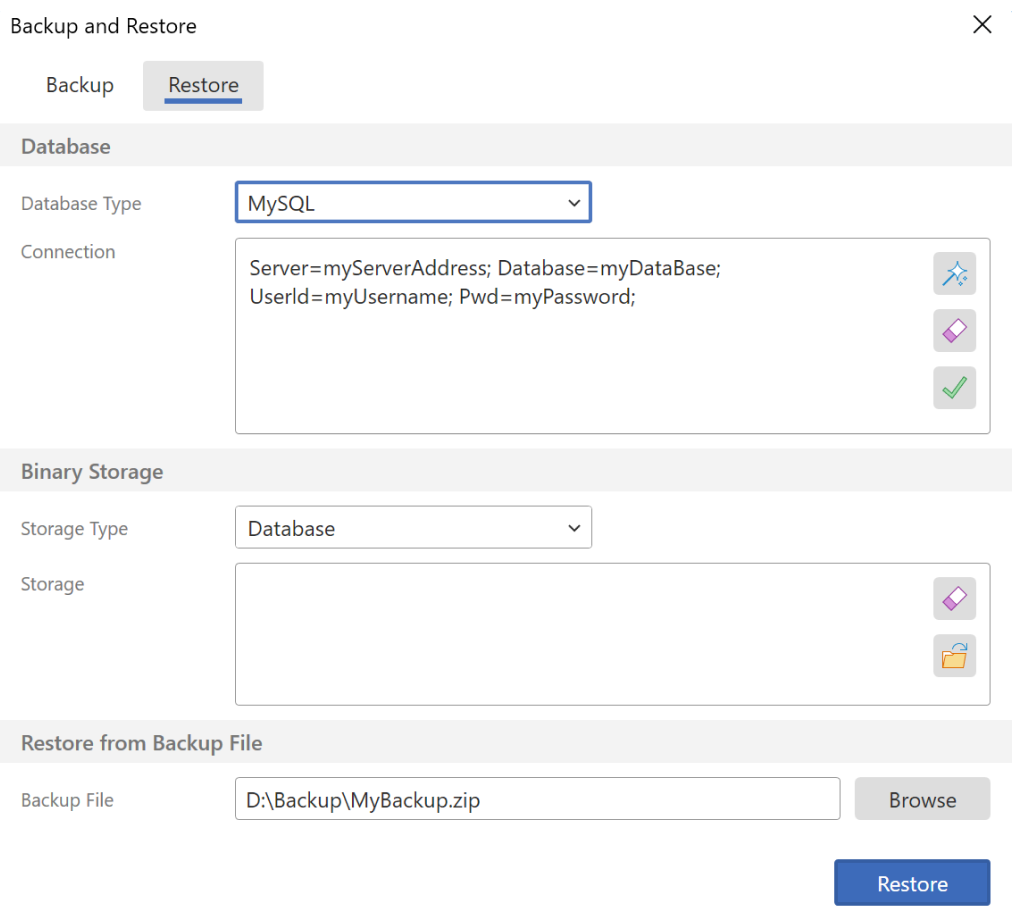
The second tab of the tool is intended for restoring Stimulsoft Server from a previously created backup. To perform this operation, you must have at least one backup. Important!The data storage type used for restoration must match the type of storage from which the backup was created. As with the backup operation, you need to select the database type and specify the connection string to the data storage. If Binary Storage is used, you should also select the corresponding storage type and specify its path. Then, specify the path to the backup ZIP archive from which the data will be restored.
After configuring the parameters, you can start restoring Stimulsoft Server data. Please note!
For PostgreSQL, you can additionally specify the path to the backup restoration tool.
Supported Databases
The Backup and Restore feature is available for the following database types:- Microsoft SQL Server;
- MySQL;
- PostgreSQL;
- SQL CE.
When using PostgreSQL, the tool also allows you to specify separate paths to the utilities used to create and restore backups. We also recommend reading the article Stimulsoft Report Server Administration.