




















Using the Full-Screen Mode in the Viewer
Our sample projects and report templates can help you learn the basics of working with our products.This example is outdated, you can check out the many other new examples in this category.This example shows how to display a viewer in the Full Screen mode by default. This mode allows you to display the viewer in the entire area of the browser window. Also this mode can be enabled or disabled by clicking the corresponding button on the toolbar of the viewer.
First, you need to add the
The
The
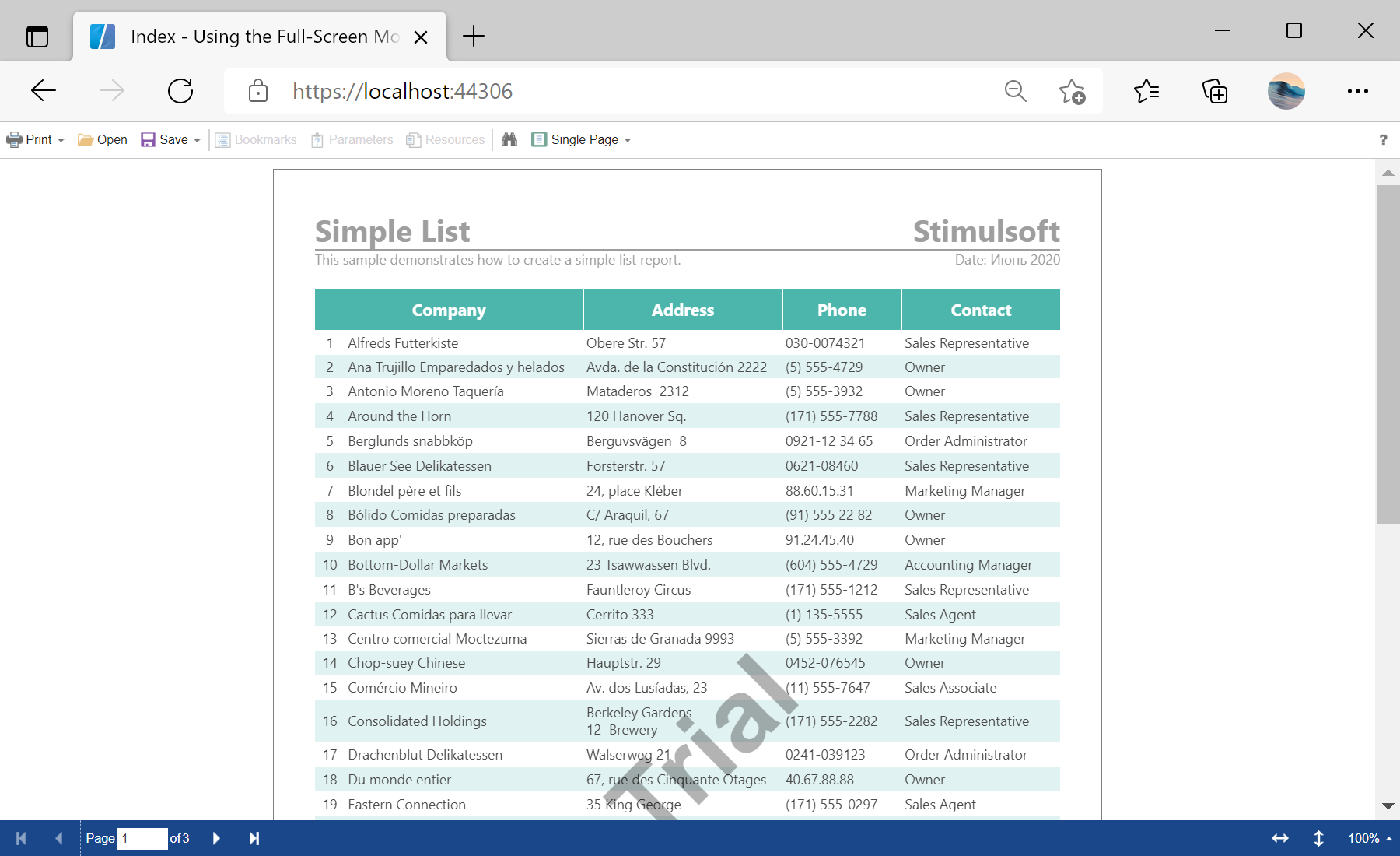
In the screenshot below you can see the result of the sample code:
First, you need to add the
StiNetCoreViewer component to the view page. Also you need to pass the StiNetCoreViewerOptions object to the constructor. In the options you should set two actions - GetReport and ViewerEvent, which are located in the Actions options group. To enable the Full Screen mode, you should set the FullScreenMode option in the Appearance group to true:
@using Stimulsoft.Report.Mvc;

...

@Html.StiNetCoreViewer(new StiNetCoreViewerOptions()
{
	Actions =
	{
		GetReport = "GetReport",
		ViewerEvent = "ViewerEvent"
	},
	Appearance =
	{
		FullScreenMode = true
	},
    Toolbar =
    {
		ShowFullScreenButton = false,
        DisplayMode = StiToolbarDisplayMode.Separated
    }
})
The
GetReport action loads the report and returns the answer to the client part of the viewer using the GetReportResult() static method. In the parameters of this method, the report object should be passed. For example, load the rendered report file:
public IActionResult GetReport()
{
	var report = new StiReport();
	report.LoadDocument(StiNetCoreHelper.MapPath(this, "Reports/SimpleList.mdc"));

	return StiNetCoreViewer.GetReportResult(this, report);
}
The
ViewerEvent action handles all the viewer events (switching pages, zooming, printing, exporting, interactivity, etc.) and returns the answer to the client using the ViewerEventResult() static method:
public IActionResult ViewerEvent()
{
	return StiNetCoreViewer.ViewerEventResult(this);
}
In the screenshot below you can see the result of the sample code: