




















Customizing the Designer
Our sample projects and report templates can help you learn the basics of working with our products.The designer interface can be trimmed down to just the features you want to expose. This example hides several toolbar items and component types.
Designer setup. Configure the designer, load the report template, process its callbacks, and connect the save action to the application.
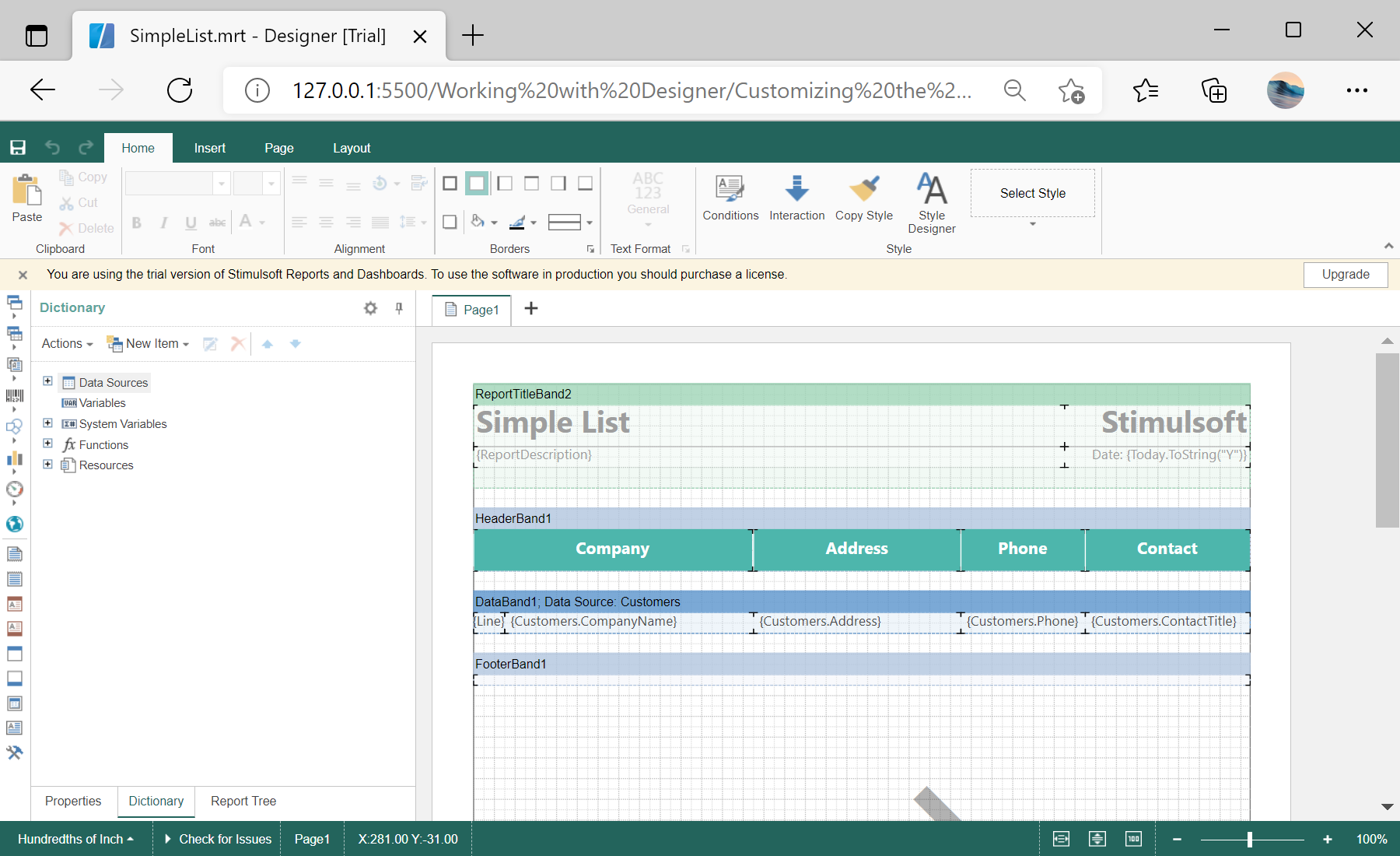
In the screenshot below you can see the result of the sample code:
Designer setup. Configure the designer, load the report template, process its callbacks, and connect the save action to the application.
var options = new Stimulsoft.Designer.StiDesignerOptions();
options.appearance.fullScreenMode = true;
options.toolbar.showPreviewButton = false;
options.toolbar.showFileMenu = false;
options.components.showImage = false;
options.components.showShape = false;
options.components.showSubReport = false;

var designer = new Stimulsoft.Designer.StiDesigner(options, "StiDesigner", false);toolbar and components option groups switch individual interface elements on and off, so you can present a simplified designer — for example one that only edits text and data bands — tailored to your users.In the screenshot below you can see the result of the sample code: