




















Creating a Report Snapshot
Our sample projects and report templates can help you learn the basics of working with our products.This example is outdated, you can check out the many other new examples in this category.This sample project shows how to create a report shapshot item. For this purpose you can use the reportsnapshots REST command. As a parameter, you need to specify the command indent, the report snapshot name and and the report shapshot description. These parameters can be passed as the request post data:
You can use the following methods for send request to the server and get the requested result:
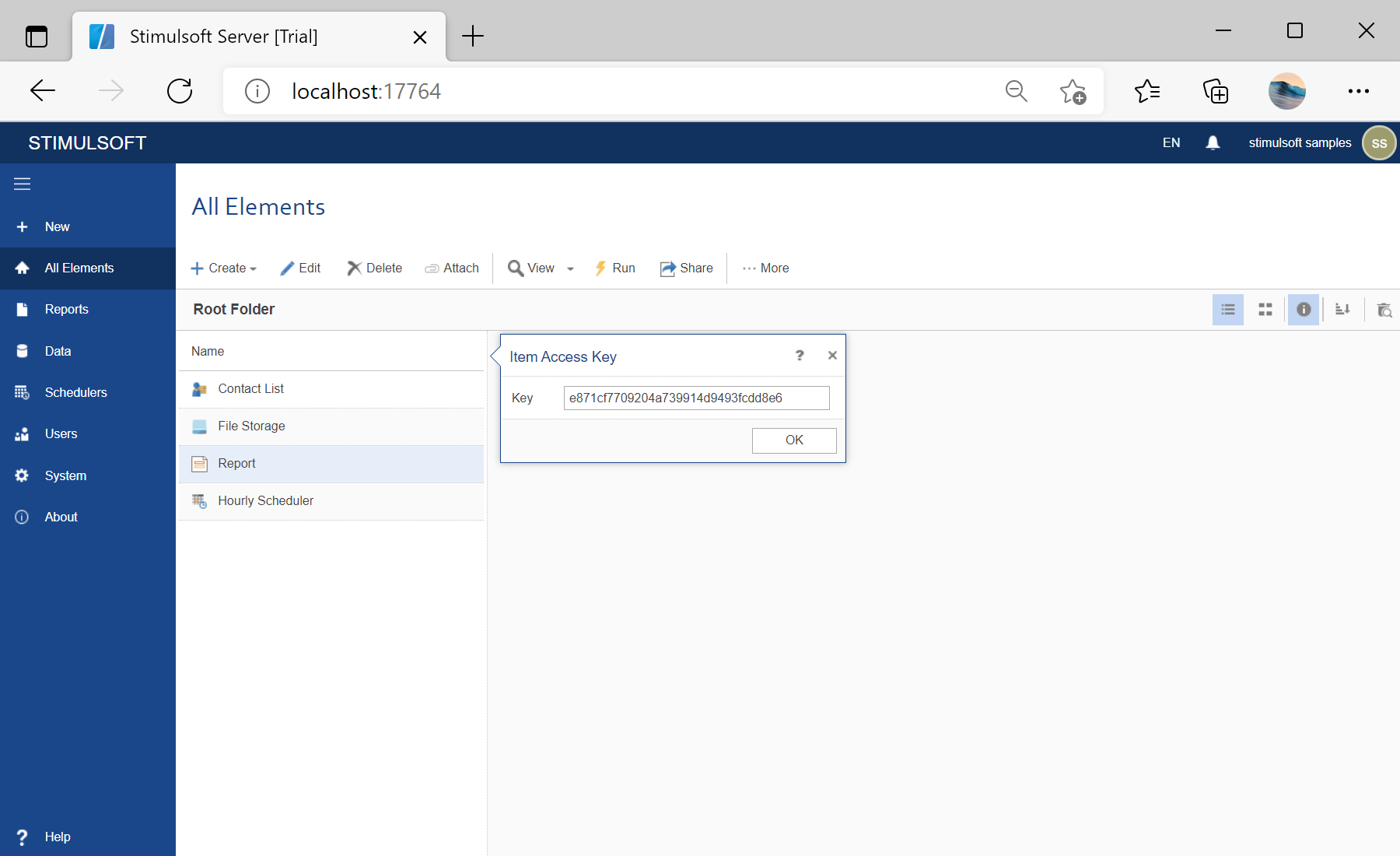
You can check the item key in the 'More' -> 'Access Key' menu action. In the screenshots below you can see the result of the sample code.
In the screenshot below you can see the result of the sample code:
#region Create Snapshot
url = "http://localhost:40010/1/reportsnapshots";
var requestCreateSnapshot = WebRequest.Create(url);
requestCreateSnapshot.Method = "POST";
requestCreateSnapshot.ContentType = "application/x-www-form-urlencoded";
requestCreateSnapshot.Headers.Add("x-sti-SessionKey", sessionKey);

postData = "{'Ident': 'ReportSnapshotItem', 'Name': 'ReportSnapshot01', 'Description': ''}";
Request(requestCreateSnapshot, postData);
// Check Result
var s = GetResponseResult(requestCreateSnapshot);
var json = JObject.Parse(s);
var items = ((JArray)json["Items"]);
#endregion
You can use the following methods for send request to the server and get the requested result:
private void Request(WebRequest request, string postData)
{
	var bytesCreateSnapshot = Encoding.GetEncoding(1251).GetBytes(postData);
	request.ContentLength = bytesCreateSnapshot.Length;
	using (Stream ws = request.GetRequestStream())
	{
		ws.Write(bytesCreateSnapshot, 0, bytesCreateSnapshot.Length);
		ws.Flush();
	}
}

private string GetResponseResult(WebRequest request)
{
	var resp = request.GetResponse();
	var respStream = resp.GetResponseStream();
	if (respStream != null)
	{
		using (var stream1 = new StreamReader(respStream))
		{
			var s = stream1.ReadToEnd();
			return s;
		}
	}
	return null;
}
You can check the item key in the 'More' -> 'Access Key' menu action. In the screenshots below you can see the result of the sample code.
In the screenshot below you can see the result of the sample code: