




















Adding a Font to the Resource
Our sample projects and report templates can help you learn the basics of working with our products.Embedding a font as a report resource makes the template self-contained: it renders with the same typography on every machine, even where the font is not installed.
Register the font as a resource. Read the
How it works. Because the font travels inside the
In the screenshot below you can see the result of the sample code:
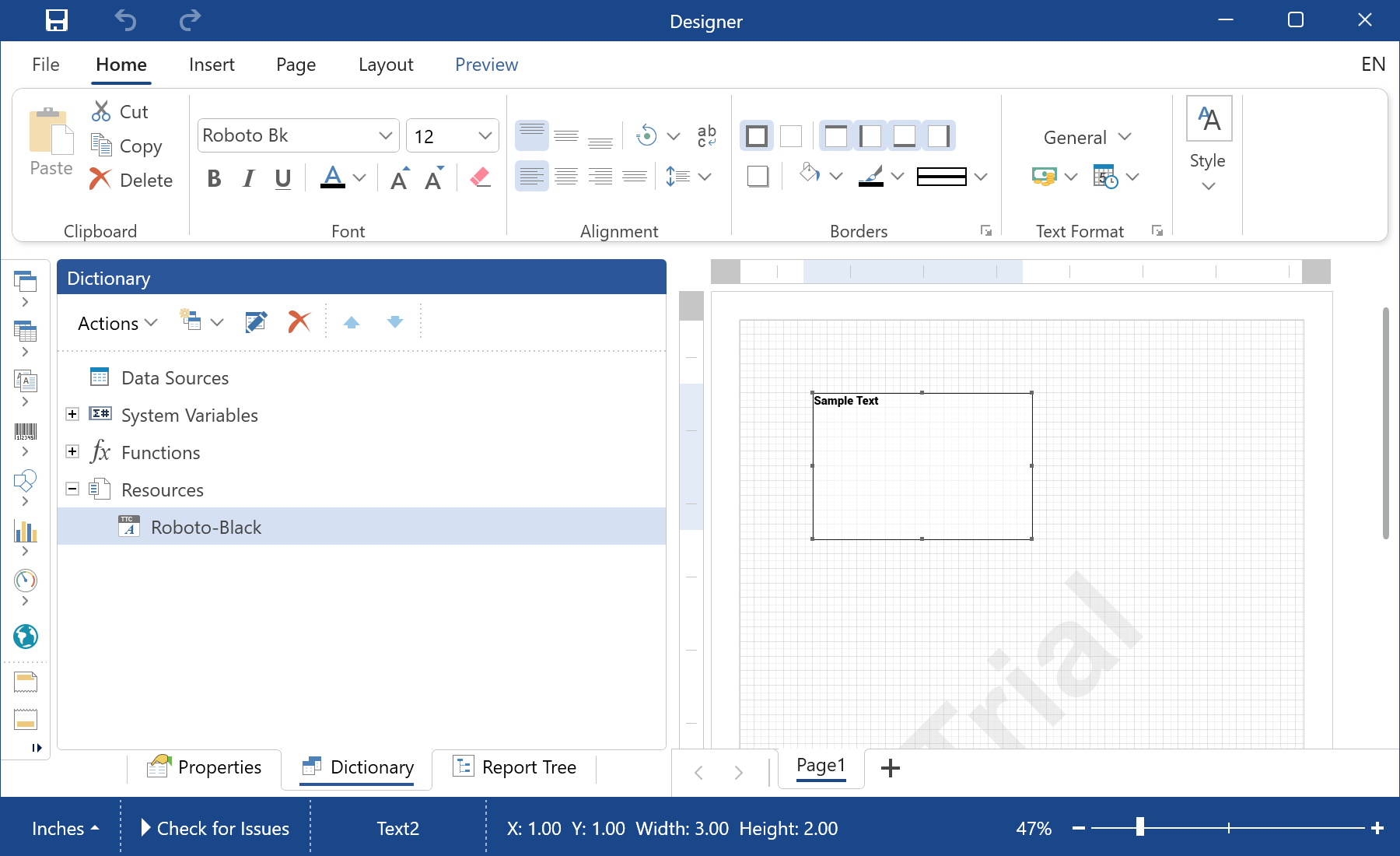
Register the font as a resource. Read the
.ttf bytes and add them to the report dictionary:var fileContent = File.ReadAllBytes("Fonts/Roboto-Black.ttf");
var resource = new StiResource("Roboto-Black", "Roboto-Black", false,
StiResourceType.FontTtf, fileContent, false);
report.Dictionary.Resources.Add(resource);StiFontCollection.AddResourceFont(resource.Name, resource.Content, "ttf", resource.Alias);var text = new StiText(new RectangleD(1, 1, 3, 2));
text.Text = "Sample Text";
text.Font = StiFontCollection.CreateFont("Roboto-Black", 12, FontStyle.Regular);StiResource— stores the font inside the report;StiResourceType.FontTtfmarks it as a TrueType font.AddResourceFont— exposes the embedded bytes to the engine so text lays out and exports without the font being installed.StiFontCollection.CreateFont— builds a font instance by family name, size and style.
How it works. Because the font travels inside the
.mrt template, previews, prints and PDF/HTML exports all use the exact same glyphs — no environment-specific substitution.In the screenshot below you can see the result of the sample code: