




















Using the Full-Screen Mode in the Designer
Our sample projects and report templates can help you learn the basics of working with our products.Full-screen mode makes the designer occupy the whole browser window, which is the natural layout for a dedicated report-editing application.
Designer setup. Configure the designer, load the report template, process its callbacks, and connect the save action to the application.
In the screenshot below you can see the result of the sample code:
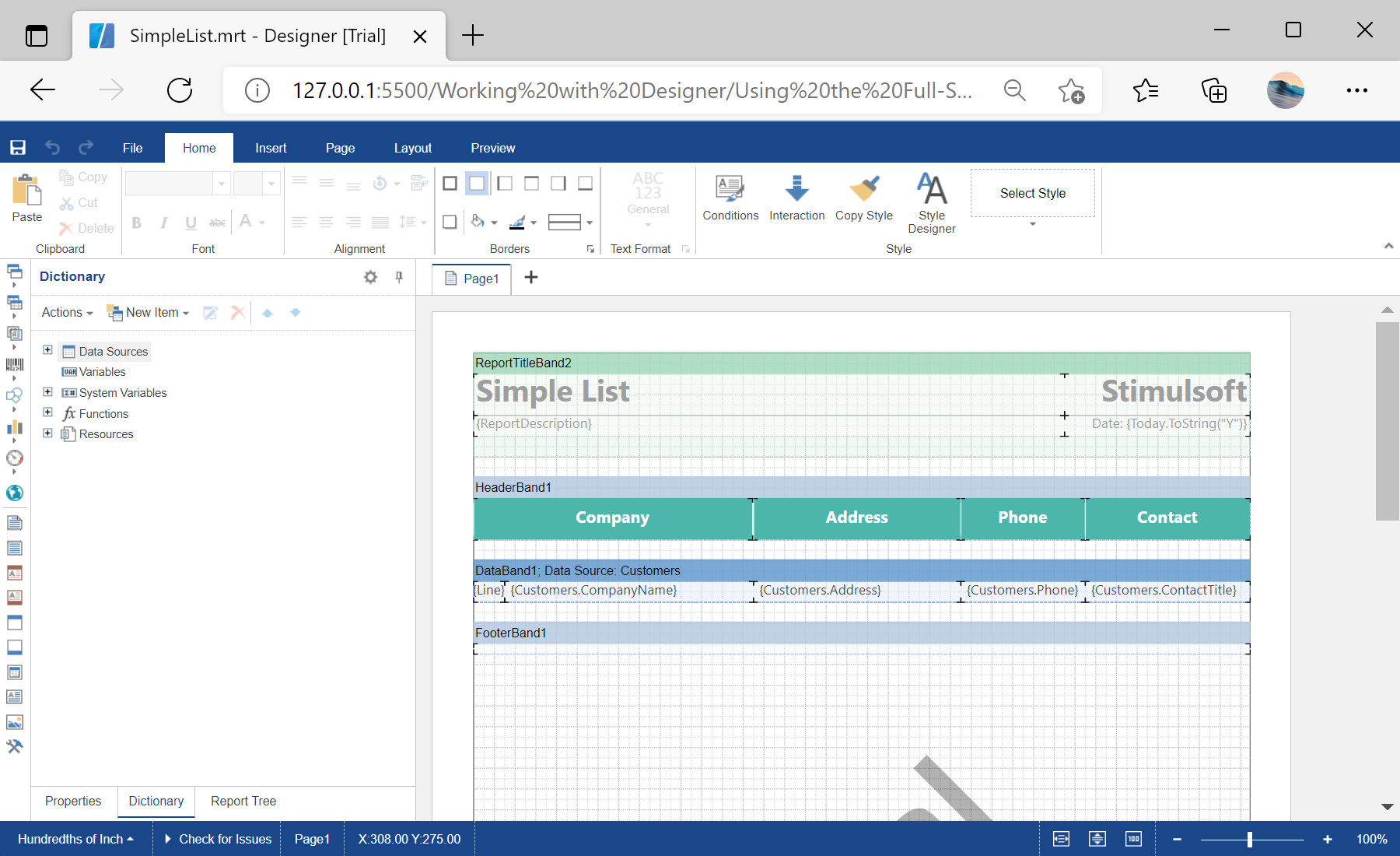
Designer setup. Configure the designer, load the report template, process its callbacks, and connect the save action to the application.
var options = new Stimulsoft.Designer.StiDesignerOptions();
options.appearance.fullScreenMode = true;

var designer = new Stimulsoft.Designer.StiDesigner(options, "StiDesigner", false);

var report = new Stimulsoft.Report.StiReport();
report.loadFile("../reports/SimpleList.mrt");
designer.report = report;
designer.renderHtml();appearance.fullScreenMode = true the designer fills the window and behaves like a standalone application, rather than sitting inside a fixed-size area on the page.In the screenshot below you can see the result of the sample code: