




















Changing the Viewer Options
Our sample projects and report templates can help you learn the basics of working with our products.The viewer's appearance, toolbar, size and theme can all be configured. This example sets several options and a theme on the component.
Viewer setup. Configure the viewer, load the report, assign it to the component, and process the requests or events raised by the UI.
The
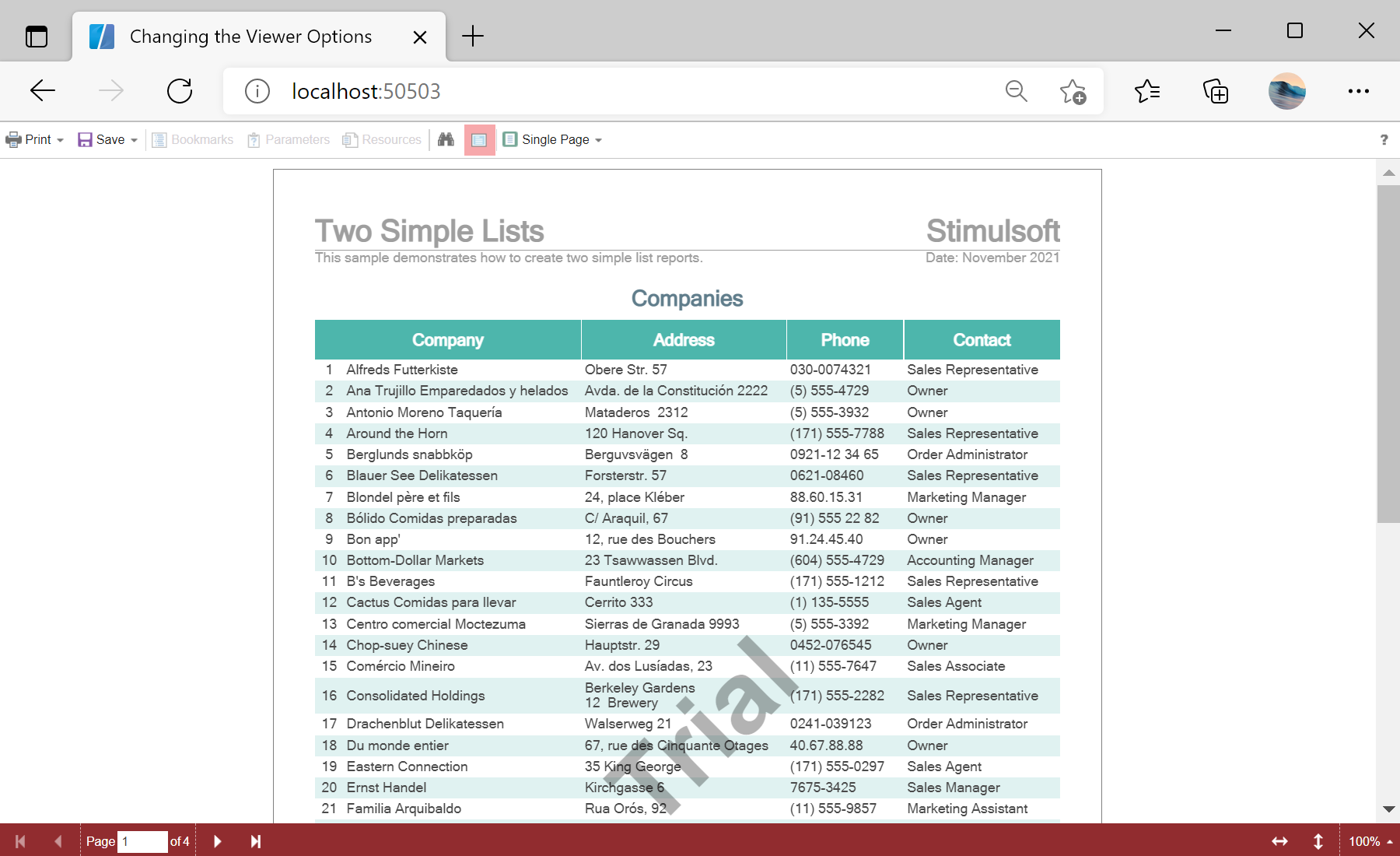
In the screenshot below you can see the result of the sample code:
Viewer setup. Configure the viewer, load the report, assign it to the component, and process the requests or events raised by the UI.
@page "/"
@using Stimulsoft.Base
@using Stimulsoft.Report
@using Stimulsoft.Report.Blazor
@using Stimulsoft.Report.Web

<!--Report Viewer-->
<StiBlazorViewer Report="@Report" Options="@Options" Width="650" Height="650"
                 Theme="StiViewerTheme.Office2022LightGrayCarmine" />

@code
{
    //Report object to use in Viewer
    private StiReport Report;

    //Viewer options object
    private StiBlazorViewerOptions Options;

    protected override void OnInitialized()
    {
        base.OnInitialized();

        //How to activate
        //Stimulsoft.Base.StiLicense.Key = "6vJhGtLLLz2GNviWmUTrhSqnO...";
        //Stimulsoft.Base.StiLicense.LoadFromFile("stimulsoft.key");
        //Stimulsoft.Base.StiLicense.LoadFromStream(stream);

        //Init options object
        this.Options = new StiBlazorViewerOptions();

        //Set some options
        this.Options.Appearance.FullScreenMode = true;
        this.Options.Appearance.ScrollbarsMode = true;
        this.Options.Toolbar.ShowOpenButton = false;
        this.Options.Toolbar.DisplayMode = StiToolbarDisplayMode.Separated;

        //Create empty report object
        this.Report = new StiReport();

        //Load report template
        this.Report.Load("Reports/TwoSimpleLists.mrt");
    }
}
The
Width, Height and Theme parameters set the component's size and visual style, while the Options object's Appearance and Toolbar groups control the finer details.In the screenshot below you can see the result of the sample code: