




















Editing a Dashboard in the Designer
Our sample projects and report templates can help you learn the basics of working with our products.This example is outdated, you can check out the many other new examples in this category.This example shows how to edit dashboard in the designer.
First, you need to add the
After that, use
Finally, use
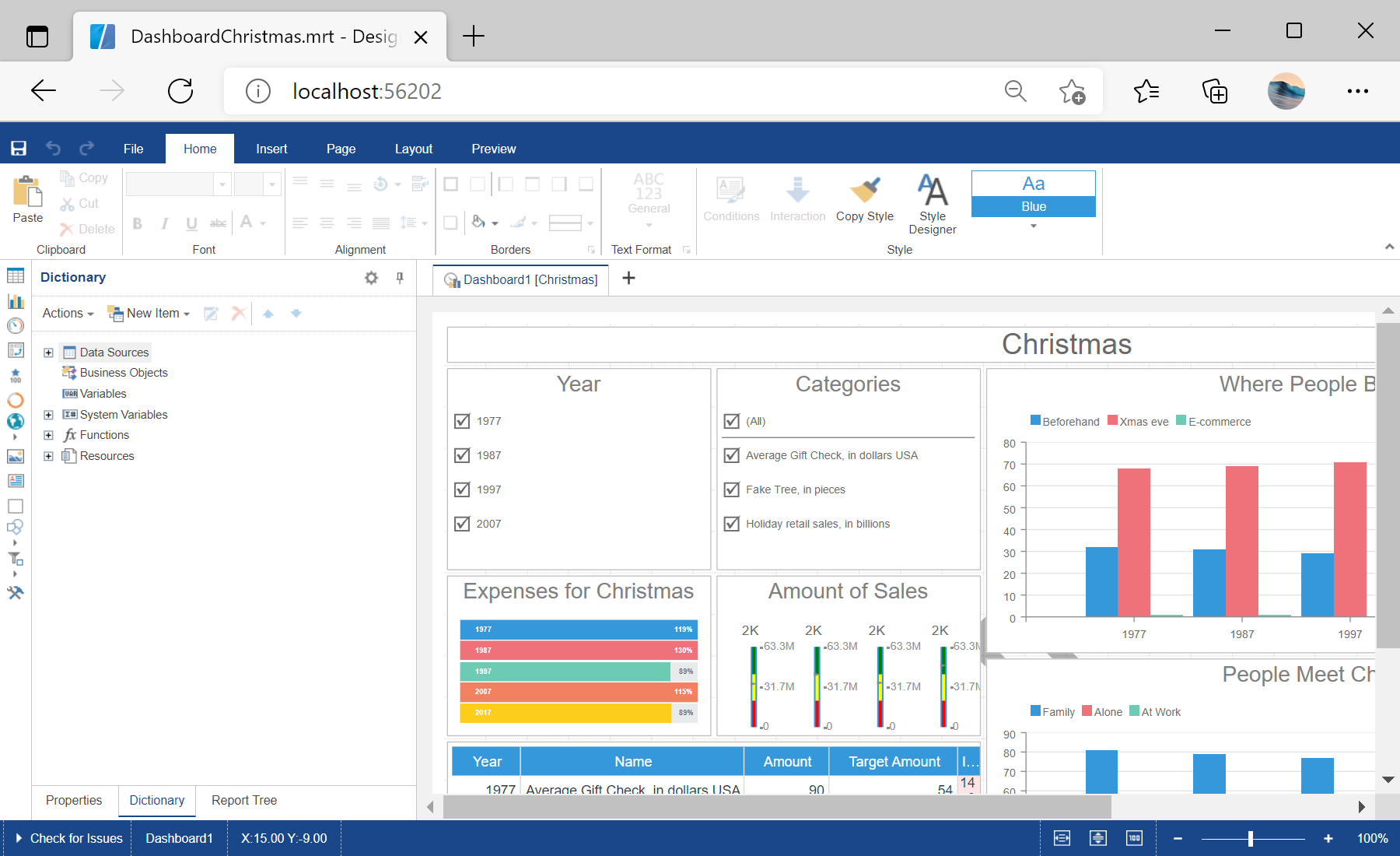
In the screenshot below you can see the result of the sample code:
First, you need to add the
StiMvcDesigner component to the view page. Also you need to pass the StiMvcDesignerOptions object to the constructor. The minimum required options are two actions - GetReport and DesignerEvent:
@using Stimulsoft.Report.Mvc;

...

@Html.Stimulsoft().StiMvcDesigner(new StiMvcDesignerOptions()
{
    Actions =
    {
        GetReport = "GetReport",
        DesignerEvent = "DesignerEvent"
    }
})
After that, use
GetReport() method to create the dashboard object, load dashboard template and return template to the designer:
public ActionResult GetReport()
{
	// Create the dashboard object
	var report = StiReport.CreateNewDashboard();

	// Load dashboard template
	report.Load(Server.MapPath("~/Dashboards/DashboardChristmas.mrt"));

	// Return template to the Designer
	return StiMvcDesigner.GetReportResult(report);
}
Finally, use
DesignerEvent() method to return the answer to the client:
public ActionResult DesignerEvent()
{
	return StiMvcDesigner.DesignerEventResult();
}
In the screenshot below you can see the result of the sample code: