



















Integrating the Dashboard Designer into an Application (TypeScript)
Our sample projects and report templates can help you learn the basics of working with our products.This example is outdated, you can check out the many other new examples in this category.This example shows how to integrate the dashboard designer into a React application with TypeScript. First of all, load scripts:
Then, create an
Finally, use
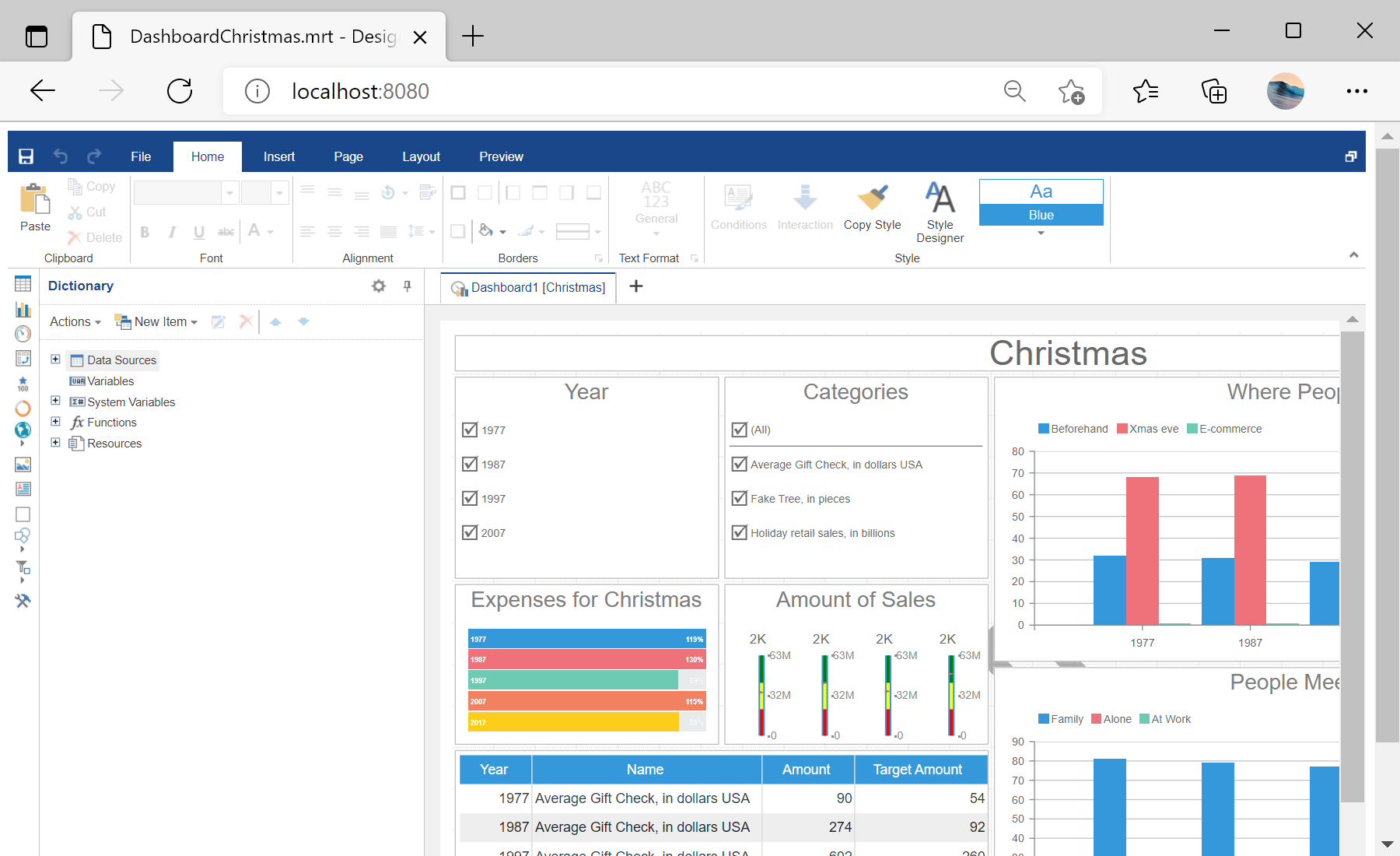
In the screenshot below you can see the result of the sample code:
import React from 'react';
import { Stimulsoft } from 'stimulsoft-dashboards-js/Scripts/stimulsoft.blockly.editor';
import 'stimulsoft-dashboards-js/Css/stimulsoft.designer.office2013.whiteblue.css';
import 'stimulsoft-dashboards-js/Css/stimulsoft.viewer.office2013.whiteblue.css';
import './App.css';
Then, create an
App class which extends from React component:
class App extends React.Component {
    private options: any;
    private designer: any;

    render() {
        return (
            <div id="designer" className="App">
            </div>
        );
    }

...
Finally, use
componentDidMount() method to set designer options, load the dashboard and display it in the designer:
...

	componentDidMount() {
		console.log('Loading Designer view');

		console.log('Set full screen mode for the designer');
		this.options = new Stimulsoft.Designer.StiDesignerOptions();
		this.options.appearance.fullScreenMode = false;

		console.log('Create the dashboard designer with specified options');
		this.designer = new Stimulsoft.Designer.StiDesigner(this.options, 'StiDesigner', false);

		console.log('Edit dashboard template in the designer');
		this.designer.report = Stimulsoft.Report.StiReport.createNewDashboard();

		console.log('Load dashboard from url');
		this.designer.report.loadFile('/dashboard/DashboardChristmas.mrt');

		console.log('Rendering the designer to selected element');
		this.designer.renderHtml('designer');

		console.log('Loading completed successfully!');
	}


...
In the screenshot below you can see the result of the sample code: