
















Updating a JSON Data for the Dashboard Viewer
Our sample projects and report templates can help you learn the basics of working with our products.This example demonstrates how to update JSON data for dashboard viewer. First, create text area and two buttons:
Next, create new dataset object and register it:
After that, attach dashboard in the viewer:
Now, create a function to change data:
Finally, create the dashboard viewer and load dashboard. Call
Also, you can use the buttons, created before, to change or update data.
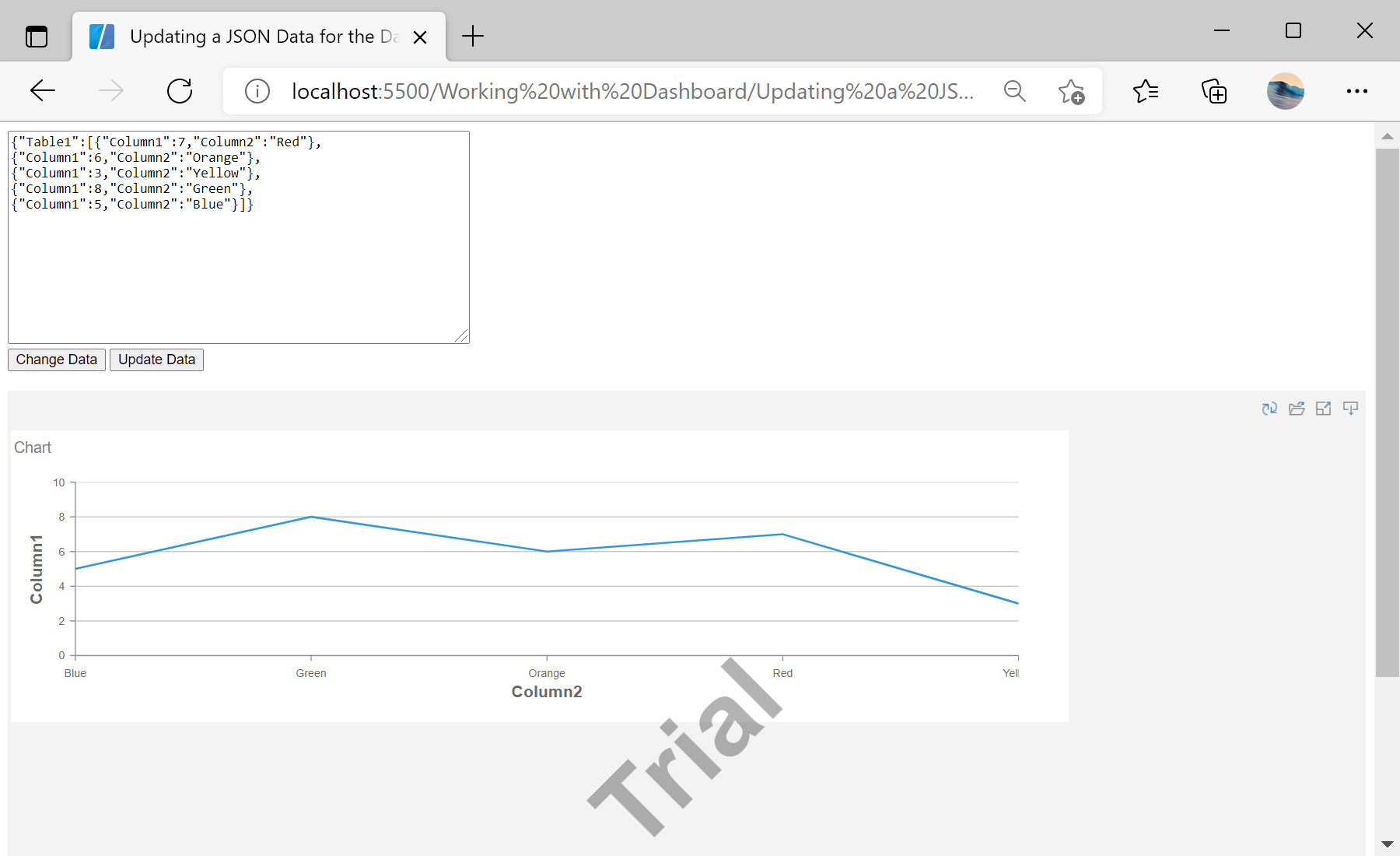
In the screenshot below you can see the result of the sample code:
...
<textarea name="jsonString" id="jsonString" style="width: 440px; height: 200px;"></textarea>
<input type="submit" value="Change Data" onclick="changeData()" />
<input type="submit" value="Update Data" onclick="setData()" />
...
Then, parse JSON from text area:
<script type="text/javascript">
function setData() {
// Parse JSON from textarea
var jsonData = JSON.parse(jsonString.value);
...
Next, create new dataset object and register it:
...
// Create new DataSet object
var dataSet = new Stimulsoft.System.Data.DataSet("Demo");
dataSet.readJson(jsonData);
// Register DataSet object
report.regData("Demo", "Demo", dataSet);
Stimulsoft.Report.Dashboard.StiCacheCleaner.clean();
...
After that, attach dashboard in the viewer:
...
// Show dashboard in the Viewer
viewer.report = report;
}
...
Now, create a function to change data:
...
function changeData() {
var jsonData = {
"Table1": [{
"Column1": getRandom(),
"Column2": "Red"
}, {
"Column1": getRandom(),
"Column2": "Orange"
}, {
"Column1": getRandom(),
"Column2": "Yellow"
}, {
"Column1": getRandom(),
"Column2": "Green"
}, {
"Column1": getRandom(),
"Column2": "Blue"
}]
};
jsonString.value = JSON.stringify(jsonData);
setData();
}
function getRandom() {
return Math.round(Math.random() * 10);
}
</script>
Finally, create the dashboard viewer and load dashboard. Call
changeData() function to change JSON data:
<script type="text/javascript">
// Set full screen mode for the viewer
var options = new Stimulsoft.Viewer.StiViewerOptions();
options.appearance.scrollbarsMode = true;
options.appearance.fullScreenMode = false;
// Create the dashboard viewer with specified options
var viewer = new Stimulsoft.Viewer.StiViewer(options, "StiViewer", false);
var report = Stimulsoft.Report.StiReport.createNewDashboard();
// Load dashboard from url
report.loadFile("../dashboard/DashboardUpdateJson.mrt");
// Show the report viewer in this place
viewer.renderHtml();
changeData();
</script>
Also, you can use the buttons, created before, to change or update data.
In the screenshot below you can see the result of the sample code:
