













Updating a JSON Data for the Dashboard Viewer
Unsere Beispiele der Projekte und Berichtsvorlagen helfen Ihnen, die Grundlagen der Arbeit mit unserer Software zu erlernen.This example demonstrates how to update JSON data for dashboard viewer. First, create text area and two buttons:
Next, create new dataset object and register it:
After that, attach dashboard in the viewer:
Now, create a function to change data:
Finally, create the dashboard viewer and load dashboard. Call
Also, you can use the buttons, created before, to change or update data.
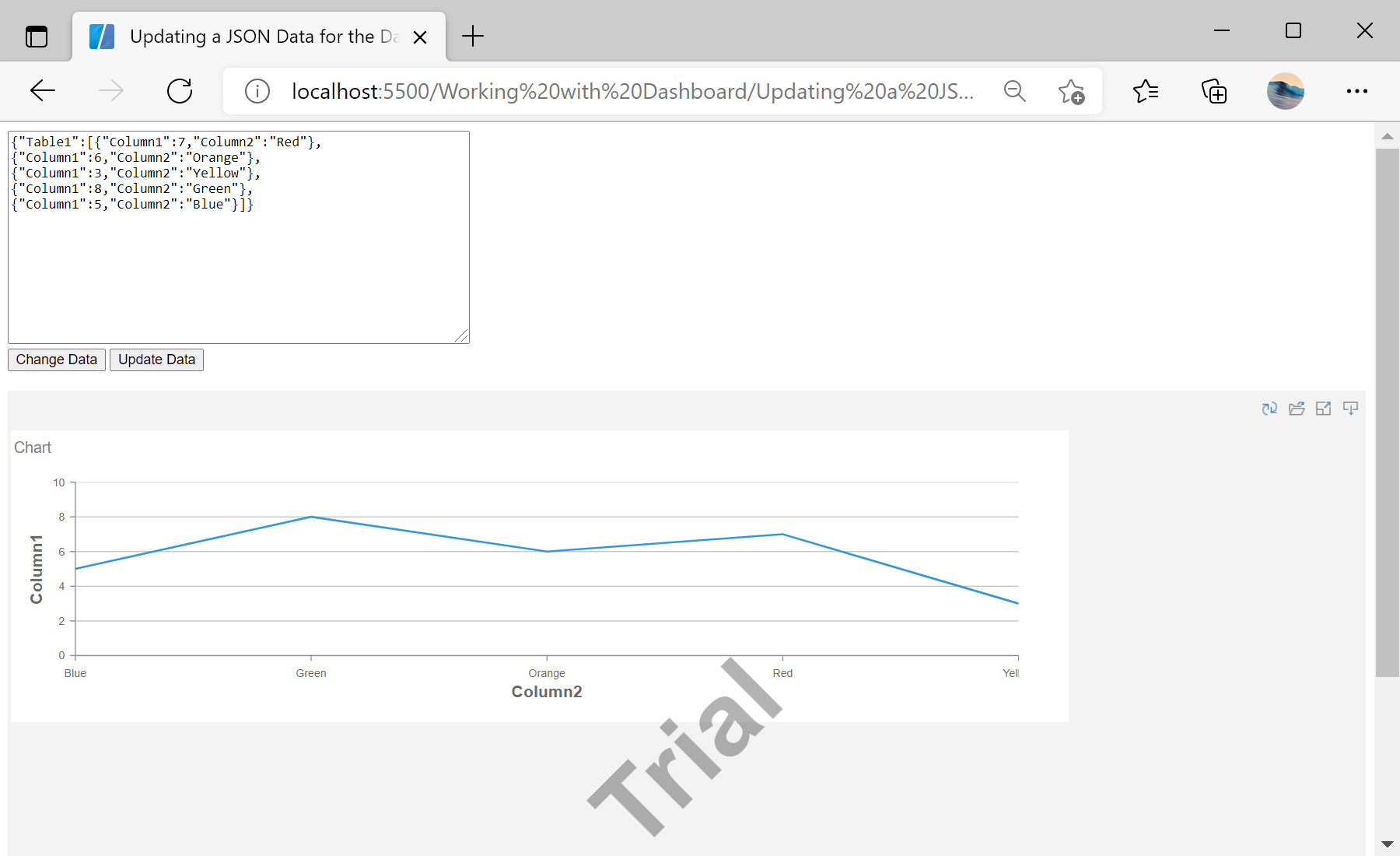
Auf dem Screenshot unten Sie können das Ergebnis des Beispiel-Codes ansehen:

...
<textarea name="jsonString" id="jsonString" style="width: 440px; height: 200px;"></textarea>
<input type="submit" value="Change Data" onclick="changeData()" />
<input type="submit" value="Update Data" onclick="setData()" />
...
Then, parse JSON from text area:
<script type="text/javascript">
function setData() {
// Parse JSON from textarea
var jsonData = JSON.parse(jsonString.value);
...
Next, create new dataset object and register it:
...
// Create new DataSet object
var dataSet = new Stimulsoft.System.Data.DataSet("Demo");
dataSet.readJson(jsonData);
// Register DataSet object
report.regData("Demo", "Demo", dataSet);
Stimulsoft.Report.Dashboard.StiCacheCleaner.clean();
...
After that, attach dashboard in the viewer:
...
// Show dashboard in the Viewer
viewer.report = report;
}
...
Now, create a function to change data:
...
function changeData() {
var jsonData = {
"Table1": [{
"Column1": getRandom(),
"Column2": "Red"
}, {
"Column1": getRandom(),
"Column2": "Orange"
}, {
"Column1": getRandom(),
"Column2": "Yellow"
}, {
"Column1": getRandom(),
"Column2": "Green"
}, {
"Column1": getRandom(),
"Column2": "Blue"
}]
};
jsonString.value = JSON.stringify(jsonData);
setData();
}
function getRandom() {
return Math.round(Math.random() * 10);
}
</script>
Finally, create the dashboard viewer and load dashboard. Call
changeData() function to change JSON data:
<script type="text/javascript">
// Set full screen mode for the viewer
var options = new Stimulsoft.Viewer.StiViewerOptions();
options.appearance.scrollbarsMode = true;
options.appearance.fullScreenMode = false;
// Create the dashboard viewer with specified options
var viewer = new Stimulsoft.Viewer.StiViewer(options, "StiViewer", false);
var report = Stimulsoft.Report.StiReport.createNewDashboard();
// Load dashboard from url
report.loadFile("../dashboard/DashboardUpdateJson.mrt");
// Show the report viewer in this place
viewer.renderHtml();
changeData();
</script>
Also, you can use the buttons, created before, to change or update data.
Auf dem Screenshot unten Sie können das Ergebnis des Beispiel-Codes ansehen: