



















Creating a Table then Adding Two Filters and Exporting to Excel
Our sample projects and report templates can help you learn the basics of working with our products.Render the dashboard in JavaScript and export it directly from code, without opening the viewer.
Exporting the dashboard. Load and render the dashboard, configure the requested export format, and deliver the generated bytes as a file, stream, or web response.
After registering data and synchronizing the dictionary, a
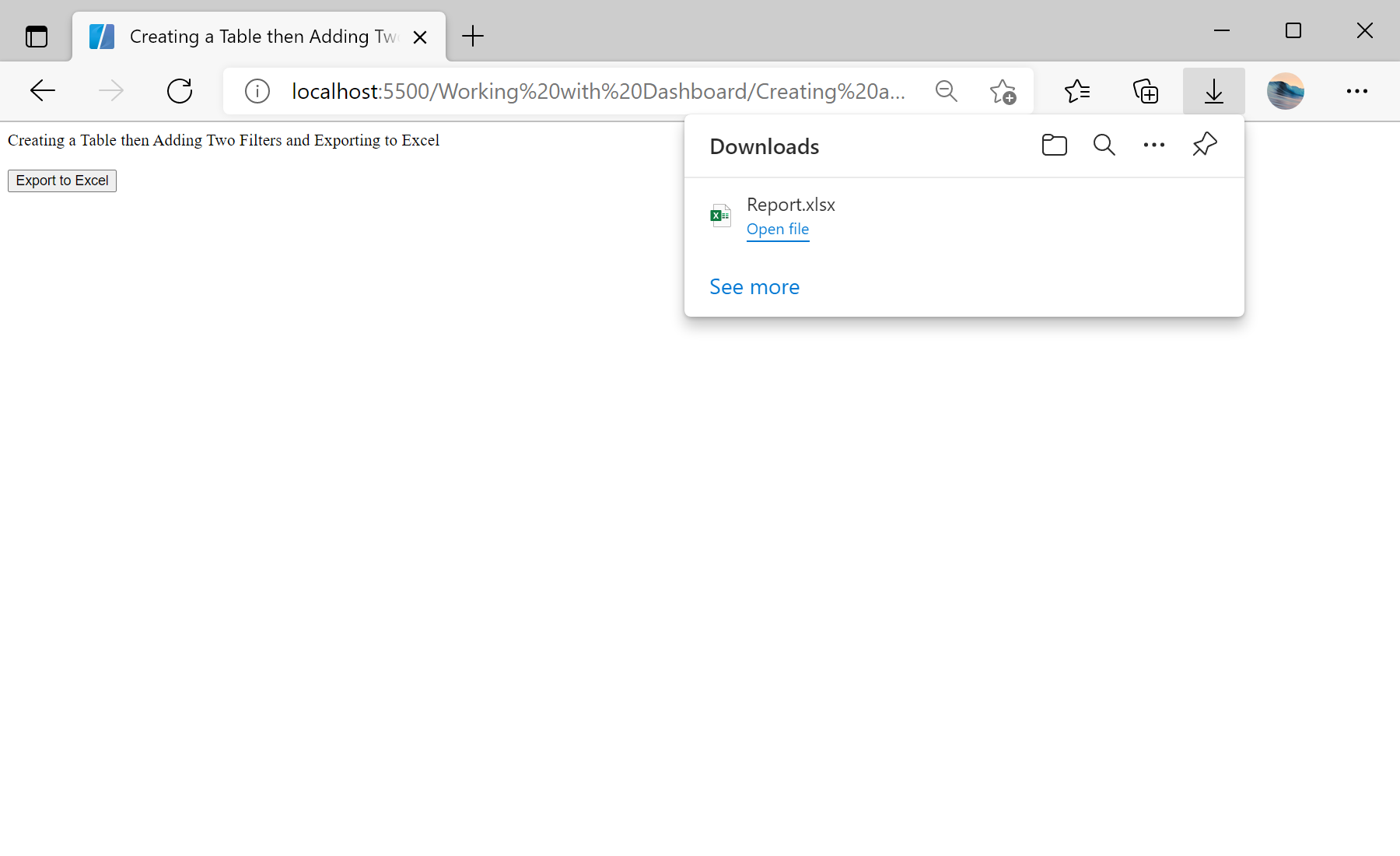
In the screenshot below you can see the result of the sample code:
Exporting the dashboard. Load and render the dashboard, configure the requested export format, and deliver the generated bytes as a file, stream, or web response.
// Create a dashboard and register data
var report = Stimulsoft.Report.StiReport.createNewDashboard();
var dashboard = report.pages.getByIndex(0);

var dataSet = new Stimulsoft.System.Data.DataSet();
dataSet.readXmlFile("../dashboard/Demo.xml");
report.regData("Demo", "Demo", dataSet);
report.dictionary.synchronize();

// Add a table element
var tableElement = new Stimulsoft.Dashboard.Components.Table.StiTableElement();
tableElement.left = 100; tableElement.top = 100;
tableElement.width = 500; tableElement.height = 500;
tableElement.name = "Example";
dashboard.components.add(tableElement);

// Add three dimension columns
["Products.ProductID", "Products.ProductName", "Products.UnitPrice"].forEach(function (expr) {
    var column = new Stimulsoft.Dashboard.Components.Table.StiDimensionColumn();
    column.expression = expr;
    tableElement.columns.add(column);
});

// First filter: ProductID begins with "1"
var productIDFilter = new Stimulsoft.Data.Engine.StiDataFilterRule();
productIDFilter.condition = Stimulsoft.Data.Engine.StiDataFilterCondition.BeginningWith;
productIDFilter.path = "Products.ProductID";
productIDFilter.value = "1";
tableElement.dataFilters.add(productIDFilter);

// Second filter: UnitPrice ends with "1"
var unitPriceFilter = new Stimulsoft.Data.Engine.StiDataFilterRule();
unitPriceFilter.condition = Stimulsoft.Data.Engine.StiDataFilterCondition.EndingWith;
unitPriceFilter.path = "Products.UnitPrice";
unitPriceFilter.value = "1";
tableElement.dataFilters.add(unitPriceFilter);

// Export the dashboard straight to Excel
function onExportToExcelClick() {
    report.exportDocumentAsync(function (data) {
        Stimulsoft.System.StiObject.saveAs(data, report.reportName + ".xlsx", "application/vnd.ms-excel");
    }, Stimulsoft.Report.StiExportFormat.Excel2007);
}
After registering data and synchronizing the dictionary, a
StiTableElement is created, populated and filtered, then the dashboard is exported. It demonstrates how dashboard elements, data and filtering combine in code.In the screenshot below you can see the result of the sample code: