




















Many projects rely on custom business logic when building reports, such as retrieving data from internal services, transforming values, or performing calculations. Starting with version 2026.3, Stimulsoft products allow you to publish methods from your own .NET assemblies as report functions without having to register each one manually. Simply decorate your classes and methods with a couple of attributes, and the report designer will automatically discover them and add them to the report dictionary.
Publishing Functions
Two attributes from the Stimulsoft.Base.Functions namespace are used to publish functions:- StiClassFunctionsAttribute – marks a class that contains custom report functions.
- StiFunctionAttribute – publishes a method and assigns it to a category in the report dictionary.
Function documentation is provided using the standard System.ComponentModel.DescriptionAttribute. You can describe the function itself, its parameters, and its return value. This information is automatically displayed in the report designer.
using Stimulsoft.Base.Functions;
using System.ComponentModel;

[StiClassFunctions]
public static class EastwindFunctions
{
    [StiFunction(Category = "Eastwind")]
    [Description("Returns the display name of a customer by its identifier.")]
    [return: Description("The customer display name.")]
    public static string GetCustomerName(
        [Description("Customer identifier")] int customerId)
    {
        return "result";
    }
}
Display in the report designer
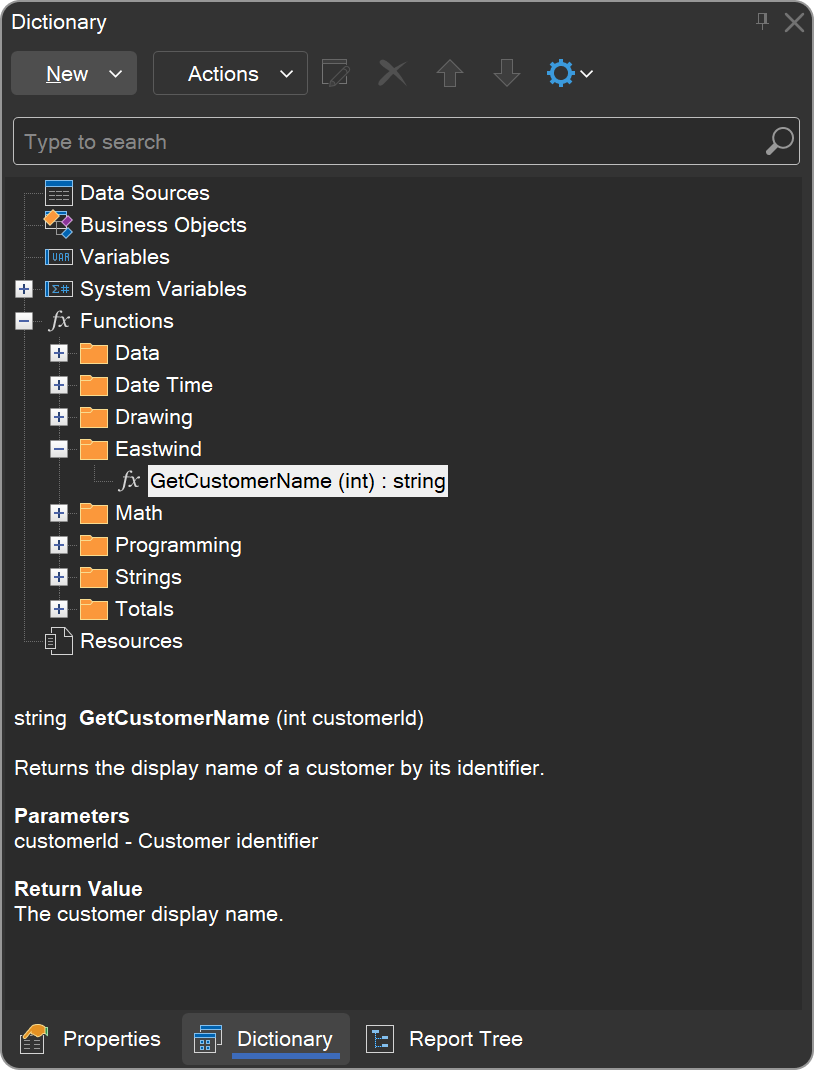
Once the assembly is connected, the designer automatically discovers all published functions and adds them to the report dictionary. Each function includes:- category;
- method signature;
- description;
- parameter descriptions;
- return value description.
This makes custom functions as easy to use as the built-in ones, without any additional registration or configuration.
Connecting an Assembly
To make custom functions available in both interpretation and compilation modes, the assembly and all of its dependencies must be located in the application directory next to Designer.exe.Then open Options → Functions, click Add, and select your assembly.
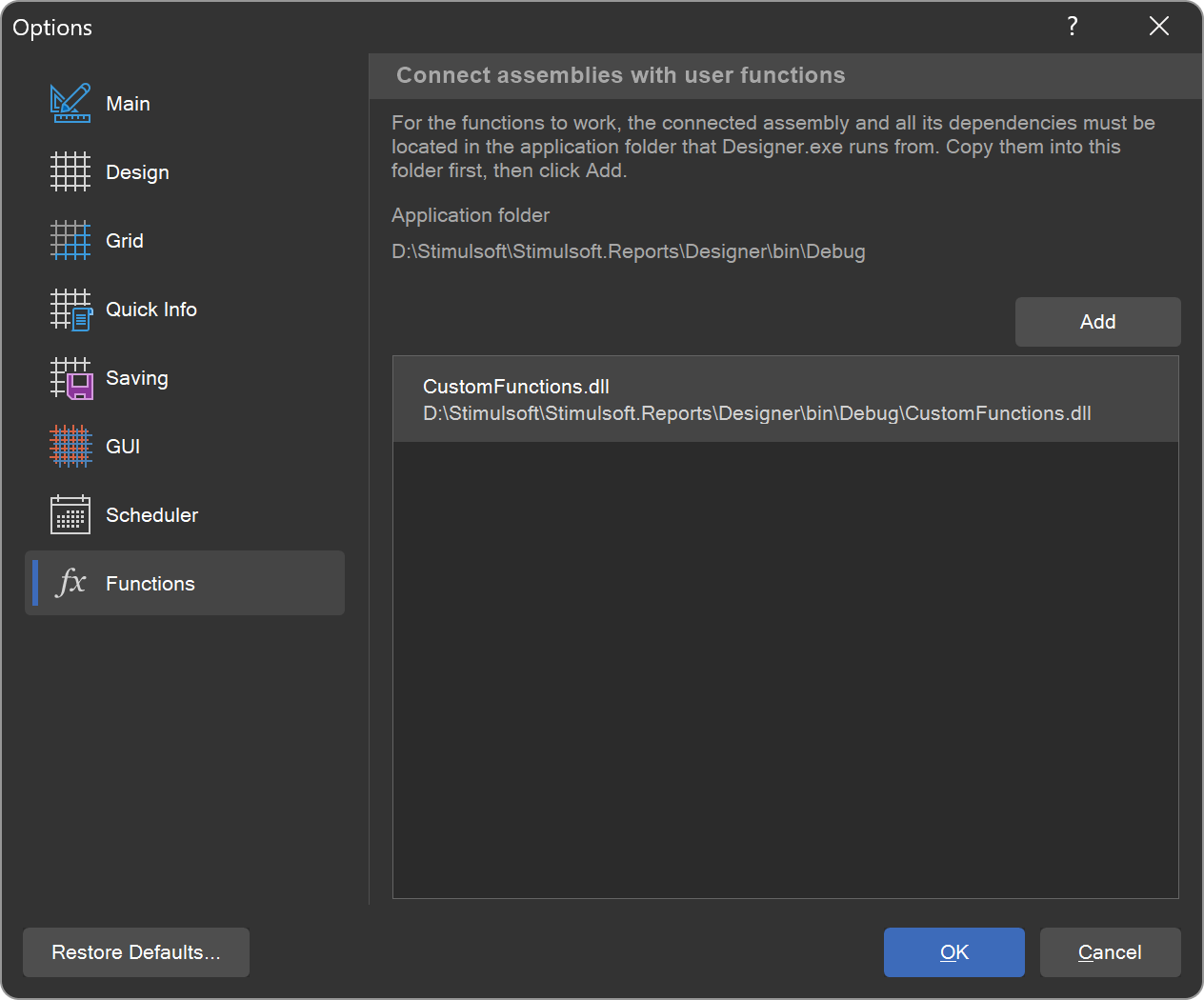
Once connected, the assembly is loaded automatically every time the designer starts, and all published functions become available in any report.