




















Changing the Viewer Theme
Our sample projects and report templates can help you learn the basics of working with our products.The viewer supports many themes and appearance options, set on the PHP options object. This example applies a dark theme and tunes the toolbar.
Viewer setup. Configure the viewer, load the report, assign it to the component, and process the requests or events raised by the UI.
The
In the screenshot below you can see the result of the sample code:
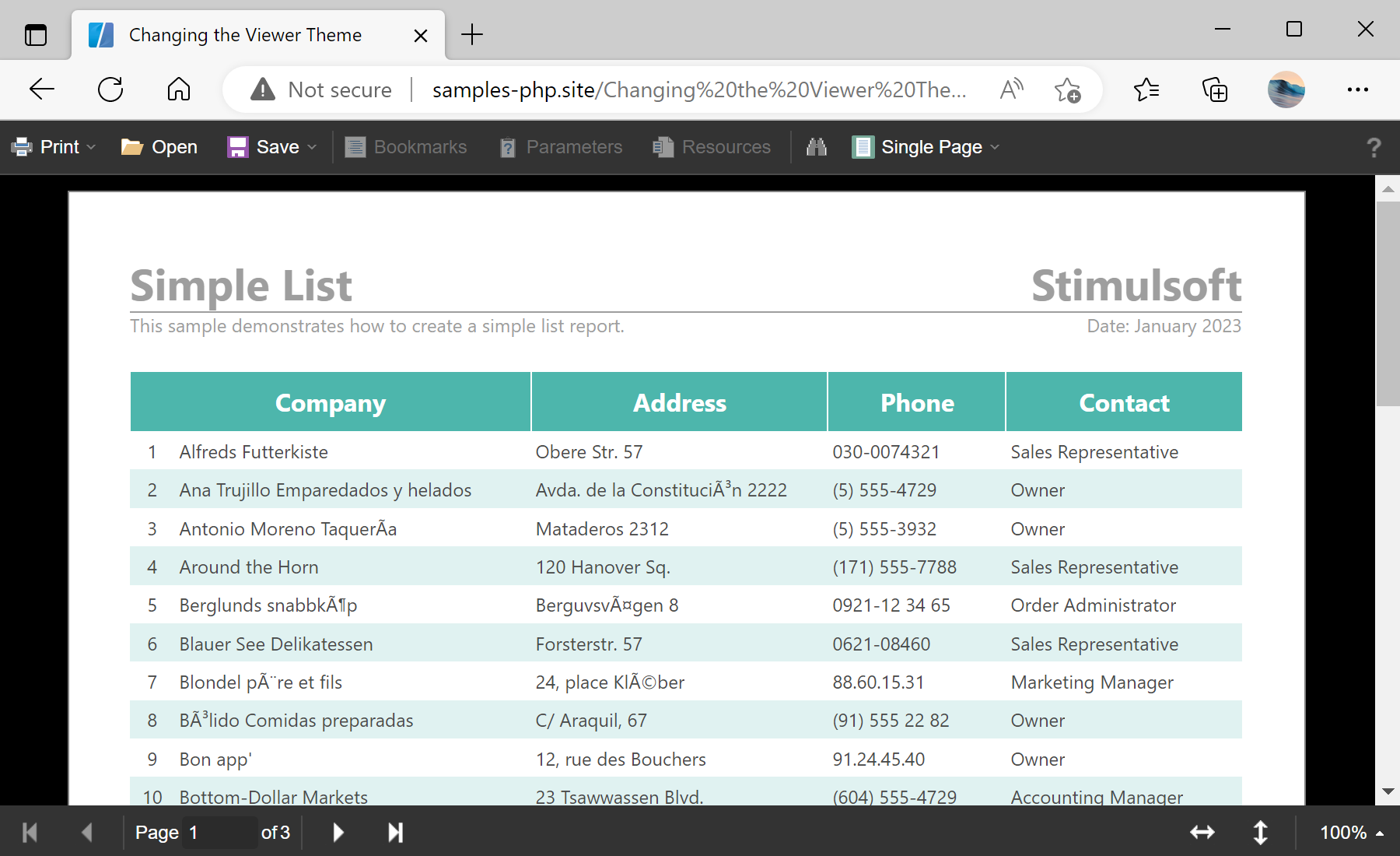
Viewer setup. Configure the viewer, load the report, assign it to the component, and process the requests or events raised by the UI.
$viewer = new StiViewer();
$viewer->options->appearance->fullScreenMode = true;
$viewer->options->appearance->theme = StiViewerTheme::Office2022BlackGreen;
$viewer->options->toolbar->displayMode = StiToolbarDisplayMode::Separated;
$viewer->options->toolbar->showFullScreenButton = false;
$viewer->process();options->appearance->theme— sets the interface theme from theStiViewerThemeenumeration (here a dark green theme).options->appearance->fullScreenMode— makes the viewer occupy the whole browser window.options->toolbar->displayMode— controls how toolbar items are grouped (here separated rows).options->toolbar->showFullScreenButton— hides or shows an individual toolbar button.
The
options->appearance and options->toolbar groups mirror the JavaScript viewer options; the theme comes from StiViewerTheme, so the viewer matches the look of your site.In the screenshot below you can see the result of the sample code: