




















Showing the Dashboard Viewer in a Required Position
Our sample projects and report templates can help you learn the basics of working with our products.The dashboard viewer can be rendered into any element on the page to fit your layout. This example draws it into a specific container.
Viewer setup. Configure the viewer, load the dashboard, assign it to the component, and process the requests or events raised by the UI.
In the screenshot below you can see the result of the sample code:
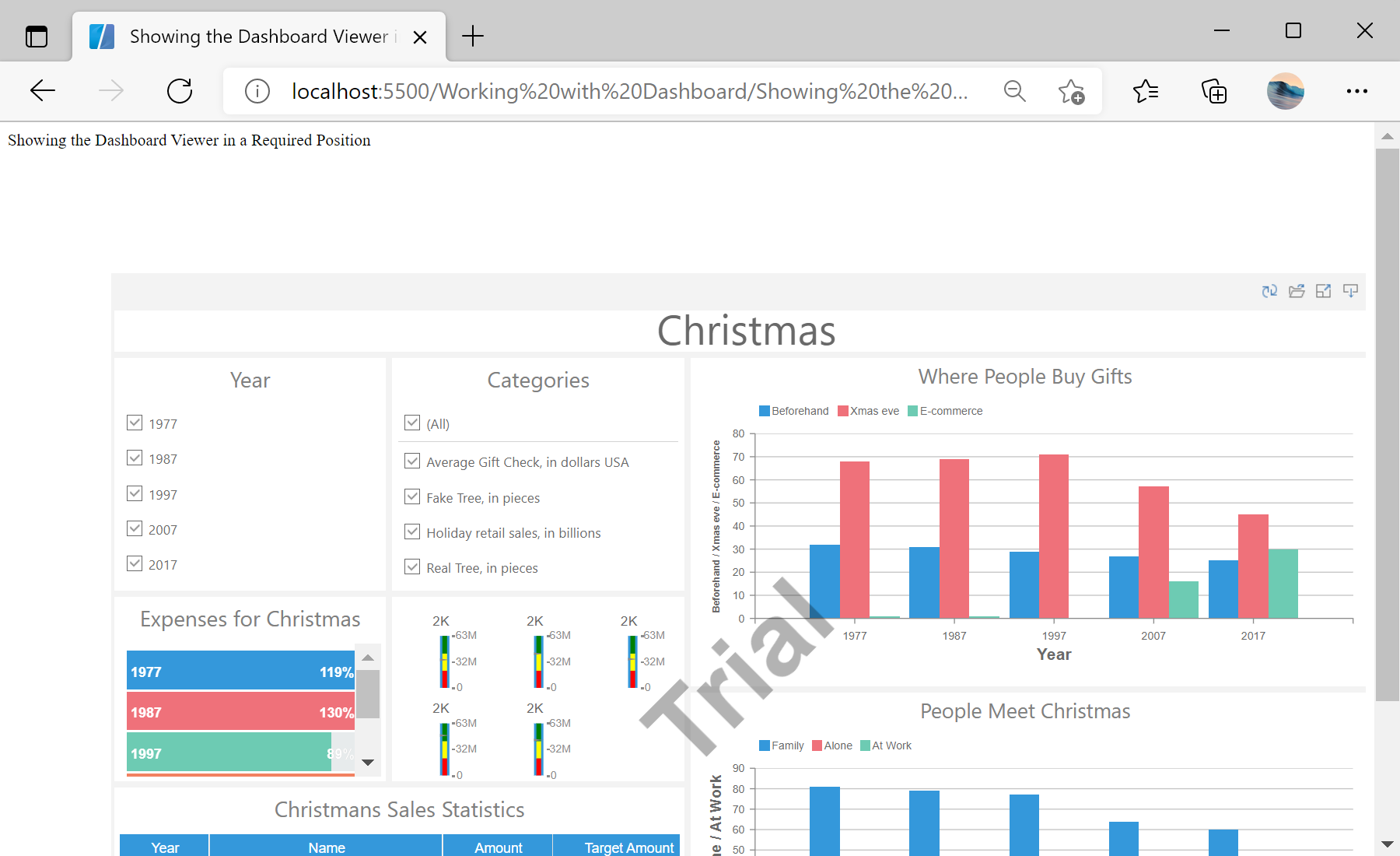
Viewer setup. Configure the viewer, load the dashboard, assign it to the component, and process the requests or events raised by the UI.
var viewer = new Stimulsoft.Viewer.StiViewer(null, "StiViewer", false);
var report = Stimulsoft.Report.StiReport.createNewDashboard();
report.loadFile("../dashboard/Christmas.mrt");
viewer.report = report;

viewer.renderHtml("content"); // id of the target elementIn the screenshot below you can see the result of the sample code: