




















Transferring a desktop report designer license to a new computer is sometimes necessary - whether you are upgrading hardware or replacing a device.
According to the license agreement, the developer can install one copy of the standalone report designer. There are situations when it is necessary to change the device on which the desktop designer license should be activated. To do this, you need to deactivate the license on the old device. You can do this through your company account.
Follow the steps below to complete the process:
According to the license agreement, the developer can install one copy of the standalone report designer. There are situations when it is necessary to change the device on which the desktop designer license should be activated. To do this, you need to deactivate the license on the old device. You can do this through your company account.
Follow the steps below to complete the process:
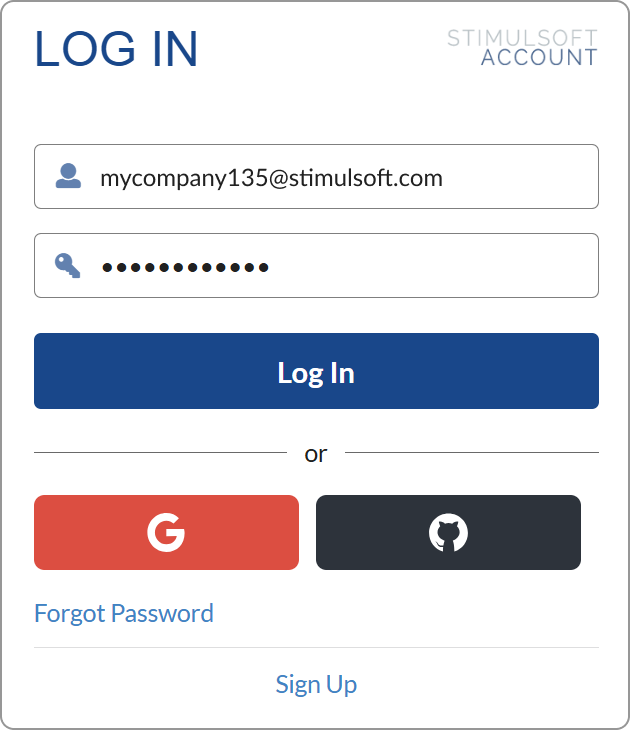
Log in to your company account
- Open a web browser and navigate to your account.
- Enter your username and password, then click the Log in button.
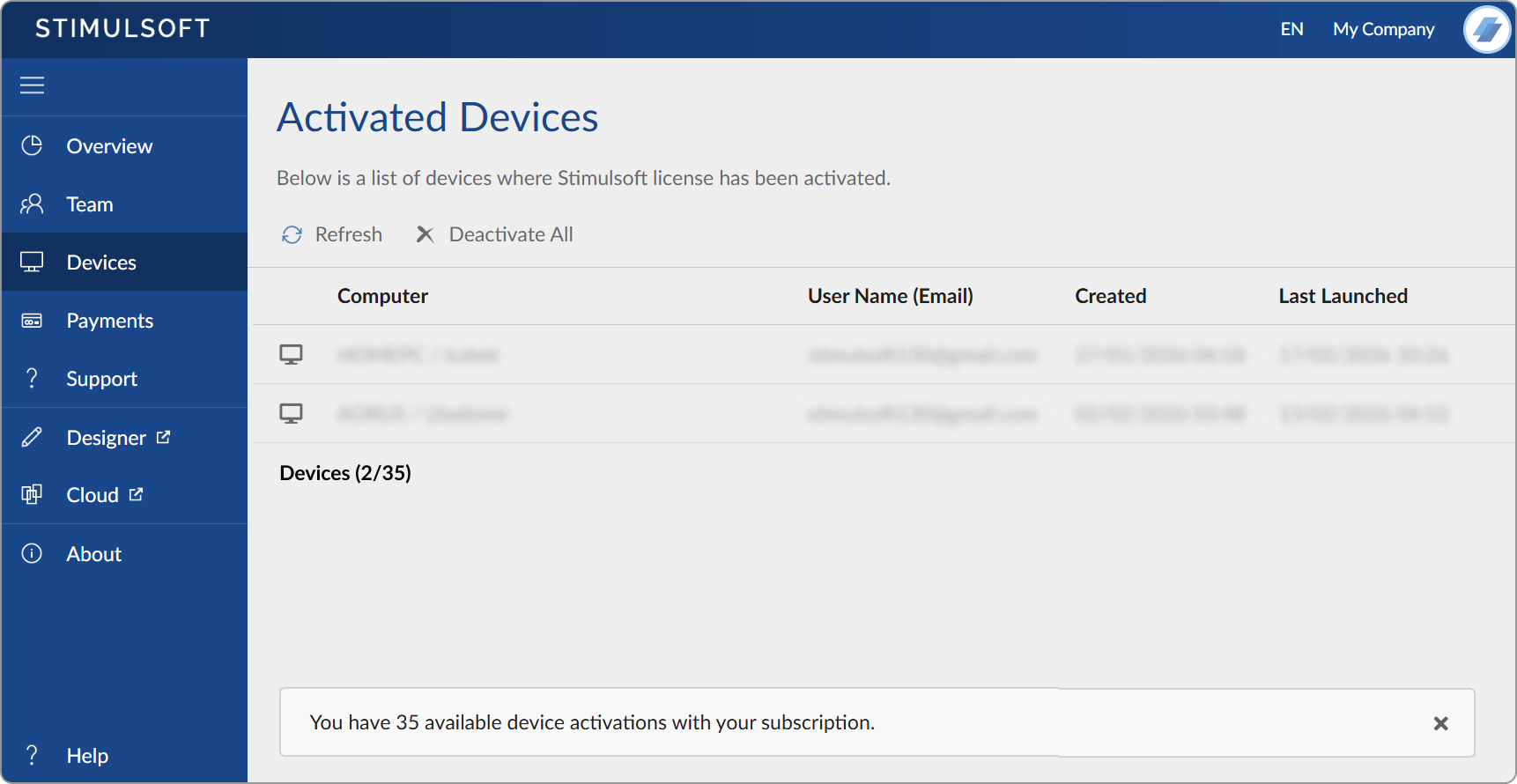
Deactivate the license on the old device
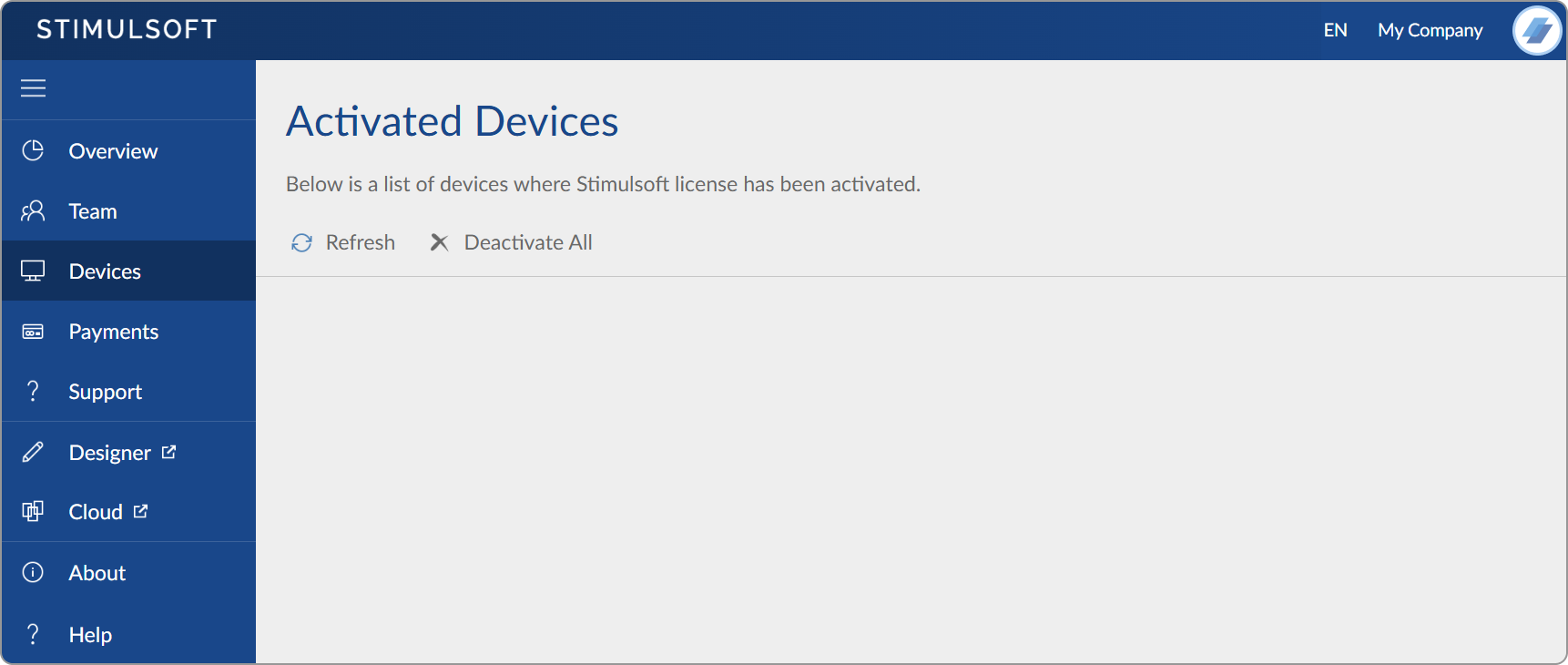
- After logging in, navigate to the Devices section of your account. In the Devices section, you will see a list of devices on which the license is currently active.
- Select the old device that you want to deactivate.
- Click the Deactivate button next to the old device to cancel the use of the license on that device.
Activate the license on the new device
- Once the license has been deactivated on the old device, you can activate it on the new device.
- Install the standalone (desktop) designer software on the new device if it is not already installed.
- Open the report designer software on the new device.
- Log in with the developer credentials within the report designer to activate the license on the new device.
If you have any questions, feel free to reach out to us. We’re always here to help and will be happy to assist you.