




















Using the Right-To-Left Mode in the Viewer
Our sample projects and report templates can help you learn the basics of working with our products.For right-to-left languages such as Arabic or Hebrew, the viewer interface itself can be mirrored. This example enables RTL mode for the viewer.
Enabling RTL. Set the global viewer option before the control is created:
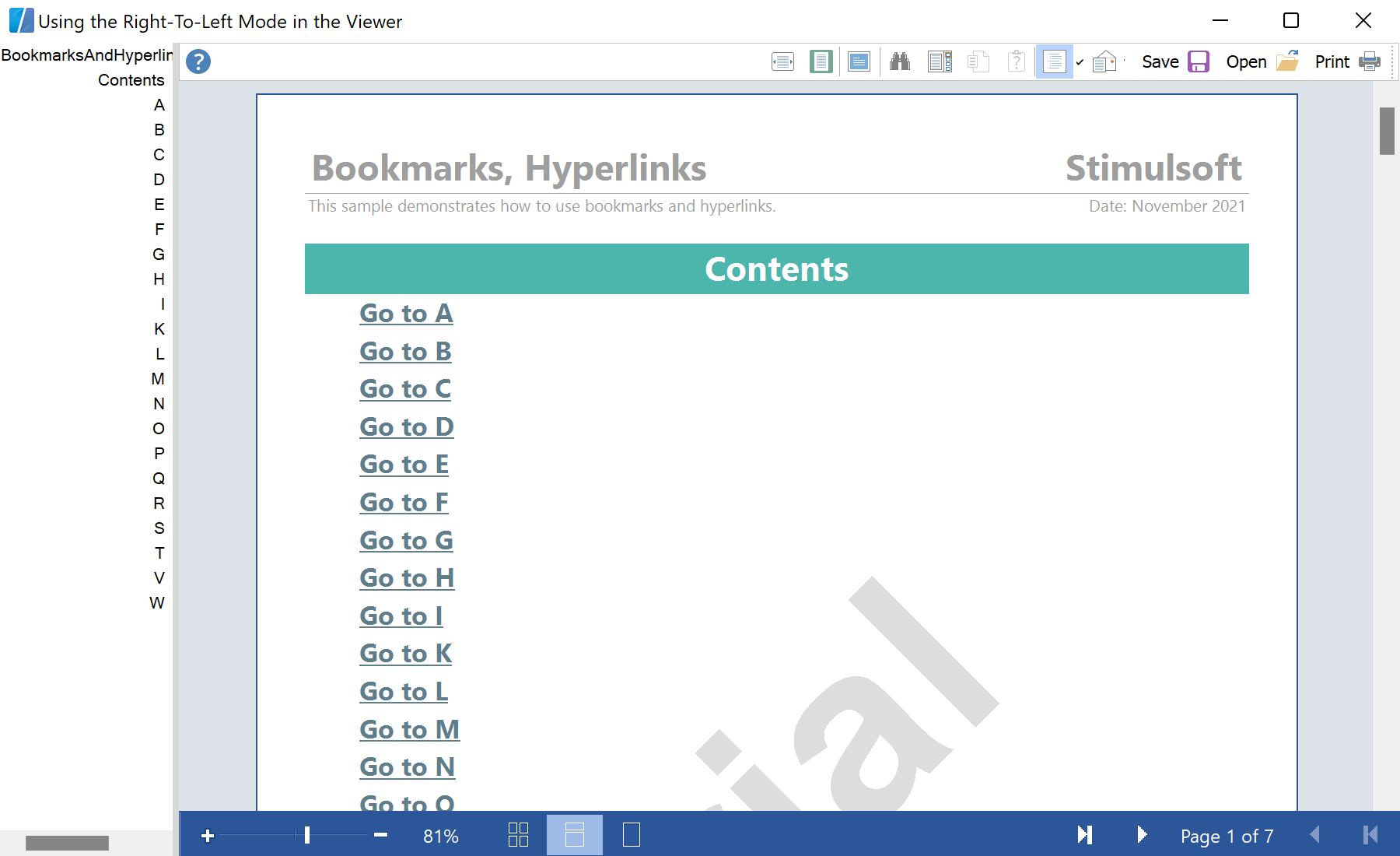
In the screenshot below you can see the result of the sample code:
Enabling RTL. Set the global viewer option before the control is created:
StiOptions.Viewer.RightToLeft = StiRightToLeftType.Yes;
InitializeComponent();In the screenshot below you can see the result of the sample code: