




















Creating Report with Table at Runtime
Our sample projects and report templates can help you learn the basics of working with our products.This example is outdated, you can check out the many other new examples in this category.This example shows how to create a simple report with table in Runtime. In this sample project you can set some properties for the table. Using the Table component, you can create a report with the title and total without other bands. In this case, some of table rows will be Header and Footer of data. First, create a new report and connect to data:
Next, add the Table component on the report page:
Next, define a number of Columns and Rows in the table:
Next, define a number of rows of the Header and rows of the Footer in the table:
Next, define other options of the Table component:
Next, add a text of the header and references to the data fields in cells:
Next, add a function of total in cells:
In the end, render the report and show it in the viewer:
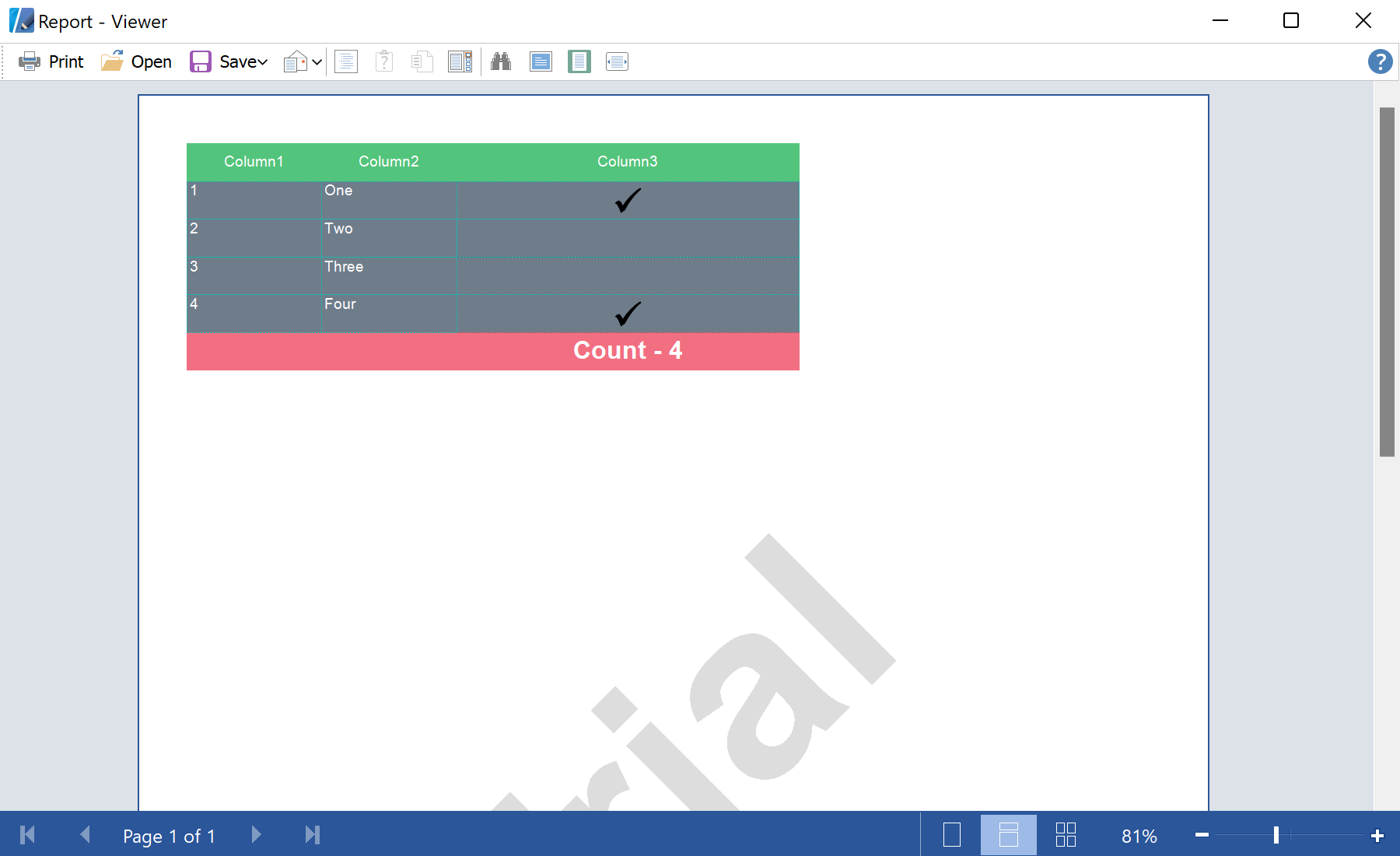
In the screenshot below you can see the result of the sample code:
private void PrintDataGrid(DataGrid sender)
{
	DataView dataView = (DataView)sender.DataSource;
	StiReport report = new StiReport();
	report.ScriptLanguage = StiReportLanguageType.CSharp;

	// Add data to datastore
	report.RegData("view", dataView);

	// Fill dictionary
	report.Dictionary.Synchronize();

...
Next, add the Table component on the report page:
...

	StiPage page = report.Pages.Items[0];

	// Create Table
	StiTable table = new StiTable();
	table.Name = "Table1";
	if (rbAWNone.Checked)
		table.AutoWidth = StiTableAutoWidth.None;
	else if (rbAWPage.Checked)
		table.AutoWidth = StiTableAutoWidth.Page;
	else
	table.AutoWidth = StiTableAutoWidth.Table;

	if (rbAWTNone.Checked)
		table.AutoWidthType = StiTableAutoWidthType.None;
	else if (rbAWTFullTable.Checked)
		table.AutoWidthType = StiTableAutoWidthType.FullTable;
	else table.AutoWidthType = StiTableAutoWidthType.LastColumns;

...
Next, define a number of Columns and Rows in the table:
...

	table.ColumnCount = 3;
	table.RowCount = 3;

...
Next, define a number of rows of the Header and rows of the Footer in the table:
...

	table.HeaderRowsCount = 1;
	table.FooterRowsCount = 1;

...
Next, define other options of the Table component:
...

	table.Width = page.Width;
	table.Height = page.GridSize * 12;
	table.DataSourceName = "view" + dataView.Table.TableName;
	page.Components.Add(table);
	table.CreateCell();
	table.TableStyleFX = new StiTable27StyleFX();
	table.TableStyle = Stimulsoft.Report.Components.Table.StiTableStyle.Style59;

	int indexHeaderCell = 0;
	int indexDataCell = 3;

...
Next, add a text of the header and references to the data fields in cells:
...

	foreach (DataColumn column in dataView.Table.Columns)
	{
		// Set text on header
		StiTableCell headerCell = table.Components[indexHeaderCell] as StiTableCell;
		headerCell.Text.Value = column.Caption;
		headerCell.HorAlignment = StiTextHorAlignment.Center;
		headerCell.VertAlignment = StiVertAlignment.Center;

		StiTableCell dataCell = table.Components[indexDataCell] as StiTableCell;
		dataCell.Text.Value = "{view" + dataView.Table.TableName + "." +
			Stimulsoft.Report.CodeDom.StiCodeDomSerializator.ReplaceSymbols(column.ColumnName) + "}";
		dataCell.Border = new StiBorder(StiBorderSides.All, Color.FromArgb(32, 178, 170), 1, StiPenStyle.Dash);

		indexHeaderCell++;
		indexDataCell++;
	}

	StiTableCell dataCheckBoxCell = table.Components[indexDataCell - 1] as StiTableCell;
	dataCheckBoxCell.CellType = StiTablceCellType.CheckBox;

...
Next, add a function of total in cells:
...

	// Set text on footer
	StiTableCell footerCell = table.Components[table.Components.Count - 1] as StiTableCell;
	footerCell.Text.Value = "Count - {Count()}";
	footerCell.Font = new Font("Arial", 15, FontStyle.Bold);
	footerCell.VertAlignment = StiVertAlignment.Center;
	footerCell.HorAlignment = StiTextHorAlignment.Center;

...
In the end, render the report and show it in the viewer:
...

	// Render without progress bar
	report.Render(false);
	report.Show();
}
In the screenshot below you can see the result of the sample code: