
















Using Report Variables in Code
Our sample projects and report templates can help you learn the basics of working with our products.This example shows the use variables (report parameters) in the web reports using POST (values are passed to the request using a form) and GET (values are passed in the URL request) methods. On the start page, there are several parameters in the form - for example, this is a simple user profile. After filling, these parameters are passed to the Home page:
On the
On the
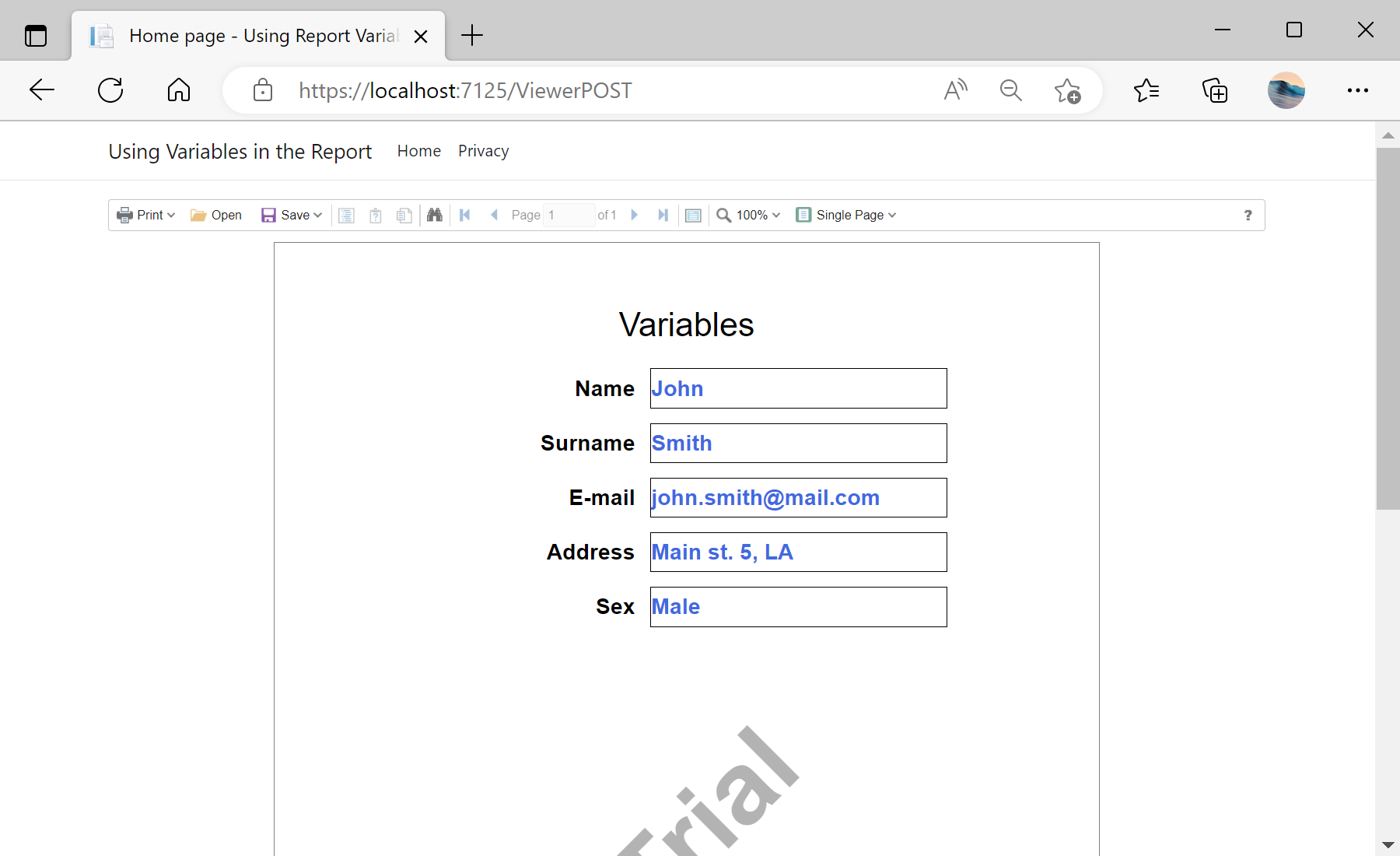
In the screenshot below you can see the result of the sample code:
@{
ViewData["Title"] = "Home Page";
}
<div class="text-center">
<h3>This sample demonstrates how to operate with report variables</h3>
<hr />
<form id="form1" action="ViewerPOST" method="post" >
<h3>POST - from Form</h3>
<table>
<tr>
<td style="width: 100px;"><label for="name">Name:</label></td>
<td><input id="name1" type="text" name="name" /></td>
</tr>
<tr>
<td><label for="surname">Surname:</label></td>
<td><input id="surname1" type="text" name="surname" /></td>
</tr>
<tr>
<td><label for="email">Email:</label></td>
<td><input id="email1" type="text" name="email" /></td>
</tr>
<tr>
<td><label for="address">Address:</label></td>
<td><input id="address1" type="text" name="address" /></td>
</tr>
<tr>
<td><label for="sex">Sex:</label></td>
<td>
<input id="radio1m" type="radio" name="sex" value="true" checked="checked" /> <label for="radio1m">Male</label>
<input id="radio1f" type="radio" name="sex" value="false" /> <label for="radio1f">Female</label>
</td>
</tr>
</table>
<br />
<p>
<input id="submit1" type="submit" value="Submit" />
</p>
</form>
<hr />
<form id="form2" action="ViewerGET" method="get" >
<h3>GET - from URL query</h3>
<table>
<tr>
<td style="width: 100px;"><label for="name">Name:</label></td>
<td><input id="name2" type="text" name="name" /></td>
</tr>
<tr>
<td><label for="surname">Surname:</label></td>
<td><input id="surname2" type="text" name="surname" /></td>
</tr>
<tr>
<td><label for="email">Email:</label></td>
<td><input id="email2" type="text" name="email" /></td>
</tr>
<tr>
<td><label for="address">Address:</label></td>
<td><input id="address2" type="text" name="address" /></td>
</tr>
<tr>
<td><label for="sex">Sex:</label></td>
<td>
<input id="radio2m" type="radio" name="sex" value="true" checked="checked" /> <label for="radio2m">Male</label>
<input id="radio2f" type="radio" name="sex" value="false" /> <label for="radio2f">Female</label>
</td>
</tr>
</table>
<br />
<p>
<input id="submit2" type="submit" value="Submit" />
</p>
</form>
</div>
On the
ViewerPOST.cs in the OnPostGetReport() event we assign the parameters values to the report using POST from form. The parameter name is the name of a variable in the dictionary of the report template:
public IActionResult OnPostGetReport()
{
var report = new StiReport();
report.Load(StiNetCoreHelper.MapPath(this, "Reports/Variables.mrt"));
report.Compile();
var formValues = StiNetCoreViewer.GetFormValues(this);
report["Name"] = formValues["name"] ?? string.Empty;
report["Surname"] = formValues["surname"] ?? string.Empty;
report["Email"] = formValues["email"] ?? string.Empty;
report["Address"] = formValues["address"] ?? string.Empty;
report["Sex"] = formValues["sex"] != null && Convert.ToBoolean(formValues["sex"]);
return StiNetCoreViewer.GetReportResult(this, report);
}
On the
ViewerGET.cs in the OnPostGetReport() event we assign the parameters values to the report using GET from URL:
public IActionResult OnPostGetReport()
{
var report = new StiReport();
report.Load(StiNetCoreHelper.MapPath(this, "Reports/Variables.mrt"));
return StiNetCoreViewer.GetReportResult(this, report);
}
In the screenshot below you can see the result of the sample code:
