













Changing the Viewer Theme
Unsere Beispiele der Projekte und Berichtsvorlagen helfen Ihnen, die Grundlagen der Arbeit mit unserer Software zu erlernen.This example shows how to change the viewer default theme. All you need to do is to use
Then, create buttons for themes choosing:
Finally, use
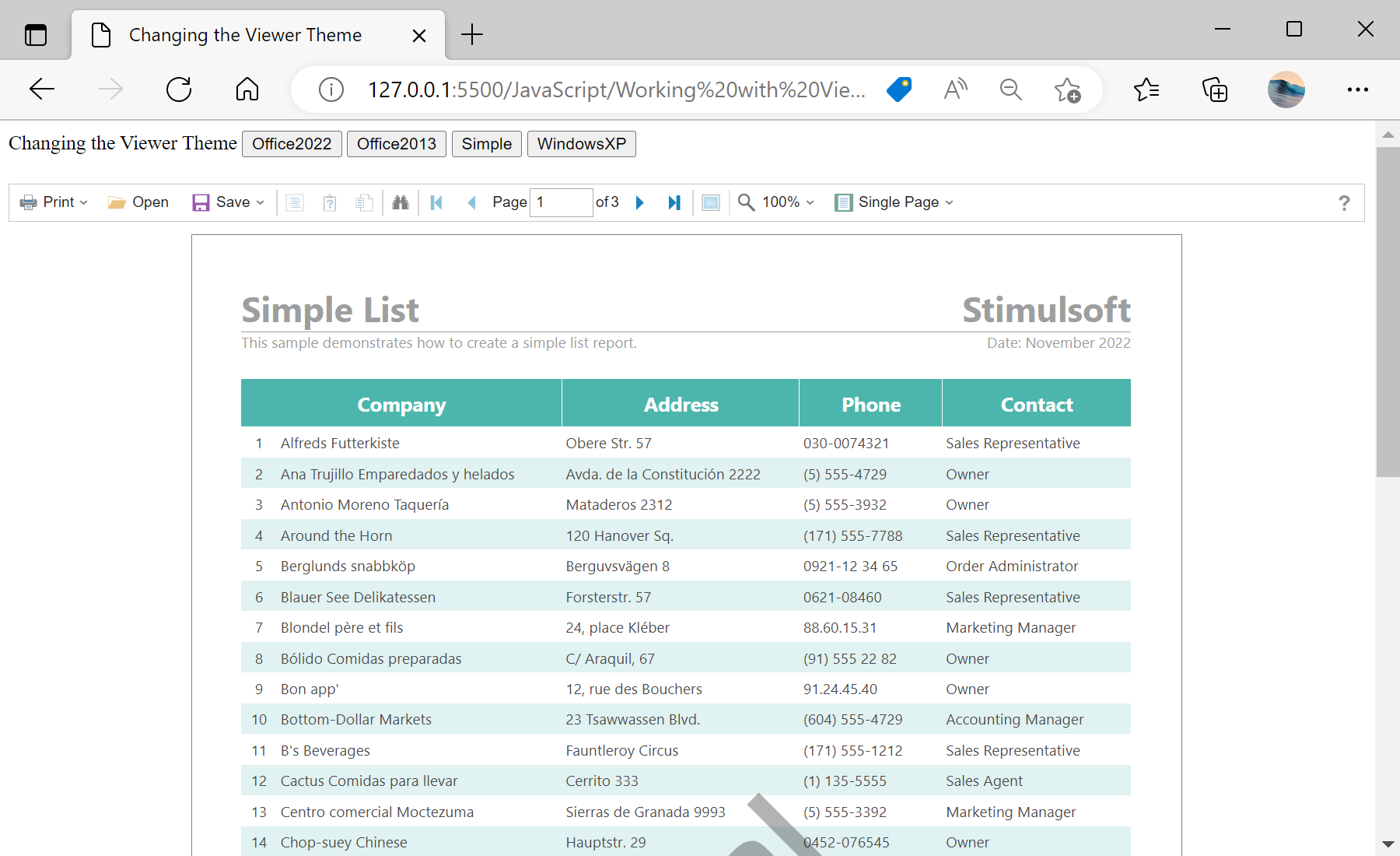
Auf dem Screenshot unten Sie können das Ergebnis des Beispiel-Codes ansehen:

setTheme method. All themes included in JS files. For example, apply the Office2013 White Green theme to the viewer instead Office2022 White Blue. First, connect all needable scripts:
<!-- Stimulsoft Reports.JS -->
<script src="/../scripts/stimulsoft.reports.js" type="text/javascript"></script>
<script src="/../scripts/stimulsoft.viewer.js" type="text/javascript"></script>
Then, create buttons for themes choosing:
Changing the Viewer Theme
<button onclick="setTheme(Stimulsoft.Viewer.StiViewerTheme.Office2022WhiteBlue)">Office2022</button>
<button onclick="setTheme(Stimulsoft.Viewer.StiViewerTheme.Office2013WhiteGreen)">Office2013</button>
<button onclick="setTheme(Stimulsoft.Viewer.StiViewerTheme.SimpleGray)">Simple</button>
<button onclick="setTheme(Stimulsoft.Viewer.StiViewerTheme.WindowsXP)">WindowsXP</button>
Finally, use
setTheme method to apply selected theme:
<script>
...
function setTheme(theme) {
viewer.setTheme(theme);
}
</script>
Auf dem Screenshot unten Sie können das Ergebnis des Beispiel-Codes ansehen: