













Using an Oracle Database
Unsere Beispiele der Projekte und Berichtsvorlagen helfen Ihnen, die Grundlagen der Arbeit mit unserer Software zu erlernen.This tutorial shows how to use the Oracle database connection in the Java reports. For example, let's use the following Oracle connection string:
We need to create the parameter for input and column for the function output. Change the query in the following way:
We need to create the parameter for input parameter and column for output. Change the query in the following way:
We need to create the parameter for input. For ref cursor we must use the
Click the 'Retrieve Columns' button and it will fill the columns according to the ref cursor result.
Auf dem Screenshot unten Sie können das Ergebnis des Beispiel-Codes ansehen:

url=jdbc:oracle:thin:@127.0.0.1:1521:orcl;user=sys as sysdba;password=oracle
Using the Oracle functions
For example we will use the function with one IN parameter:create or replace function doubling(param1 IN INTEGER) return INTEGER is
begin
return param1 * 2;
end;
We need to create the parameter for input and column for the function output. Change the query in the following way:
@Column1 = call doubling(@Parameter1)
Using the Oracle procedures
For example, we will use the procedure with one IN and one OUT parameter:create or replace procedure doublingProc
(
paramIn IN INTEGER,
paramOut OUT INTEGER
) is
BEGIN
paramOut := paramIn * 2;
END;
We need to create the parameter for input parameter and column for output. Change the query in the following way:
call doublingProc(@Parameter1, @Column1)
Ref Cursor
For example we will use the procedure with one IN and one OUT ref cursor parameter:create or replace procedure get_test2
(
p_col_value in varchar2,
res_cursor out sys_refcursor
) is
begin
open res_cursor for 'select * from test where column1 = :col_value' using p_col_value;
end;
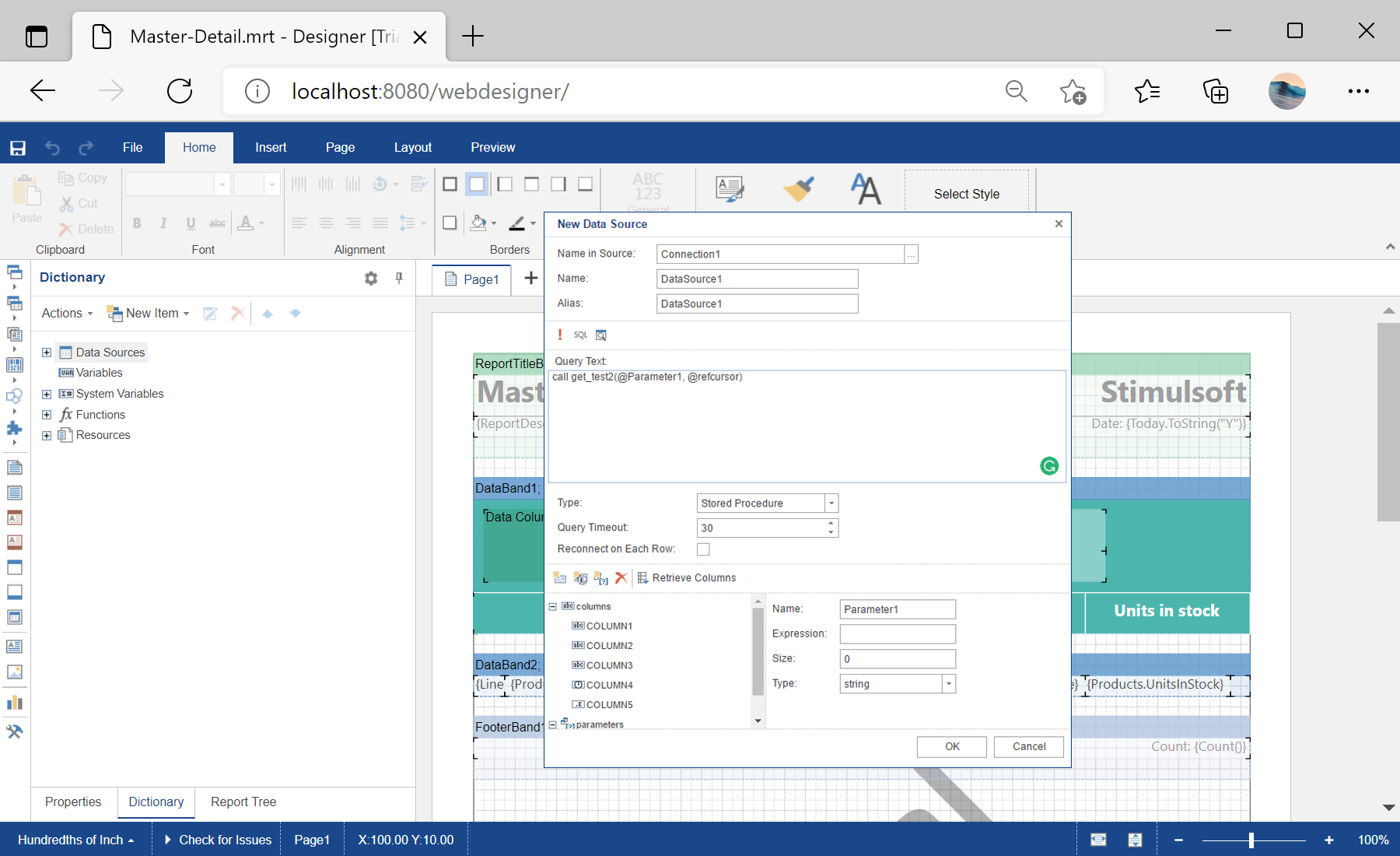
We need to create the parameter for input. For ref cursor we must use the
@refcursor parameter name. Change the query in the following way:
call get_test2(@Parameter1, @refcursor)

Click the 'Retrieve Columns' button and it will fill the columns according to the ref cursor result.
Auf dem Screenshot unten Sie können das Ergebnis des Beispiel-Codes ansehen: