


















Cloud
Cloud-Dienstleistung für schnelle und effektive Analyse und Visualisierung von Daten für Ihr Business ohne eigene Applikationen zu erstellen oder zu programmieren.
@page "/"
@using Stimulsoft.Base
@using Stimulsoft.Report
@using Stimulsoft.Report.Blazor
@using Stimulsoft.Report.Web

<!--Report Designer-->
<StiBlazorDesigner Report="@Report" Options="@Options" Theme="StiDesignerTheme.Office2022BlackCarmine" />

@code
{
    //Report object to use in Designer
    private StiReport Report;

    //Designer options object
    private StiBlazorDesignerOptions Options;

    protected override void OnInitialized()
    {
        base.OnInitialized();

        //How to activate
        //Stimulsoft.Base.StiLicense.Key = "6vJhGtLLLz2GNviWmUTrhSqnO...";
        //Stimulsoft.Base.StiLicense.LoadFromFile("stimulsoft.key");
        //Stimulsoft.Base.StiLicense.LoadFromStream(stream);

        //Init options object
        this.Options = new StiBlazorDesignerOptions();

        //Set some options
        this.Options.Toolbar.ShowPageButton = false;
        this.Options.Toolbar.ShowInsertButton = false;
        this.Options.Toolbar.ShowLayoutButton = false;
        this.Options.Appearance.ShowTooltips = false;
        this.Options.Appearance.ShowDialogsHelp = false;

        //Create empty report object
        this.Report = new StiReport();

        //Load report template
        this.Report.Load("Reports/TwoSimpleLists.mrt");
    }
}<StiBlazorDesigner> component mirrors the viewer: a StiBlazorDesignerOptions object controls which toolbar buttons and help features appear, and the Theme parameter sets the interface style.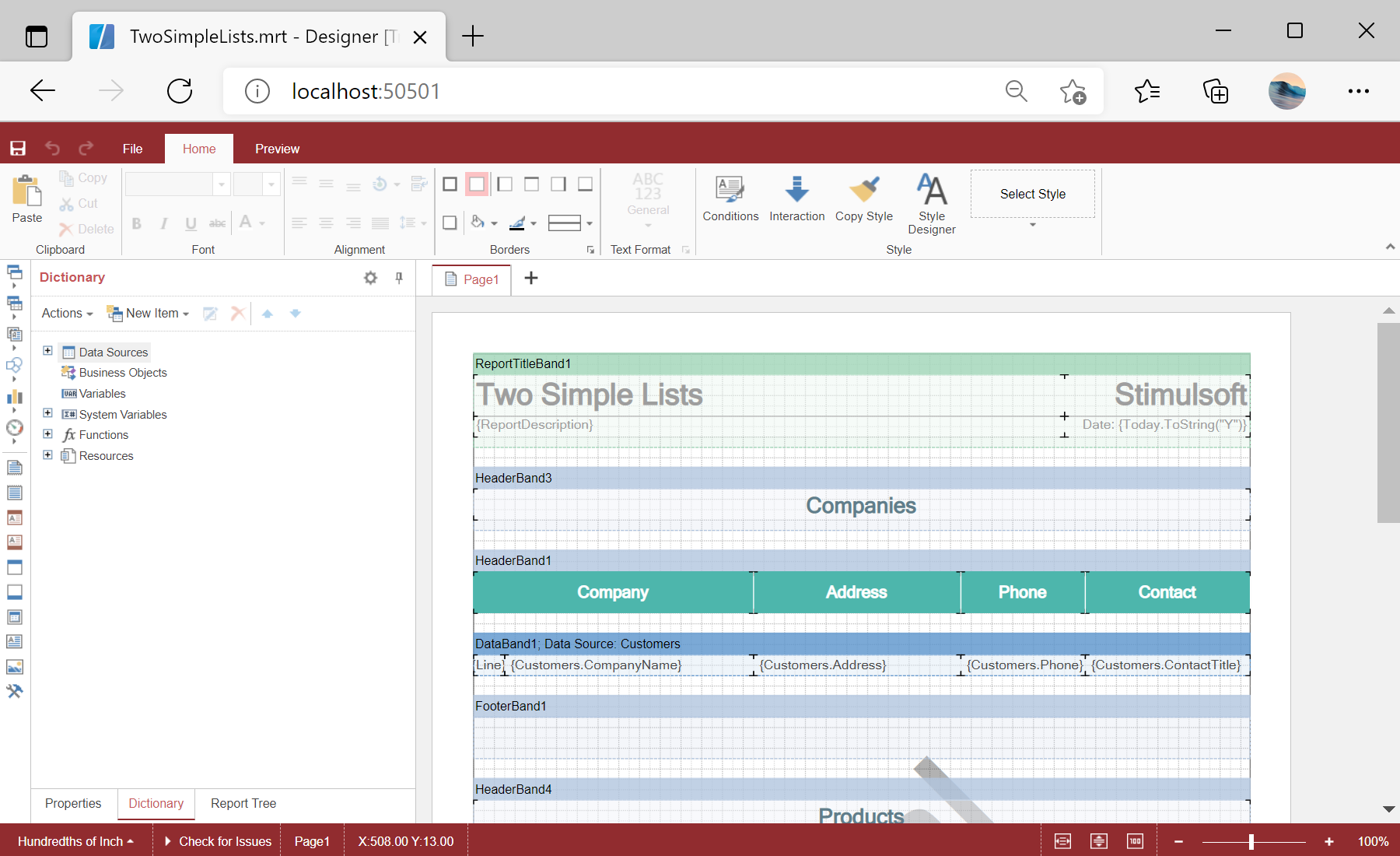
sti_CartProducts, sti_Consent, sti_Currency, sti_Localization, sti_RememberMe, sti_SessionKey, sti_UserKey, sti_WorkspaceKey
Bis zu 12 Monate
_GRECAPTCHA, rc::*
Bis zu 6 Monate
stimulsoft.clientIP, stimulsoft.countryCode, stimulsoft.countryName
Bis zum Schließen des Browsers
ZD-*
Ohne Ablauf
yt-player-*, ytidb::*, YtIdbMeta
Ohne Ablauf
_ga, _ga_56Z9RJS5EL
Bis zu 2 Jahre
_gcl_au, _gcl_ls
Bis zu 90 Tage
__adroll, __adroll_fpc, __adroll_shared, __ar_v4
Bis zu 13 Monate

