

















Cloud
Cloud-Dienstleistung für schnelle und effektive Analyse und Visualisierung von Daten für Ihr Business ohne eigene Applikationen zu erstellen oder zu programmieren.
<script src="/stimulsoft/stimulsoft.reports.js"></script>
<script src="/stimulsoft/stimulsoft.dashboards.js"></script>
<script src="/stimulsoft/stimulsoft.viewer.js"></script>
<script src="/stimulsoft/stimulsoft.designer.js"></script>
<script src="/stimulsoft/stimulsoft.blockly.js"></script><script>
export default {
name: 'app',
data () {
return {
}
},
mounted: function() {
console.log('Loading Designer view');
console.log('Set full screen mode for the designer');
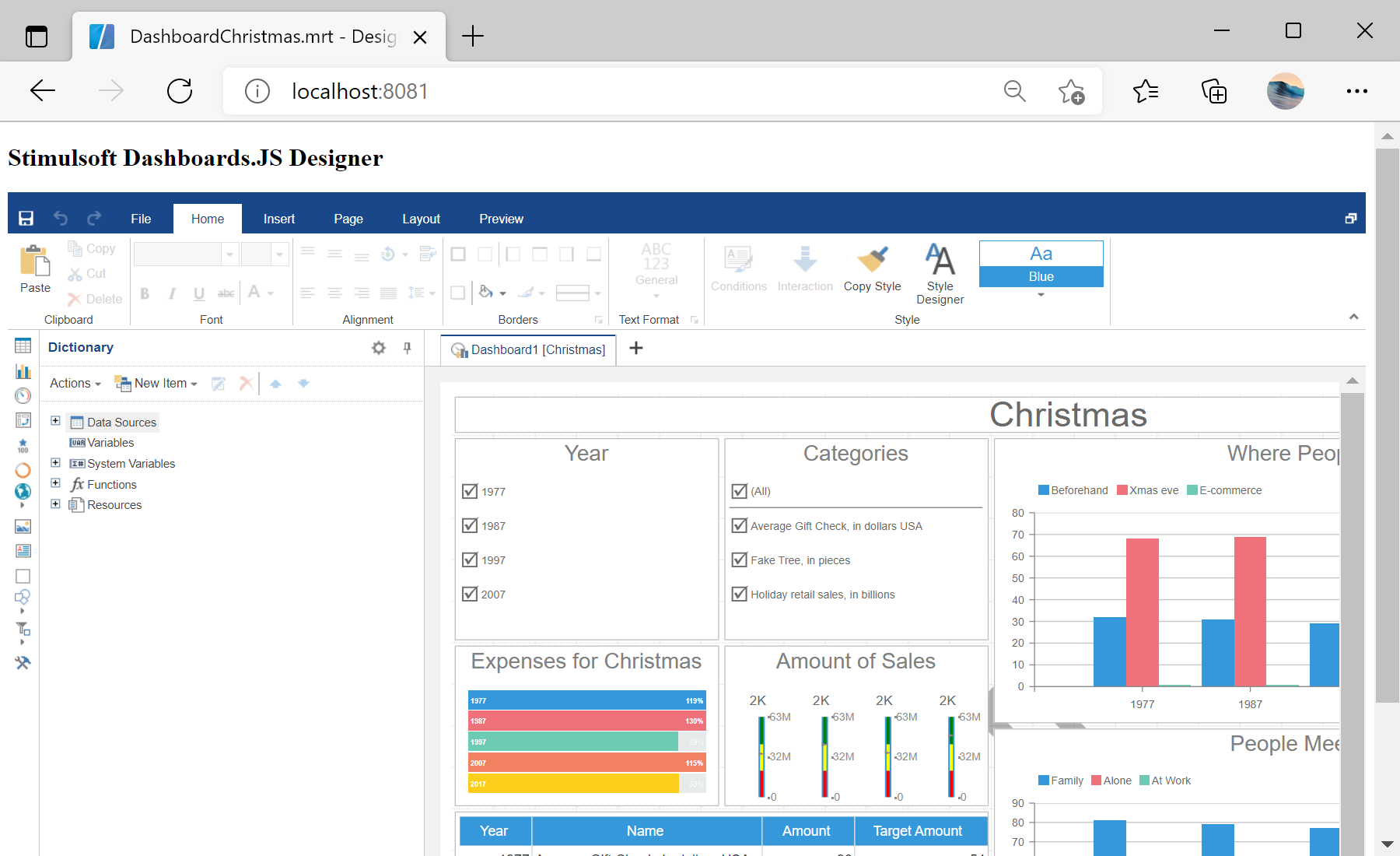
var options = new window.Stimulsoft.Designer.StiDesignerOptions();
options.appearance.fullScreenMode = false;
console.log('Create the dashboard designer with specified options');
var designer = new window.Stimulsoft.Designer.StiDesigner(options, 'StiDesigner', false);
console.log('Create a new dashboard instance');
var report = window.Stimulsoft.Report.StiReport.createNewDashboard();
console.log('Load dashboard from url');
report.loadFile('dashboard/DashboardChristmas.mrt');
console.log('Edit dashboard template in the designer');
designer.report = report;
console.log('Rendering the viewer to selected element');
designer.renderHtml('designer');
console.log('Loading completed successfully!');
}
}
</script>