

















Cloud
Cloud-Dienstleistung für schnelle und effektive Analyse und Visualisierung von Daten für Ihr Business ohne eigene Applikationen zu erstellen oder zu programmieren.
// Stimulsoft Dashboards module
var Stimulsoft = require('stimulsoft-dashboards-js');
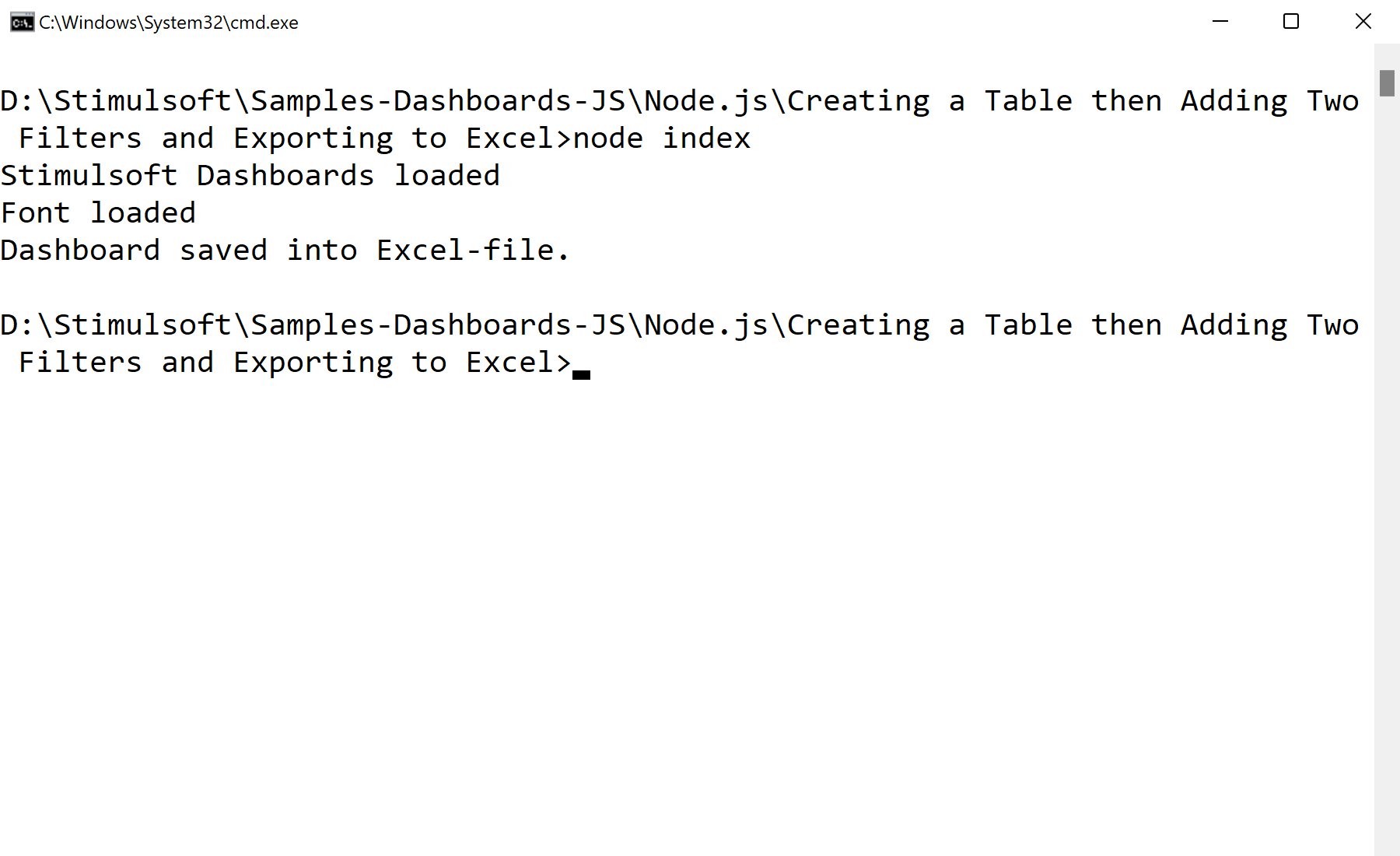
console.log("Stimulsoft Dashboards loaded");

// Creating new dashboard
var report = Stimulsoft.Report.StiReport.createNewDashboard();
var dashboard = report.pages.getByIndex(0);

// Load and add reg data
var dataSet = new Stimulsoft.System.Data.DataSet();
dataSet.readXmlFile("Demo.xml");

report.regData("Demo", "Demo", dataSet);
report.dictionary.synchronize();

// Create new table element
var tableElement = new Stimulsoft.Dashboard.Components.Table.StiTableElement();
tableElement.left = 100;
tableElement.top = 100;
tableElement.width = 500;
tableElement.height = 500;
tableElement.backColor = Stimulsoft.System.Drawing.Color.lightGray;
tableElement.name = "Example";
dashboard.components.add(tableElement);

// Add column to table
var productIDColumns = new Stimulsoft.Dashboard.Components.Table.StiDimensionColumn();
productIDColumns.expression = "Products.ProductID";
tableElement.columns.add(productIDColumns);

var productNameColumns = new Stimulsoft.Dashboard.Components.Table.StiDimensionColumn();
productNameColumns.expression = "Products.ProductName";
tableElement.columns.add(productNameColumns);

var unitPriceColumns = new Stimulsoft.Dashboard.Components.Table.StiDimensionColumn();
unitPriceColumns.expression = "Products.UnitPrice";
tableElement.columns.add(unitPriceColumns);

// Add filter to table
var productIDFilter = new Stimulsoft.Data.Engine.StiDataFilterRule();
productIDFilter.condition = Stimulsoft.Data.Engine.StiDataFilterCondition.BeginningWith;
productIDFilter.path = "Products.ProductID";
productIDFilter.value = "1";
tableElement.dataFilters.add(productIDFilter);

// Add filter to table
var unitPriceFilter = new Stimulsoft.Data.Engine.StiDataFilterRule();
unitPriceFilter.condition = Stimulsoft.Data.Engine.StiDataFilterCondition.EndingWith;
unitPriceFilter.path = "Products.UnitPrice";
unitPriceFilter.value = "1";
tableElement.dataFilters.add(unitPriceFilter);

// Export to Excel
report.exportDocumentAsync((data) => {
    // Converting Array into buffer
    var buffer = Buffer.from(data)

    // File System module
    var fs = require('fs');

    //Saving to a file
    fs.writeFileSync('./SampleDashboard.xlsx', buffer);
    console.log("Dashboard saved into Excel-file.");
}, Stimulsoft.Report.StiExportFormat.Excel2007);