

















Cloud
Cloud-Dienstleistung für schnelle und effektive Analyse und Visualisierung von Daten für Ihr Business ohne eigene Applikationen zu erstellen oder zu programmieren.
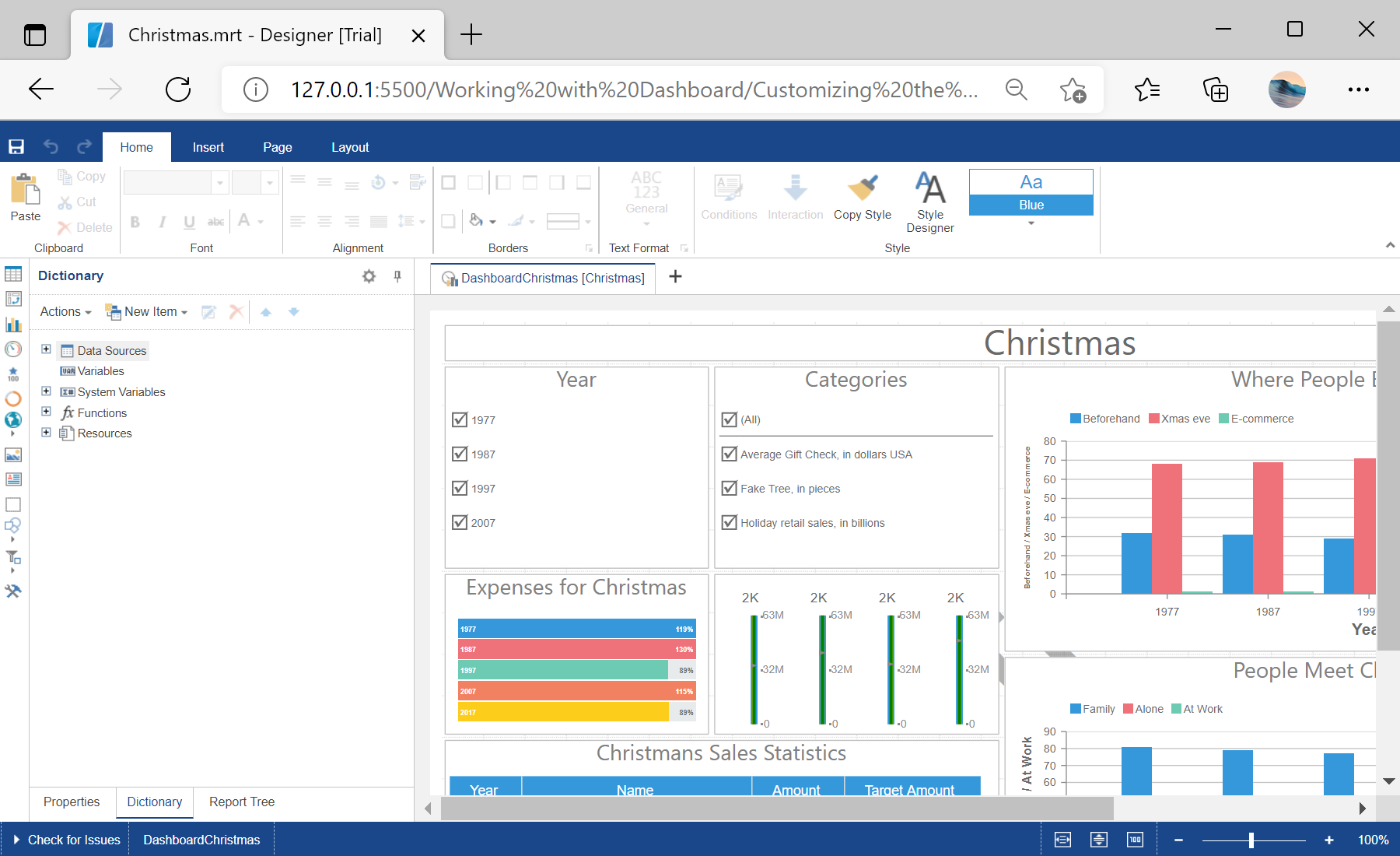
var options = new Stimulsoft.Designer.StiDesignerOptions();
options.appearance.fullScreenMode = true;
options.toolbar.showPreviewButton = false;
options.toolbar.showFileMenu = false;

var designer = new Stimulsoft.Designer.StiDesigner(options, "StiDesigner", false);
var report = Stimulsoft.Report.StiReport.createNewDashboard();
report.loadFile("../dashboard/Christmas.mrt");
designer.report = report;toolbar option group switches individual interface elements on and off, so you can present a simplified designer tailored to your users.