

















Cloud
Cloud-Dienstleistung für schnelle und effektive Analyse und Visualisierung von Daten für Ihr Business ohne eigene Applikationen zu erstellen oder zu programmieren.
var options = new Stimulsoft.Viewer.StiViewerOptions();
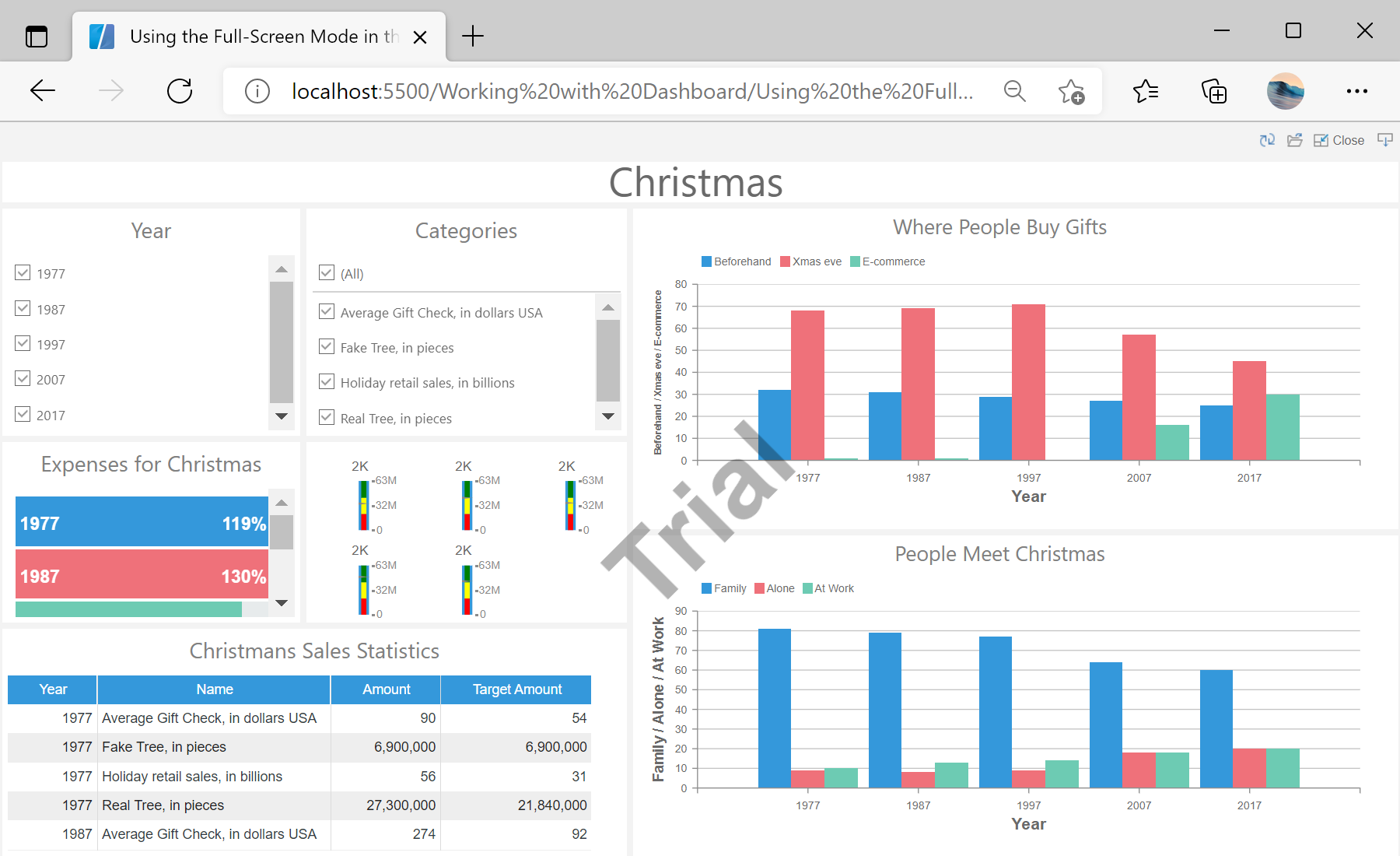
options.appearance.fullScreenMode = true;

var viewer = new Stimulsoft.Viewer.StiViewer(options, "StiViewer", false);
var report = Stimulsoft.Report.StiReport.createNewDashboard();
report.loadFile("../dashboard/Christmas.mrt");
viewer.report = report;
viewer.renderHtml();appearance.fullScreenMode = true the viewer occupies the entire window and behaves like a dedicated dashboard application.