




















Changing the Designer Theme
Our sample projects and report templates can help you learn the basics of working with our products.Embed the report designer in JavaScript, load a template, and connect its editing and save actions.
Designer setup. Configure the designer, load the report template, process its callbacks, and connect the save action to the application.
In the screenshot below you can see the result of the sample code:
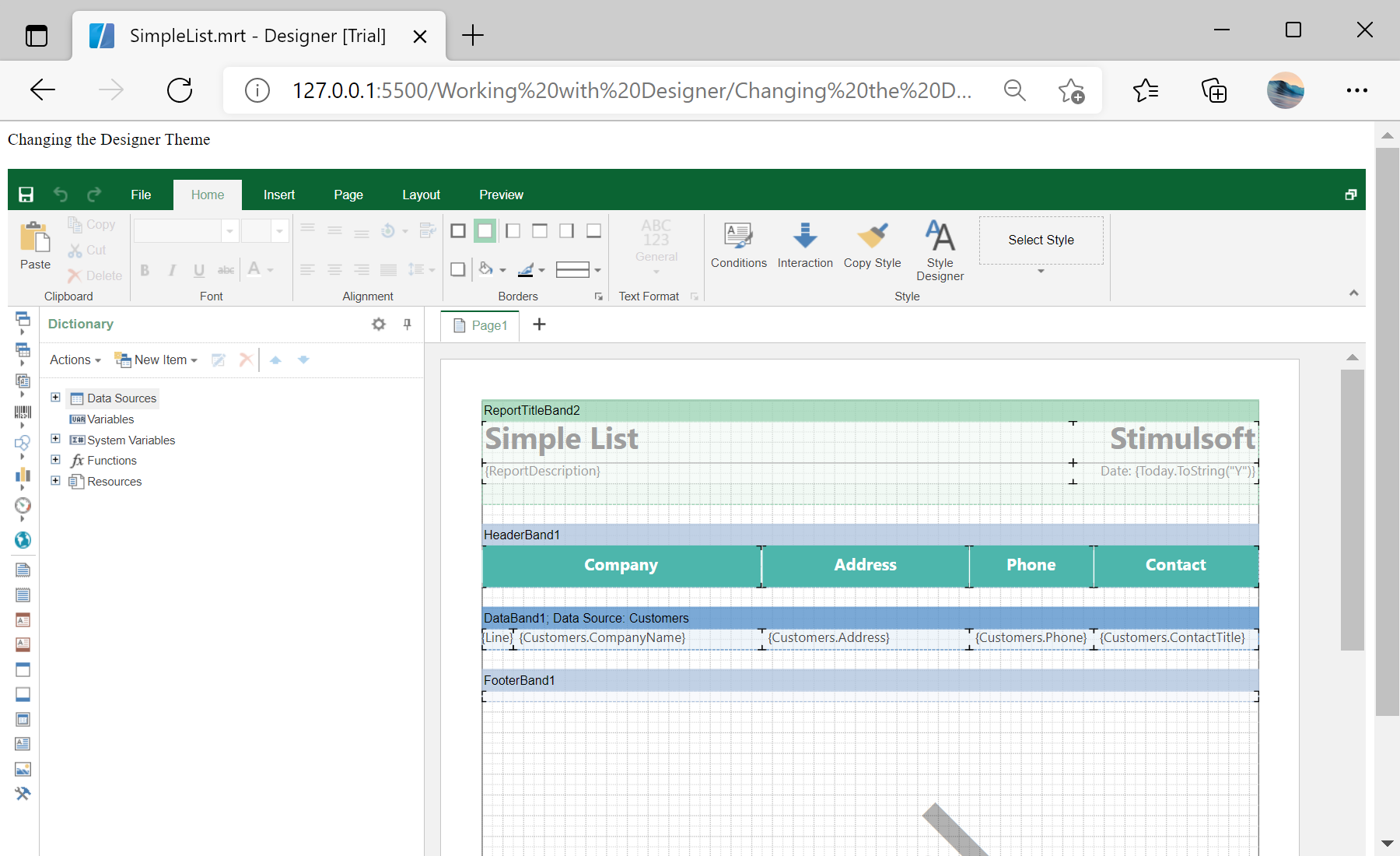
Designer setup. Configure the designer, load the report template, process its callbacks, and connect the save action to the application.
var options = new Stimulsoft.Designer.StiDesignerOptions();
options.appearance.theme = Stimulsoft.Designer.StiDesignerTheme.Office2022WhiteBlue;

var designer = new Stimulsoft.Designer.StiDesigner(options);

function setTheme(theme) {
    designer.setTheme(theme);
}options.appearance.theme from the StiDesignerTheme list, and designer.setTheme(...) changes it on the fly, so users can pick a light or dark appearance that matches your application.In the screenshot below you can see the result of the sample code: